
Skip to content
Plumrocket
  1. Magento 2 Extensions
  2. Magento 1 Extensions
  3. Services
    • Magento (Adobe Commerce)
      • Magento Speed Optimization
      • Hyvä Theme Development
        Top
      • Magento 1 to Magento 2 Migration
        Top
      • Magento Upgrade
        Top
      • Magento AMP Development
      • Magento Extension Installation
      • Hire Magento Developers
      • Magento Development
      • View All Magento Services
    • Shopify
      • Shopify Development
        Top
      • Magento to Shopify Migration
    • Salesforce
      • Salesforce Development
      • Magento Salesforce Integration
    • CMS
      • Wix Development
        New
      • Squarespace Development
        New
    • Ecommerce
      • Catalog Management
    • banner icon
      Looking for custom solutions for your business? We've got you covered.
      Start a project arrow right
  4. Resources
    • Blog Insights, trends, and best practices in eCommerce and web development.
    • FAQ Answers to common questions about our services and solutions.
    • Tutorials Step-by-step instructions to streamline your development process.
    • Documentation Detailed guides on our Magento extensions and integrations.
    • Customer Stories Real-world case studies showcasing our clients’ achievements.
  5. Special offers
  6. Contact Us
  • Contact Us

Home Magento 2 Extensions Magento 2 Social Login Pro Documentation Integrations Login with Telegram Configuration

    • Installation
    • Updating
    • Configuration
      • Facebook Login Magento Configuration
      • Twitter Login Magento Configuration
      • Google Login Magento Configuration
      • Google One Tap Sign In Magento Configuration
      • LinkedIn Login Magento Configuration
      • Yahoo! Login Magento Configuration
      • Live, Hotmail, MSN Login Magento Configuration
      • Amazon Login Magento Configuration
      • Aol Login Magento Configuration
      • GitHub Login Magento Configuration
      • Instagram Login Magento Configuration
      • Foursquare Login Magento Configuration
      • Dropbox Login Magento Configuration
      • Disqus Login Magento Configuration
      • Livejournal Login Magento Configuration
      • Tumblr Login Magento Configuration
      • Flickr Login Magento Configuration
      • WordPress Login Magento Configuration
      • PayPal Login Magento Configuration
      • Salesforce Login Magento Configuration
      • Evernote Login Magento Configuration
      • Stackoverflow Login Magento Configuration
      • Mixi Login Magento Configuration
      • QQ Login Magento Configuration
      • Sina Weibo Magento Configuration
      • Kaixin001 Login Magento Configuration
      • Renren Login Magento Configuration
      • Alipay Login Magento Configuration
      • WeChat Login Magento Configuration
      • Mydigipass Login Magento Configuration
      • SoundCloud Login Magento Configuration
      • Verisign Login Magento Configuration
      • XING Login Magento Configuration
      • PersonaBrowserID Login Magento Configuration
      • Bitbucket Login Magento Configuration
      • Skyrock Login Magento Configuration
      • Bitly Login Magento Configuration
      • Box.com Login Magento Configuration
      • Vimeo Login Magento Configuration
      • Reddit Login Magento Configuration
      • Upwork Login Magento Configuration
      • TeamViewer Login Magento Configuration
      • Etsy Login Magento Configuration
      • Imgur Login Magento Configuration
      • Intuit Login Magento Configuration
      • MailChimp Login Magento Configuration
      • Dribbble Login Magento Configuration
      • Goodreads Login Magento Configuration
      • Last.fm Login Magento Configuration
      • Naver Login Magento Configuration
      • Line Login Magento Configuration
      • Apple Login Magento Configuration
      • Steam Login Magento Configuration
      • Yahoo! Japan Login Magento Configuration
      • Telegram Login Magento Configuration
      • TikTok Login Magento Configuration
      • Spotify Login Magento Configuration
      • Slack Login Magento Configuration
      Integrations
    • How-To Guides
    • Troubleshooting
    • Developer Guide & API Reference
    • Translation
    • Uninstalling
    Magento 2 Social Login Pro - Documentation

How to Add Magento Telegram Login to Your Website

In this article, you will learn how to set up and configure Telegram API in order to integrate Telegram login into Magento 2 Social Login Pro plugin. Please follow the step-by-step instructions below to set up the integration correctly.

How to Set Up Telegram API for Magento

In order to get Telegram API keys, you need to create and manage a Telegram bot. First, go to the Telegram Web or app on your device, and log into your Telegram account.

Step-by-step guide:

  1. Search for a botfarther telegram bot and select it.
  2. Click Start to start this bot (or type /start).
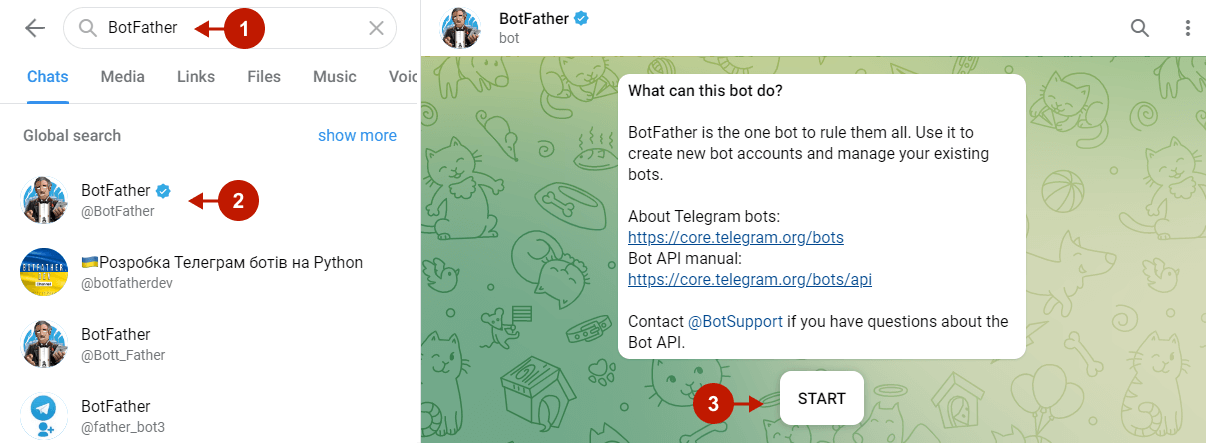
Magento 2 Telegram Login Integration - 1

Step-by-step guide:

  1. Type /newbot to create a new bot.
  2. Provide the name of your new bot, e.g. PlumrocketLogin.
  3. Follow the instructions and type a unique username for your bot, which must be ended with “bot”.
  4. The bot is now successfully created. and you will get a message containing a token to access the API. Copy this token to paste in later in the Magento 2 Telegram login configurations.
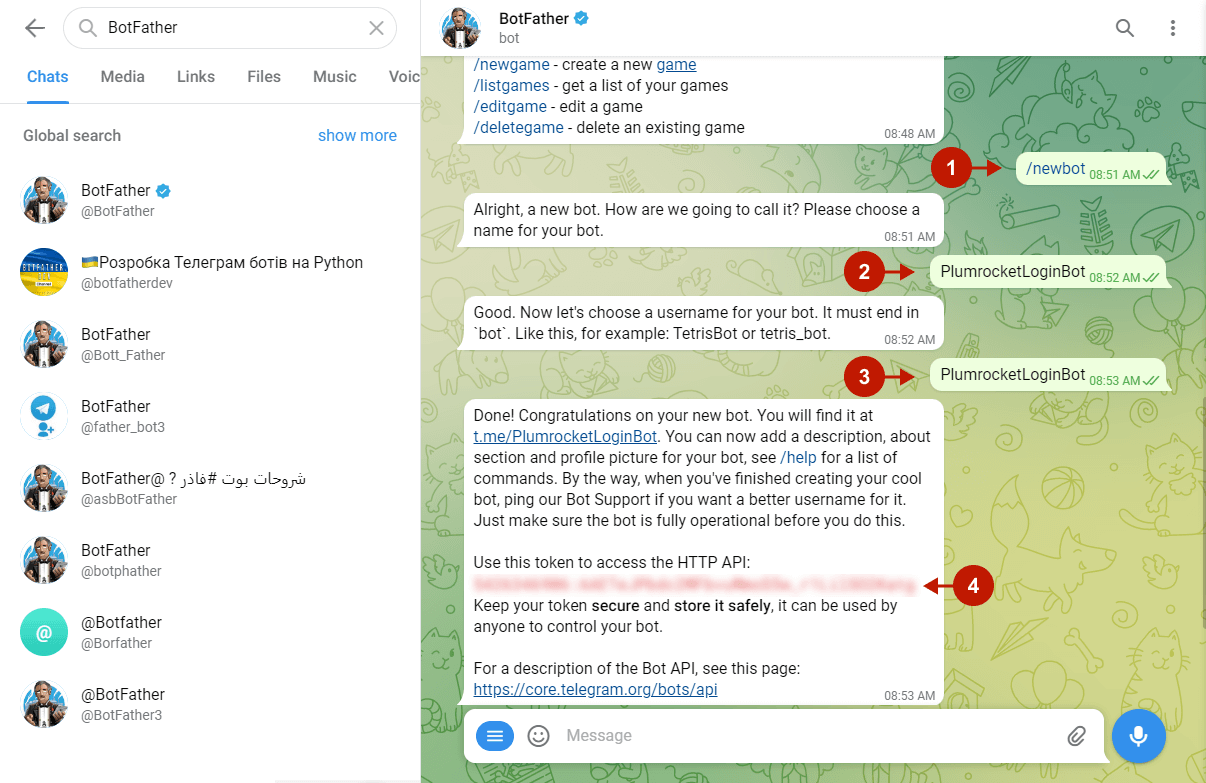
Magento 2 Telegram Login Integration - 2

Step-by-step guide:

  1. For security purposes, Telegram also requires the bot to be linked to the site domain. You can do this by typing /setdomain.
  2. To complete the domain setup, send a link to your website where the Telegram login will be implemented.
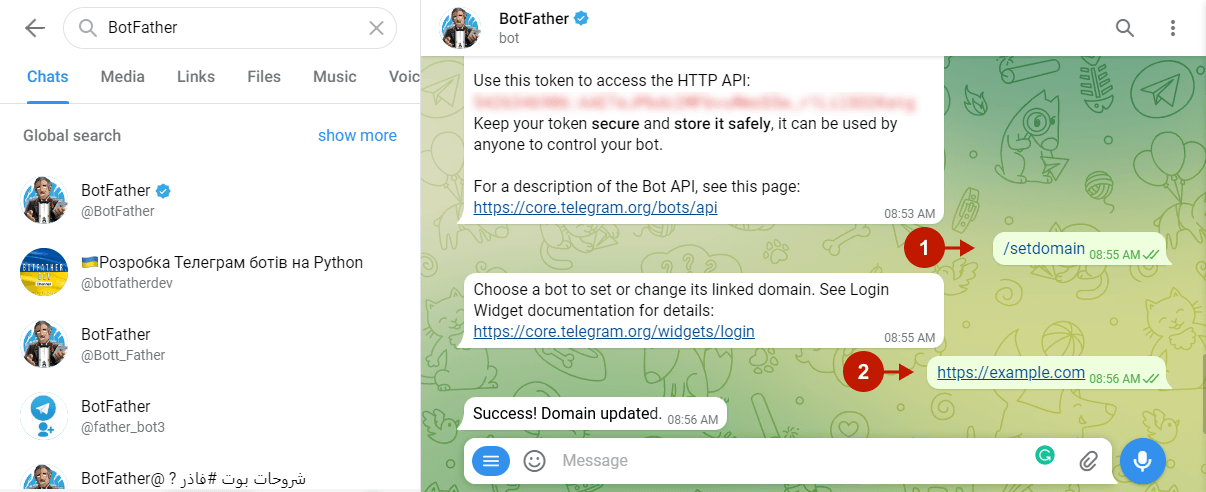
Magento 2 Telegram Login Integration -  3

The Telegram Login API is successfully set up. Next, set it up in the Magento configuration page.

Configuring Twitter Integration in Magento 2 Social Login Pro Extension

At this point, you should paste the created API keys into your Magento 2 Social Login Pro Extension configuration. In the main Magento menu, go to Plumrocket -> Social Login Pro -> Configuration -> Telegram, and perform the following steps:

Step-by-step guide:

  1. Set the Enable option to Yes to enable Telegram Login on your Magento 2 website.
  2. Paste the Bot Token you got when setting up a Telegram bot.
  3. Skip this step to have the extension use the default icons for the Telegram login buttons, or select the files to use your own.
  4. Specify the text to be displayed on the Telegram login buttons.
  5. Click Save Config to save the configurations.
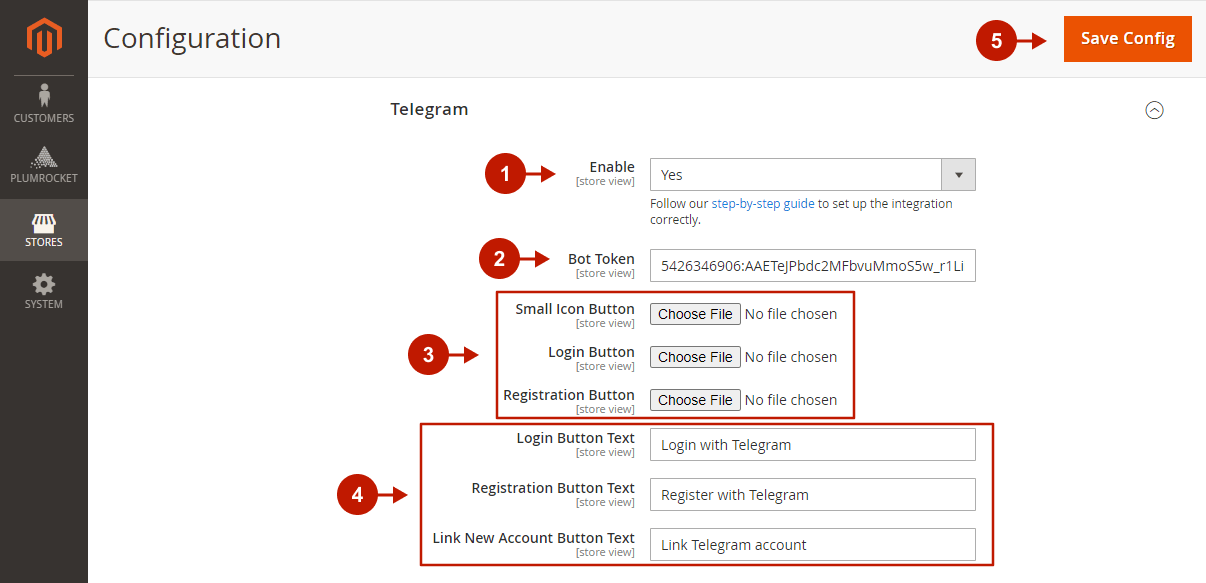
Configuring Magento 2 Telegram Login Integration
Was this article helpful?
08/01/202208/02/2022
Generic selectors
Exact matches only
Search in title
Search in content
Post Type Selectors
Contents
Trustpilot
Clutch
Adobe Certified Professional
Adobe Marketplace
Company
  • Home
  • About Plumrocket Inc.
  • Customer Stories
  • Programs & Promotions
  • Careers
  • Contact Us
Legal
  • Terms of Service
  • Privacy Policy
  • Refund Policy
  • Cookie Policy
  • Support Policy
  • Privacy Center
Resources
  • Blog
  • FAQ
  • Documentation
  • Tutorials
Partners
  • Partner Program
  • Affiliate Program
  • Official Partners
Plumrocket Inc. © 2008 - 2026