Skip to content
Logo
  • Support
  • My account
  • My cart
  • Magento 2 Extensions
  • Magento 1 Extensions
  • Magento Services
  • Packages
  • Special Offers
  • Blog
  • Contact Us

Home Magento 2 Extensions Magento 2 Social Login Pro Documentation Integrations How to Add Magento Slack Login to Your Website

    • Installation
    • Updating
    • Configuration
      • Facebook Login Magento Configuration
      • Twitter Login Magento Configuration
      • Google Login Magento Configuration
      • Google One Tap Sign In Magento Configuration
      • LinkedIn Login Magento Configuration
      • Yahoo! Login Magento Configuration
      • Live, Hotmail, MSN Login Magento Configuration
      • Amazon Login Magento Configuration
      • Aol Login Magento Configuration
      • GitHub Login Magento Configuration
      • Instagram Login Magento Configuration
      • Foursquare Login Magento Configuration
      • Dropbox Login Magento Configuration
      • Disqus Login Magento Configuration
      • Livejournal Login Magento Configuration
      • Tumblr Login Magento Configuration
      • Flickr Login Magento Configuration
      • WordPress Login Magento Configuration
      • PayPal Login Magento Configuration
      • Salesforce Login Magento Configuration
      • Evernote Login Magento Configuration
      • Stackoverflow Login Magento Configuration
      • Mixi Login Magento Configuration
      • QQ Login Magento Configuration
      • Sina Weibo Magento Configuration
      • Kaixin001 Login Magento Configuration
      • Renren Login Magento Configuration
      • Alipay Login Magento Configuration
      • WeChat Login Magento Configuration
      • Mydigipass Login Magento Configuration
      • SoundCloud Login Magento Configuration
      • Verisign Login Magento Configuration
      • XING Login Magento Configuration
      • PersonaBrowserID Login Magento Configuration
      • Bitbucket Login Magento Configuration
      • Skyrock Login Magento Configuration
      • Bitly Login Magento Configuration
      • Box.com Login Magento Configuration
      • Vimeo Login Magento Configuration
      • Reddit Login Magento Configuration
      • Upwork Login Magento Configuration
      • TeamViewer Login Magento Configuration
      • Etsy Login Magento Configuration
      • Imgur Login Magento Configuration
      • Intuit Login Magento Configuration
      • MailChimp Login Magento Configuration
      • Dribbble Login Magento Configuration
      • Goodreads Login Magento Configuration
      • Last.fm Login Magento Configuration
      • Naver Login Magento Configuration
      • Line Login Magento Configuration
      • Apple Login Magento Configuration
      • Steam Login Magento Configuration
      • Yahoo! Japan Login Magento Configuration
      • Telegram Login Magento Configuration
      • TikTok Login Magento Configuration
      • Spotify Login Magento Configuration
      • Slack Login Magento Configuration
      Integrations
    • How-To Guides
    • Troubleshooting
    • Developer Guide & API Reference
    • Translation
    • Uninstalling
    Magento 2 Social Login Pro - Documentation

How to Add Magento Slack Login to Your Website

In this article, you will learn how to set up and configure the Slack API to integrate Slack login into the Magento 2 Social Login Pro plugin. Please follow the step-by-step instructions below to set up the integration correctly.

How to Set Up Slack API for Magento 2

In order to get Slack API credentials, you need to create a developer application. First, go to https://api.slack.com/apps and sign in or register a Slack account.

Step-by-step guide:

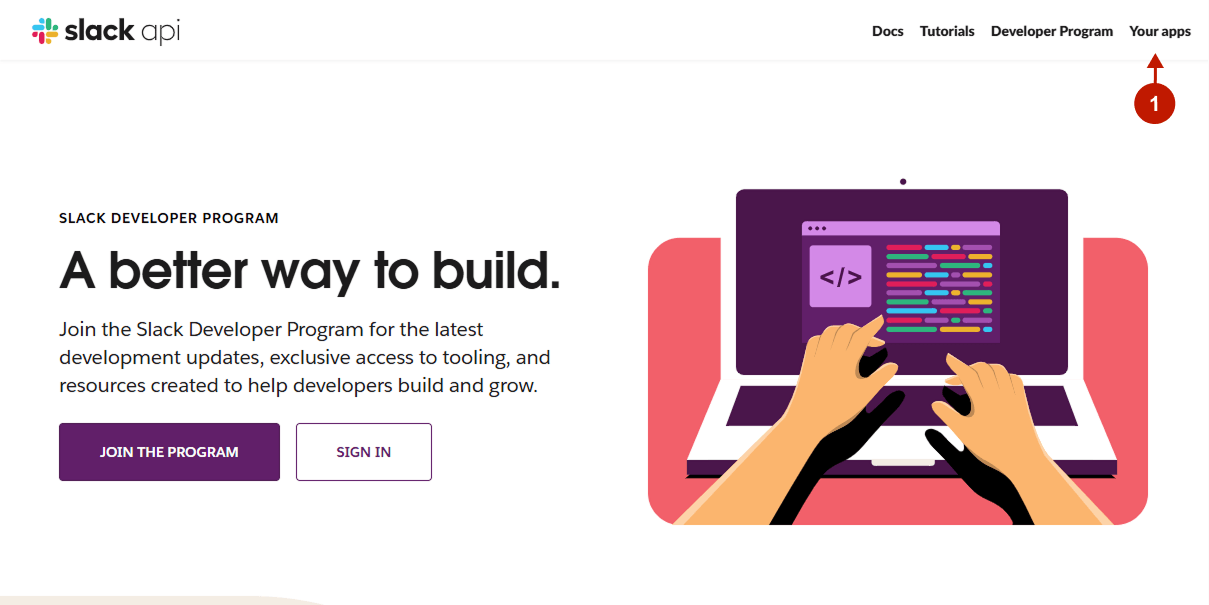
  1. In the top right corner, click Your Apps.
Add Magento Slack Login
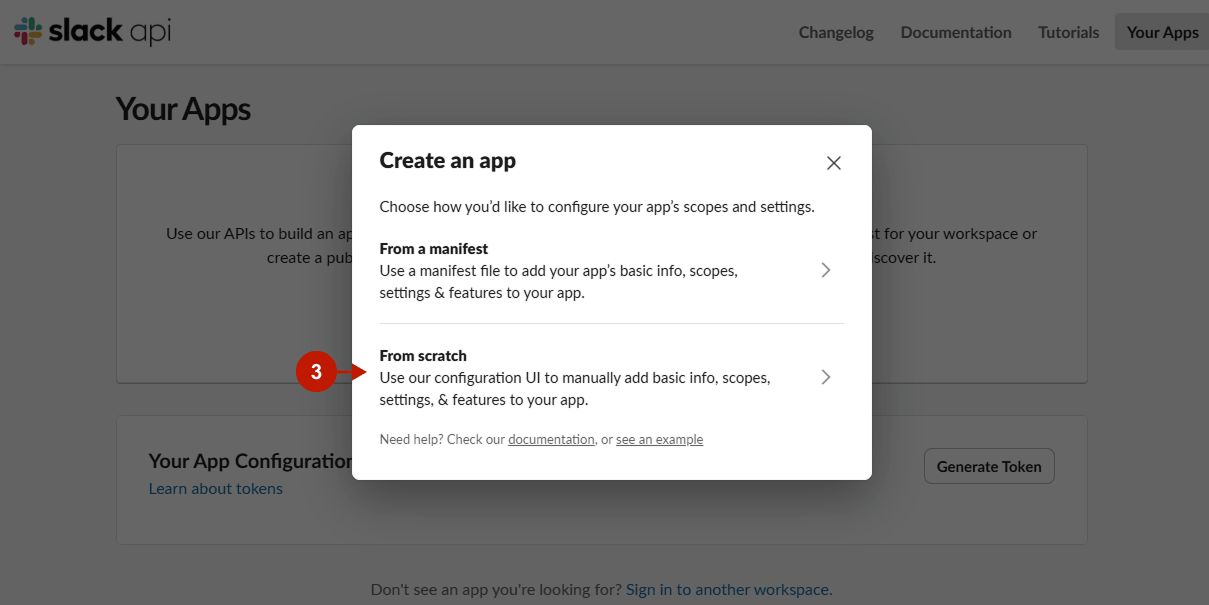
  1. On the Your Apps page, click Create New App.
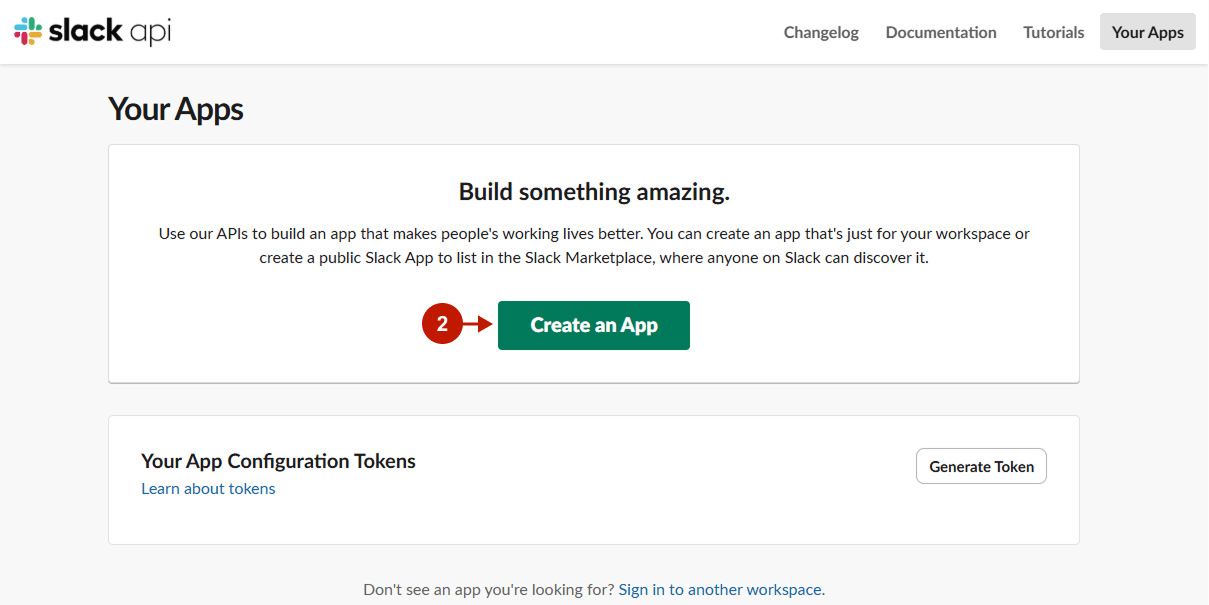
Add Magento Slack Login
  1. In the popup, select From scratch.
Add Magento Slack Login
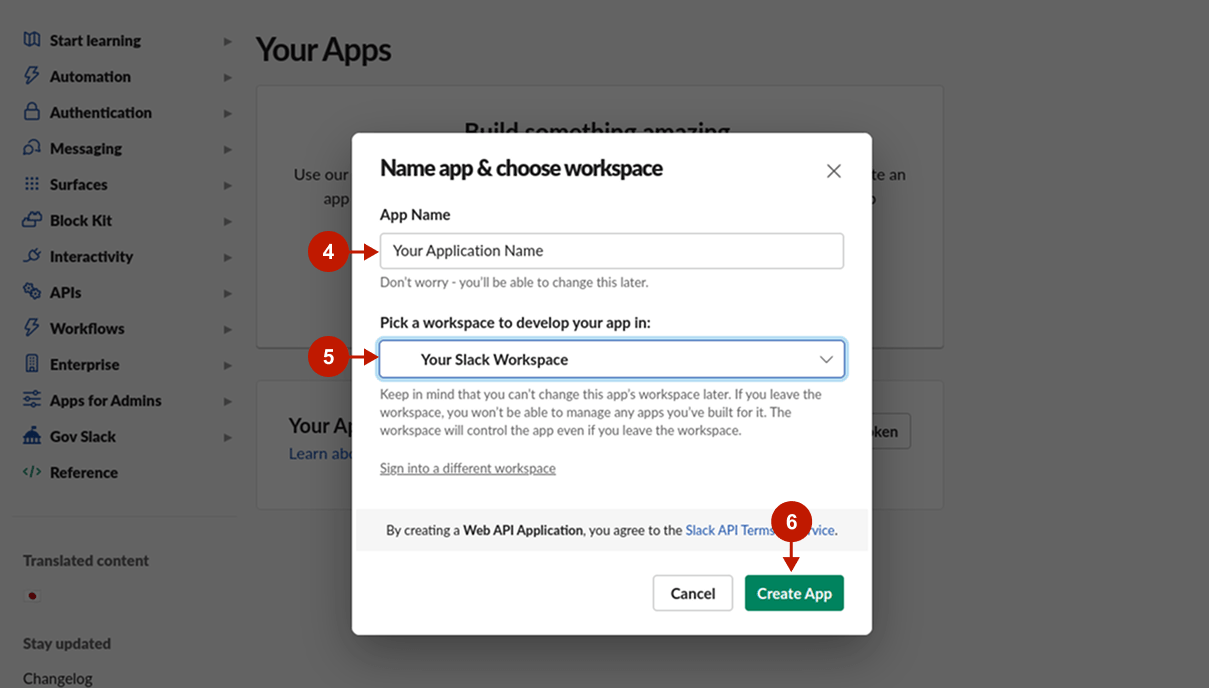
  1. Name your app.
  2. Pick the workspace it will be developed in.
  3. Click Create App.
Add Magento Slack Login
  1. You will be redirected to the Basic Information page. Scroll down to App Credentials and copy the following values:
    • Client ID: this is your Client ID to be pasted in the Slack integration settings in the Magento 2 admin panel.
    • Client Secret: this is your Client Secret to be pasted in the Slack integration settings in the Magento 2 admin panel.
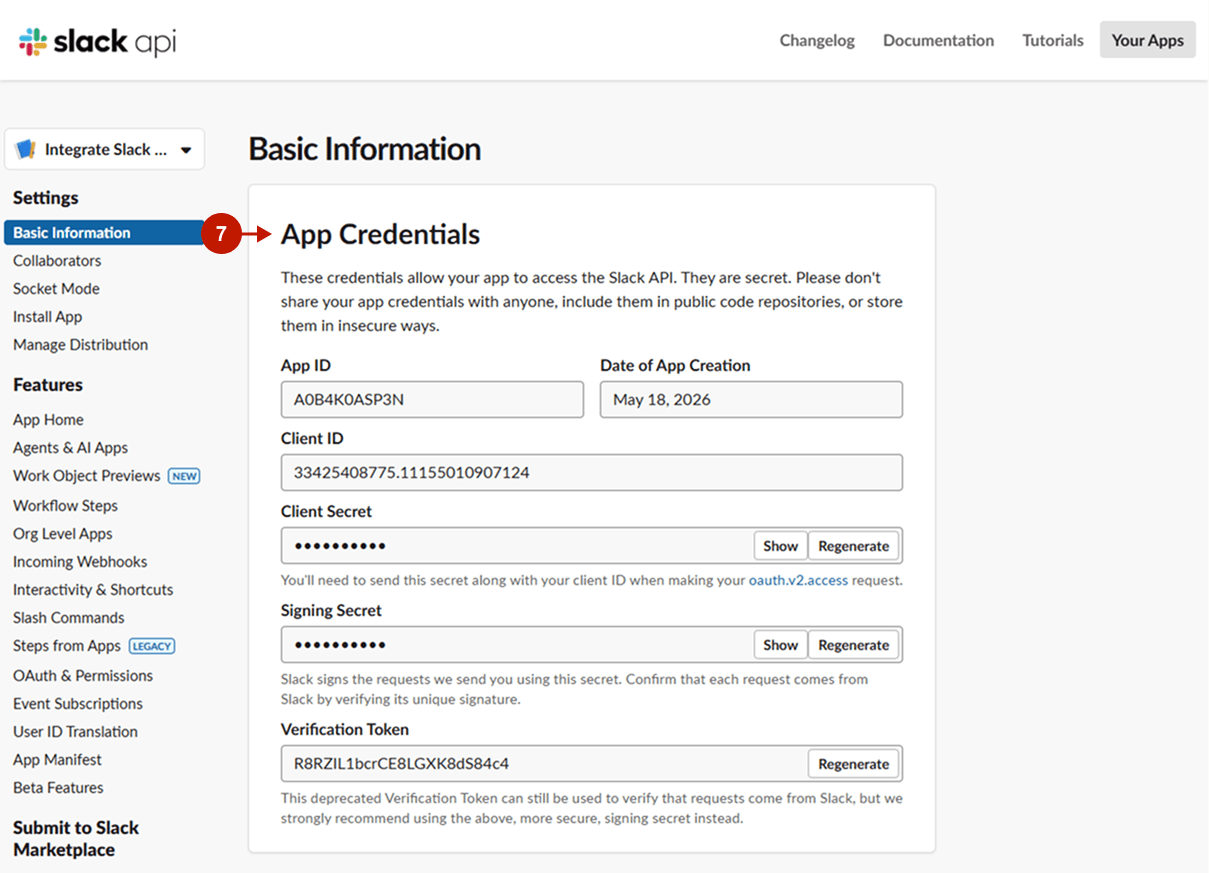
Add Magento Slack Login
  1. Then, in the same Basic Information tab, scroll down to Display Information and fill in app details (name, short description, background color, and app icon).
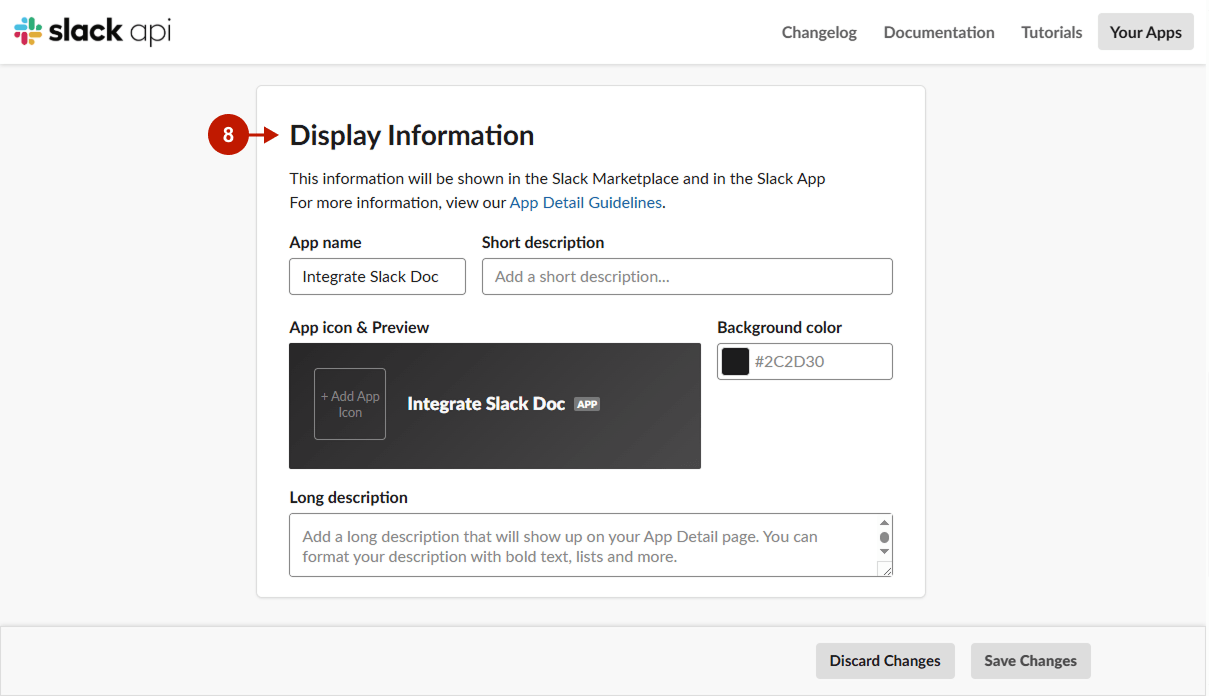
Add Magento Slack Login
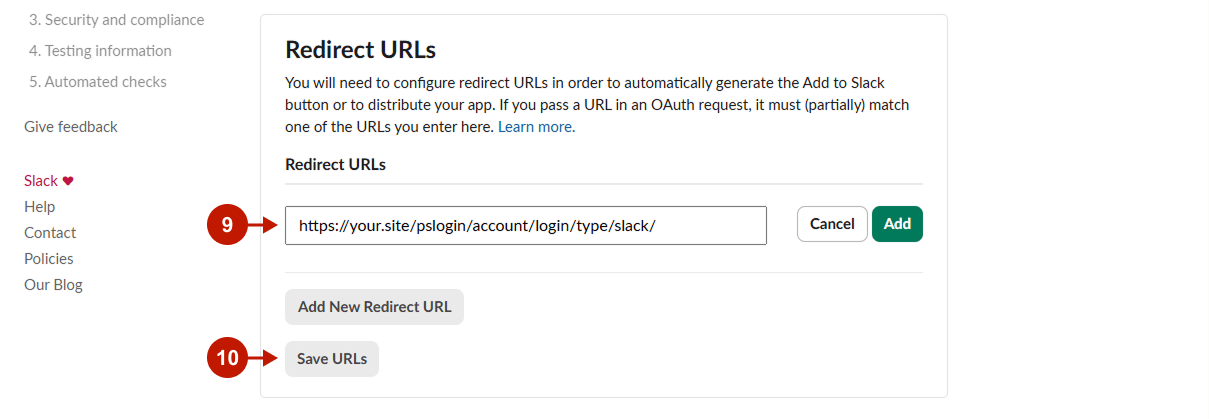
  1. Open OAuth & Permissions in the left sidebar. Under Redirect URLs, add your Magento callback URL. This URL can be found in the Callback URL field in your Admin Panel → Plumrocket → Social Login Pro → Configurations → Slack.
  2. Click Save URLs.
Add Magento Slack Login

Configuring Slack Integration in Magento 2 Social Login Pro Extension

At this point, you should paste the created API keys into your Magento 2 Social Login Pro Extension configuration. In the main Magento menu, go to Plumrocket → Social Login Pro → Configuration → Slack, and perform the following steps:

Step-by-step guide:

  1. Set the Enable option to Yes to enable Slack Login on your Magento 2 website.
  2. Paste the Client ID and Client Secret you got when setting up the Slack application.
  3. This Redirect URI is to be pasted during the Slack application configurations (under OAuth & Permissions → Redirect URLs).
  4. Skip this step to have the extension use the default icons for the Slack login buttons, or select the files to use your own.
  5. Specify the text to be displayed on the Slack login buttons.
  6. Click Save Config to save the configurations.
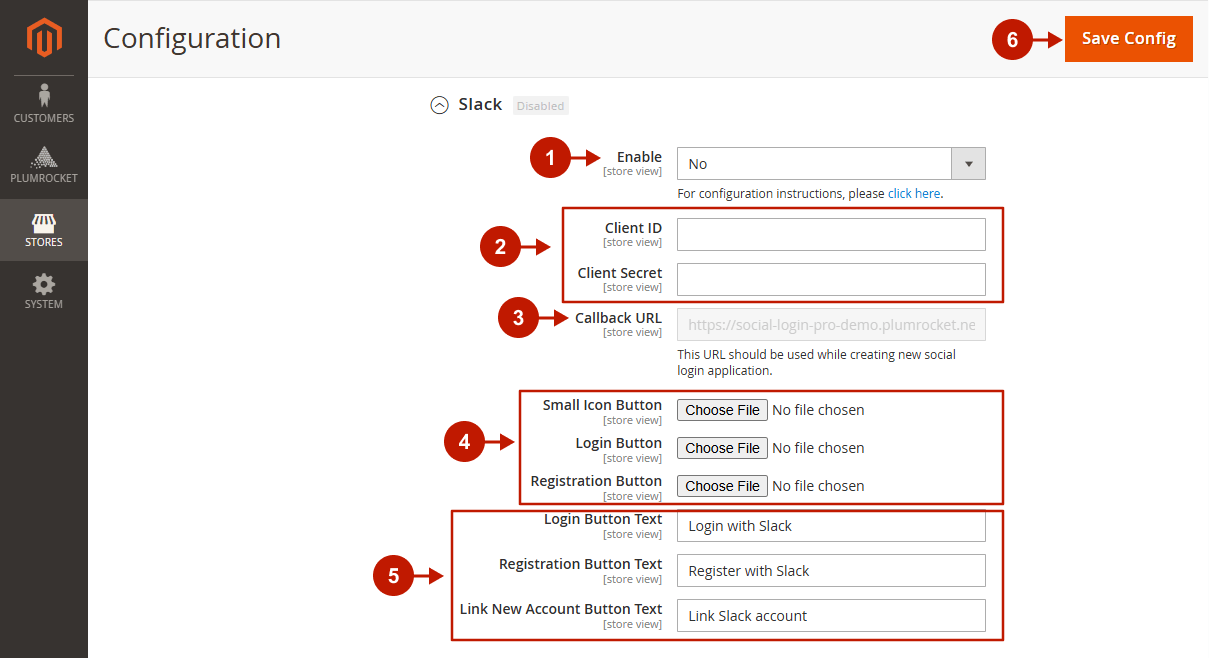
Add Magento Slack Login

Was this article helpful?
05/18/202605/18/2026
Search
Search
Generic selectors
Exact matches only
Search in title
Search in content
Contents
Company
  • Home
  • About Plumrocket Inc.
  • Customer Stories
  • Programs & Promotions
  • Careers
  • Contact Us
Legal
  • Terms of Service
  • Privacy Policy
  • Refund Policy
  • Cookie Policy
  • Privacy Center
  • Updates & Support Policy
Resources
  • Blog
  • FAQ
  • Documentation
  • Tutorials
Partners
  • Partner Program
  • Affiliate Program
  • Official Partners
Plumrocket Inc. © 2008 - 2026
Follow Us:
  • Facebook
  • Twitter
  • LinkedIn
  • YouTube