
In this article, you will learn how to set up and configure the Slack API to integrate Slack login into the Magento 2 Social Login Pro plugin. Please follow the step-by-step instructions below to set up the integration correctly.
How to Set Up Slack API for Magento 2
In order to get Slack API credentials, you need to create a developer application. First, go to https://api.slack.com/apps and sign in or register a Slack account.
Step-by-step guide:
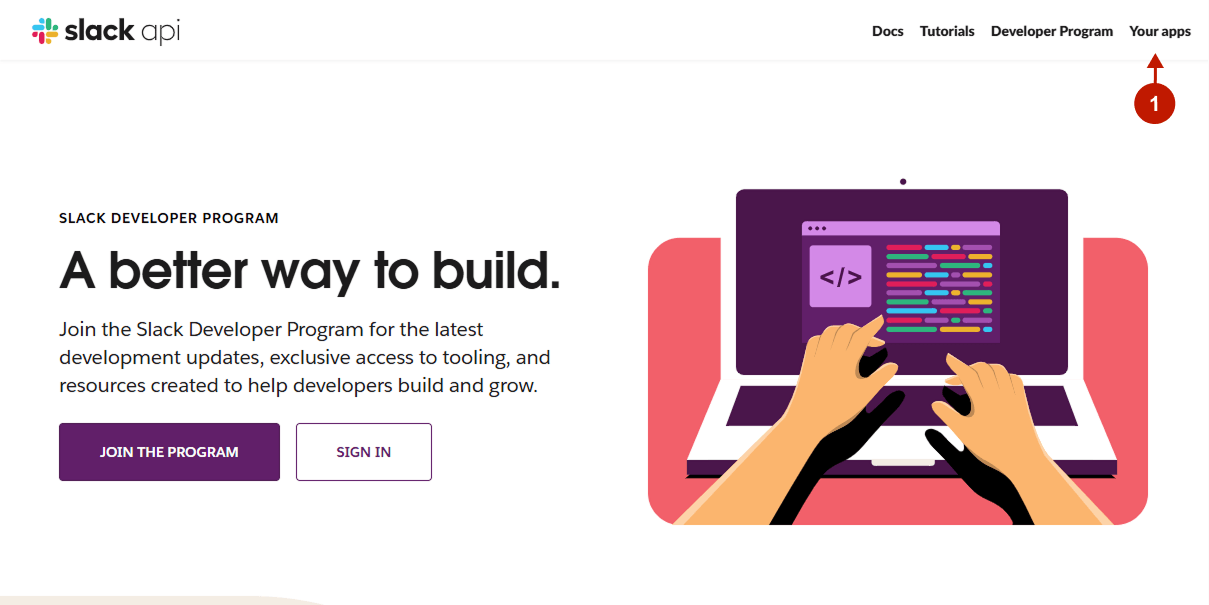
- In the top right corner, click Your Apps.
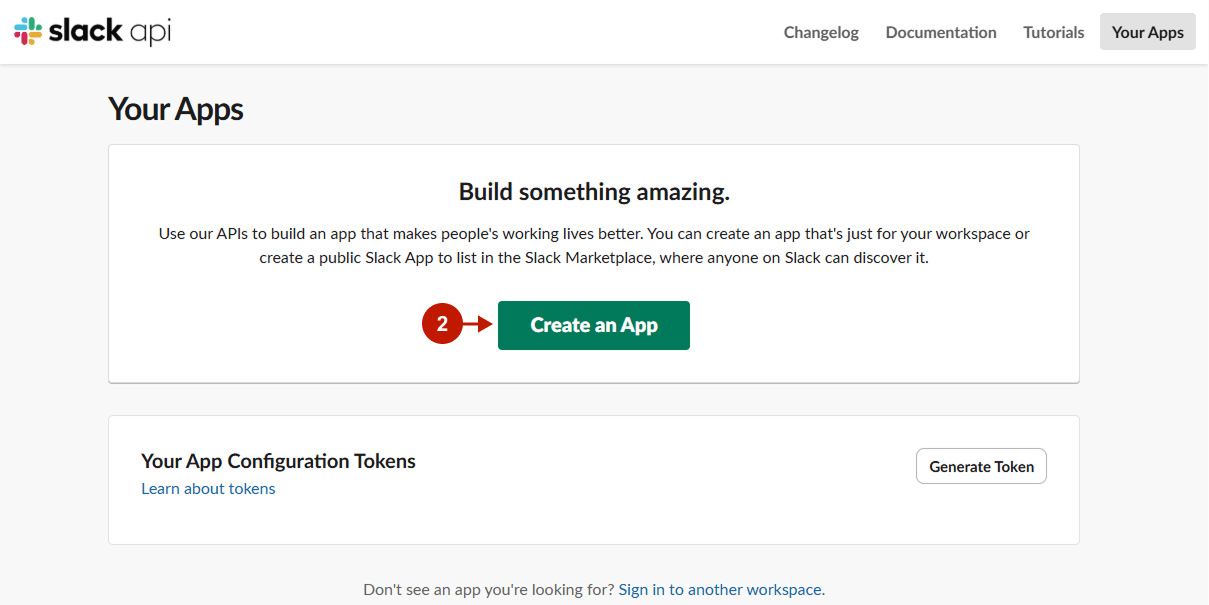
- On the Your Apps page, click Create New App.
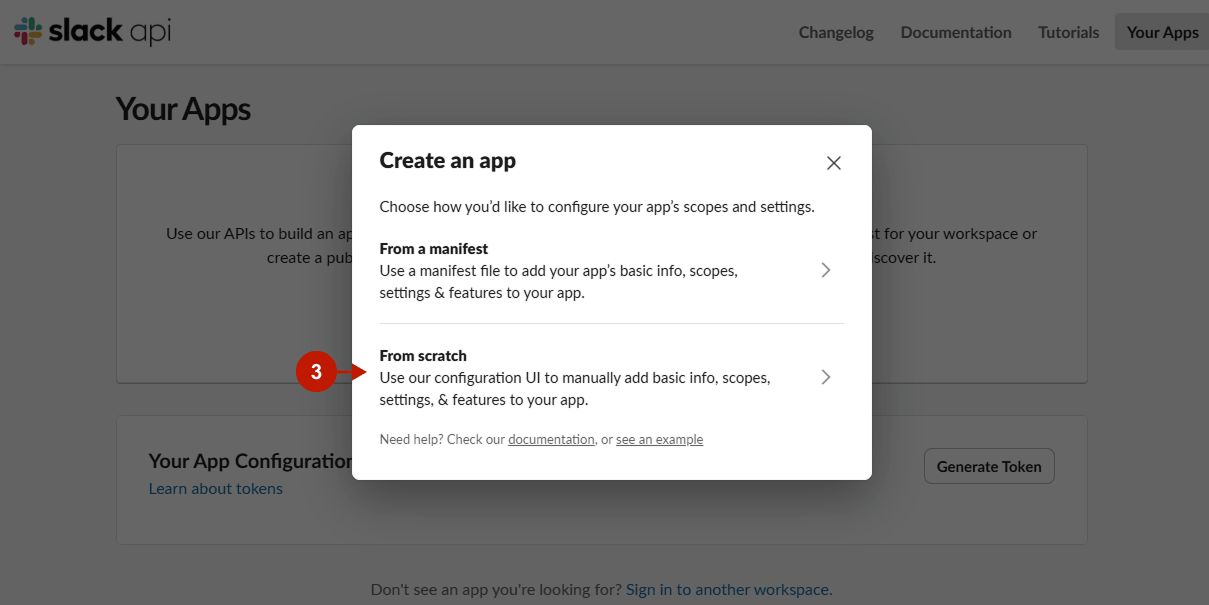
- In the popup, select From scratch.
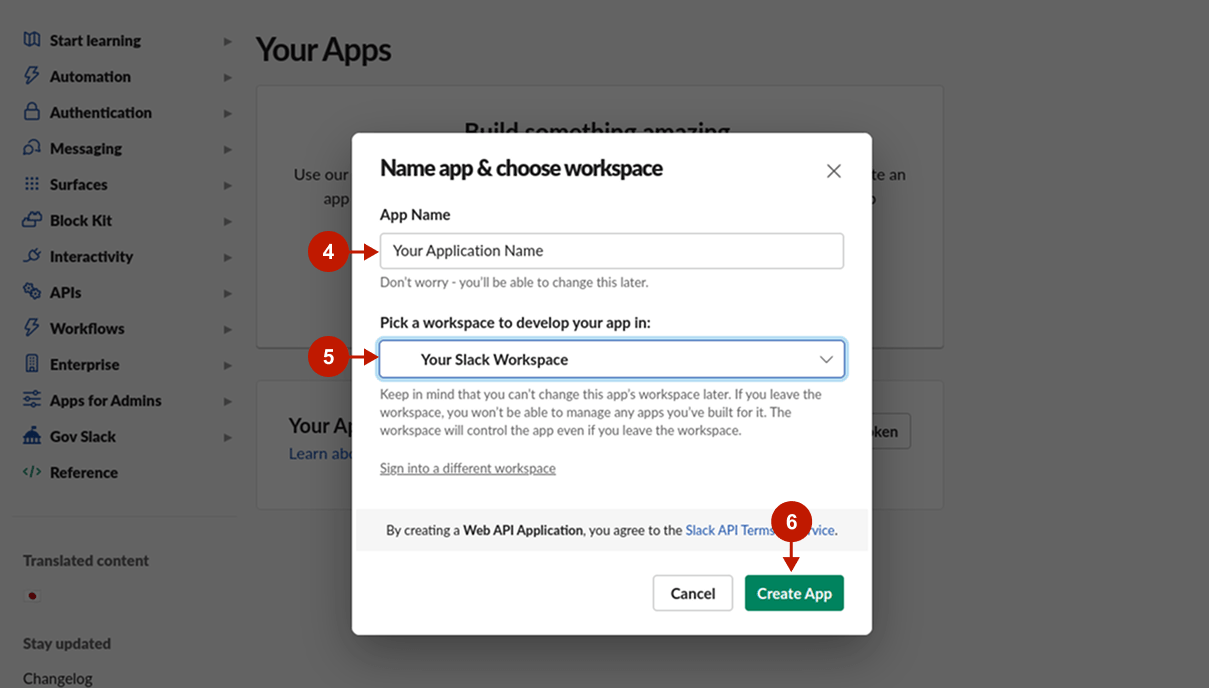
- Name your app.
- Pick the workspace it will be developed in.
- Click Create App.
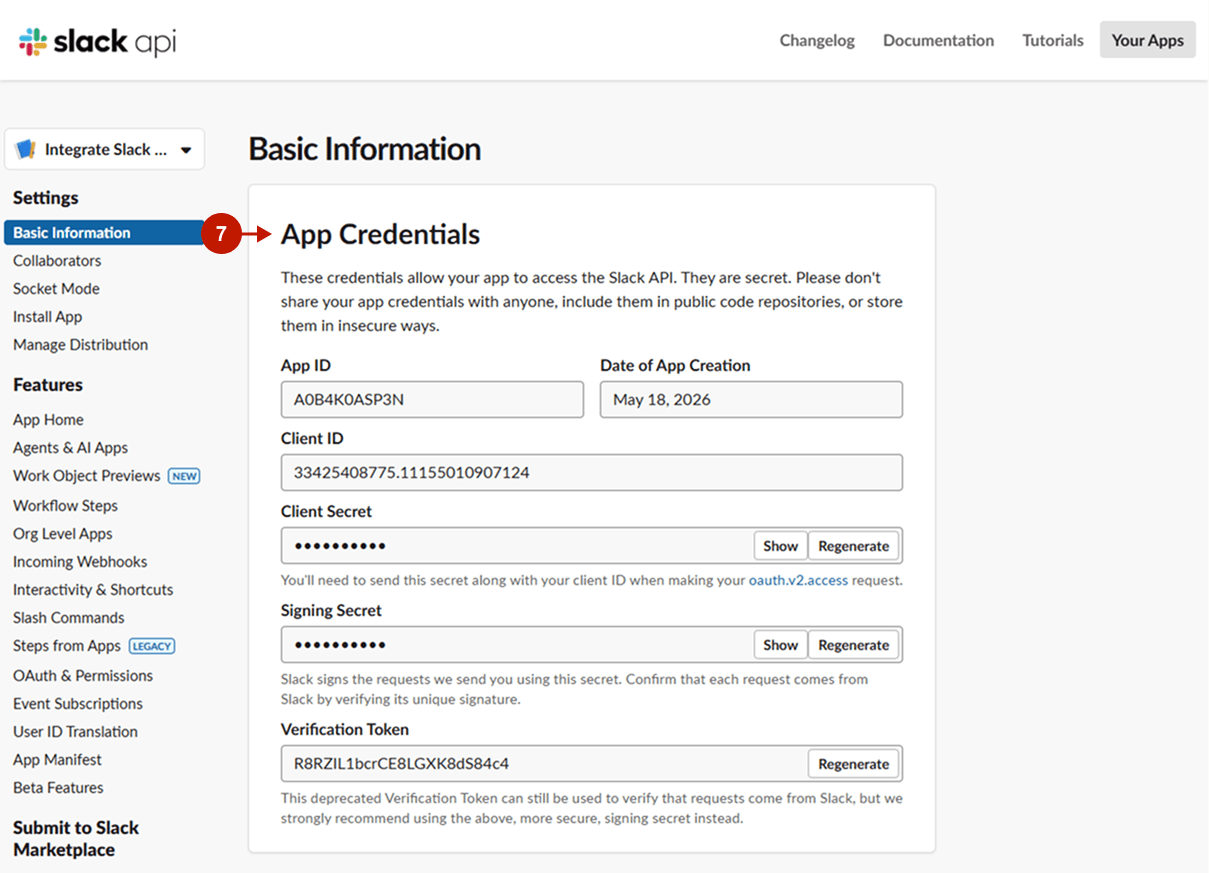
- You will be redirected to the Basic Information page. Scroll down to App Credentials and copy the following values:
- Client ID: this is your Client ID to be pasted in the Slack integration settings in the Magento 2 admin panel.
- Client Secret: this is your Client Secret to be pasted in the Slack integration settings in the Magento 2 admin panel.
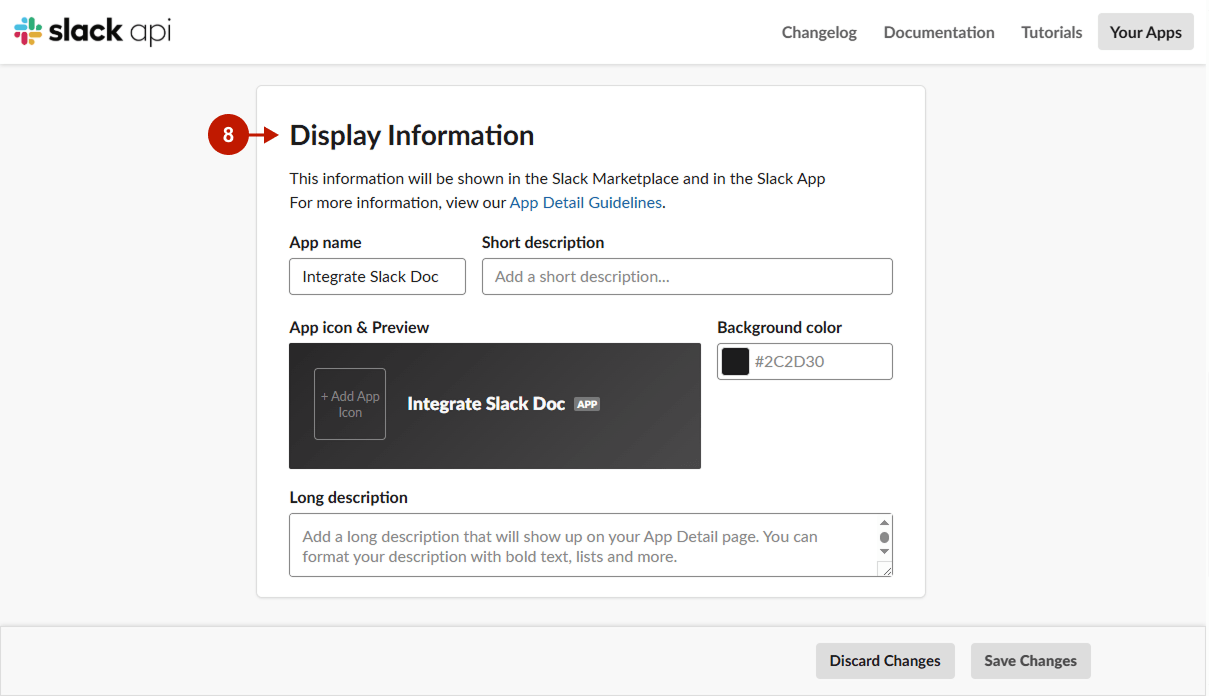
- Then, in the same Basic Information tab, scroll down to Display Information and fill in app details (name, short description, background color, and app icon).
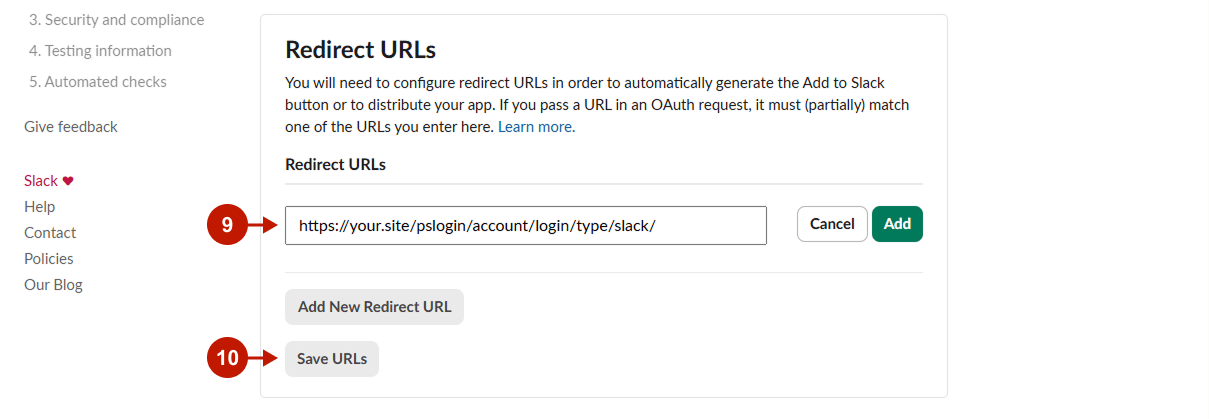
- Open OAuth & Permissions in the left sidebar. Under Redirect URLs, add your Magento callback URL. This URL can be found in the Callback URL field in your Admin Panel → Plumrocket → Social Login Pro → Configurations → Slack.
- Click Save URLs.
Configuring Slack Integration in Magento 2 Social Login Pro Extension
At this point, you should paste the created API keys into your Magento 2 Social Login Pro Extension configuration. In the main Magento menu, go to Plumrocket → Social Login Pro → Configuration → Slack, and perform the following steps:
Step-by-step guide:
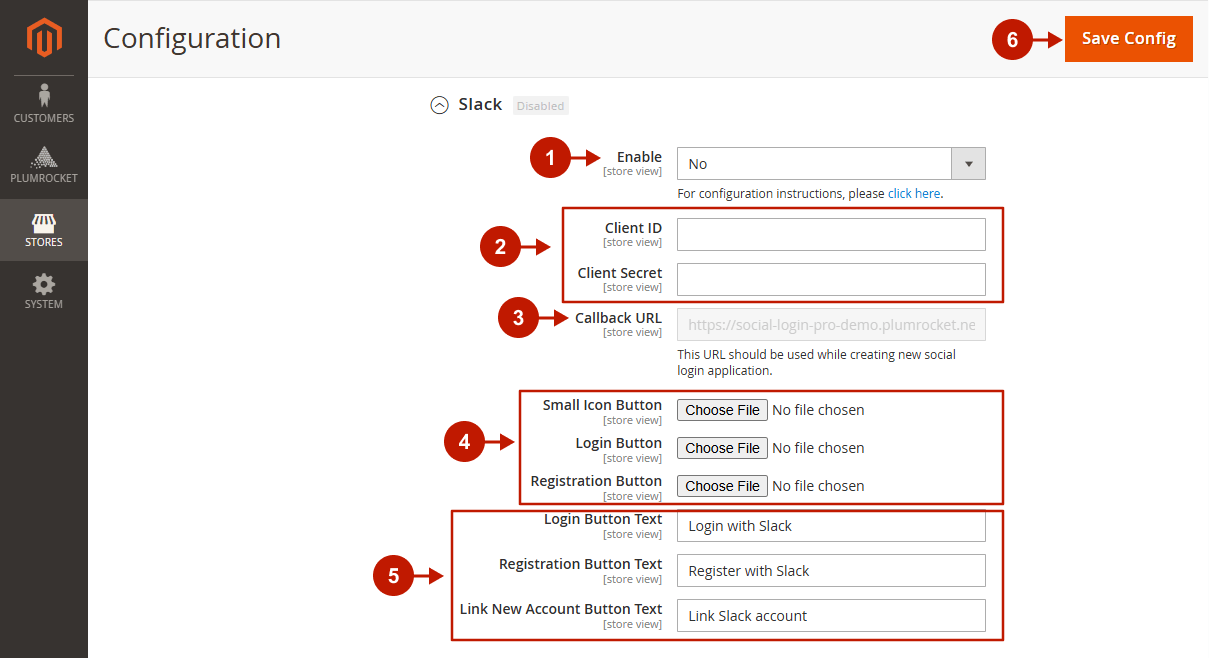
- Set the Enable option to Yes to enable Slack Login on your Magento 2 website.
- Paste the Client ID and Client Secret you got when setting up the Slack application.
- This Redirect URI is to be pasted during the Slack application configurations (under OAuth & Permissions → Redirect URLs).
- Skip this step to have the extension use the default icons for the Slack login buttons, or select the files to use your own.
- Specify the text to be displayed on the Slack login buttons.
- Click Save Config to save the configurations.
Was this article helpful?