

Magento 2 store owners invest heavily in their product catalogs, pricing, and checkout experience. Yet order fulfillment, everything that happens after a customer places an order, often gets less attention. A delayed shipment, unclear order status, or frustrating return can quickly undermine an otherwise smooth shopping experience.
This guide covers the Magento order fulfillment process, from order placement to delivery and returns. You’ll learn what Magento can handle on its own, where manual work creates bottlenecks, and how to choose the right extensions or fulfillment software for your store.
How Magento 2 Order Fulfillment Works: The Full Workflow
Understanding the Magento 2 order workflow starts with knowing what each order event actually confirms. Magento records payments, invoices, inventory reservations, and shipments, but these records do not necessarily prove that a package has been picked, packed, or delivered.
A typical Magento 2 order flow for physical products looks like this:
Order Placed → Payment Authorized or Captured → Invoice Created → Shipment Recorded → Complete
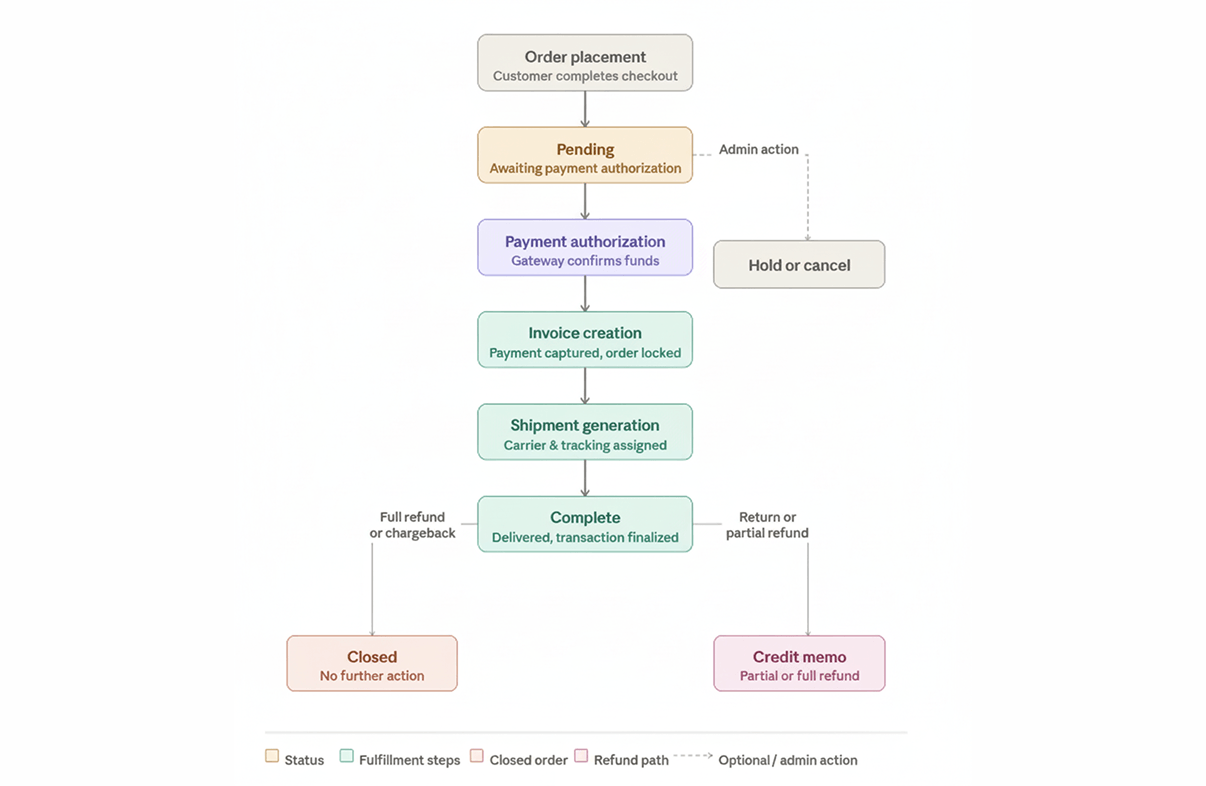
The exact sequence depends on the payment method, product type, and store configuration. Orders may also be canceled, placed on hold, partially fulfilled, or refunded, so not every order follows the same path.
Stage 1: Order Placement & Pending Status
When a customer completes checkout, Magento creates an order record containing the purchased products, customer details, payment method, and shipping information. New orders typically receive the Pending status, although the initial status may vary depending on the payment method and checkout configuration.
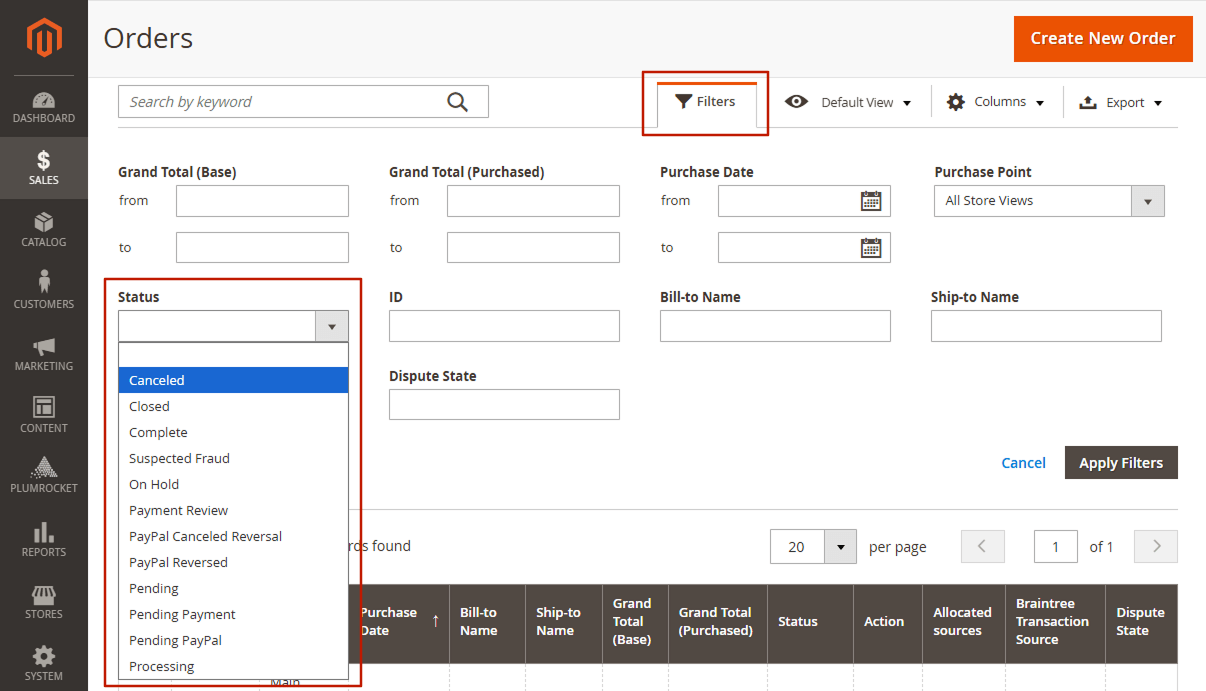
To view new orders, navigate to Sales → Orders. You’ll land on the Orders Grid, the central dashboard for order management. Use the Filters panel to find an order by its status, and open an eligible order to view details or take available actions such as Hold or Cancel.
What to watch for: If your store allows guest checkout, the order will not be attached to a registered customer account. Make sure order confirmation emails are reliably configured for guest orders, since email may be their main source of order updates.
Stage 2: Payment Authorization
Once an order is placed, Magento processes the transaction according to the selected payment method. For online payments, two common options are available:
- Authorize: The payment gateway authorizes the transaction, but funds are captured later.
- Authorize and Capture: The payment is authorized and captured during checkout.
Depending on the payment method and configuration, the order can move to Processing after payment authorization or capture.
Offline payment methods, such as bank transfers, require additional attention because Magento cannot independently verify when the money arrives. Merchants need to confirm payment before proceeding with the appropriate fulfillment actions.
Stage 3: Invoice Creation
An invoice records the financial details of the order and supports payment capture and accounting. For compatible online payment methods, Magento can generate an invoice automatically when payment is captured. Other payment workflows require administrators to create invoices manually.
For eligible orders, you can create an invoice from the order view page by clicking Invoice, reviewing the details, and submitting it with the appropriate capture option.
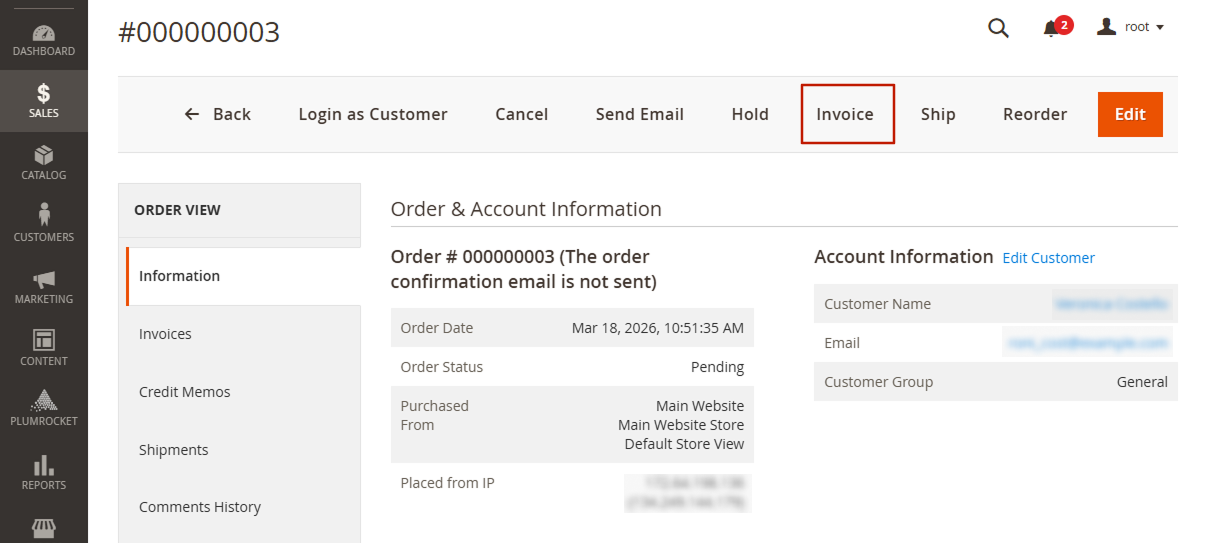
Magento also supports partial invoicing, allowing merchants to invoice selected items separately when the order requires it.
What to watch for: Repeated manual invoicing creates delays when order volume increases, but automatically invoicing every new order is not always appropriate. For example, a store that captures payment only when products are ready to ship needs a different workflow from one that captures payment immediately.
Stage 4: Shipment Generation
When an order is ready for dispatch, administrators can create a shipment record from the order page. The shipment identifies the products being shipped, their quantities, and any carrier and tracking details provided.
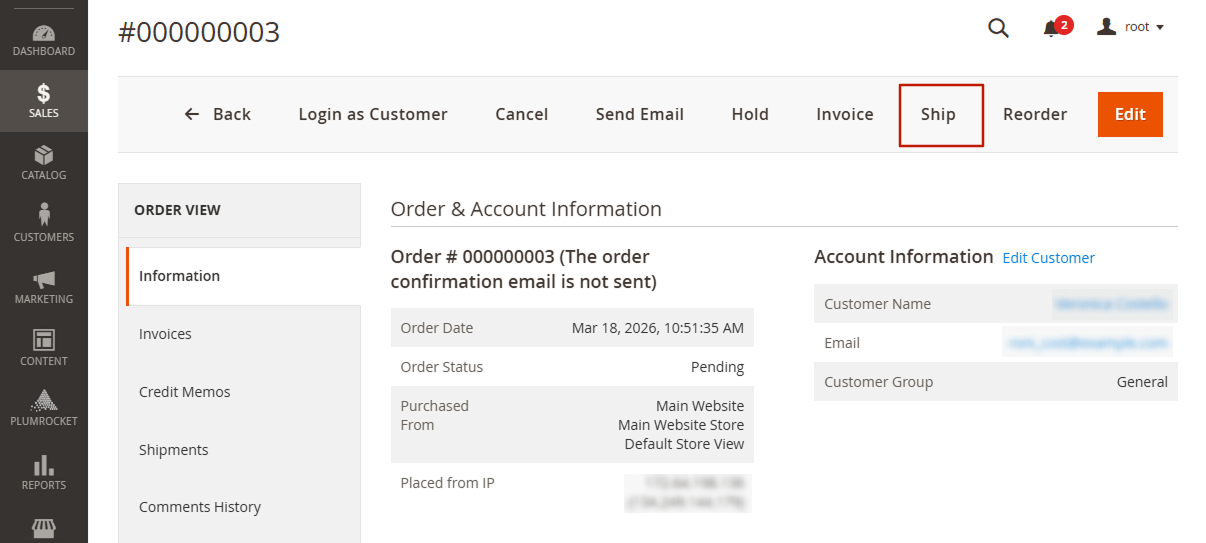
You can also edit the quantity to ship at this stage, which is useful for stores that fulfill orders partially, for example, when one item is available now and another is on backorder.
For stores managing multiple inventory locations, Magento’s Multi-Source Inventory (MSI) allows merchants to manage inventory across sources and select where products should be fulfilled. Its Source Selection Algorithm can recommend suitable locations based on the configured inventory setup.
For more details, see Adobe’s Inventory Sources and Stocks documentation.
What to watch for: Creating a shipment record in Magento doesn’t necessarily mean the package has physically left the warehouse. If a warehouse or 3PL handles dispatch, Magento shipment records and tracking details should be synchronized with the actual fulfillment process.
Stage 5: Order Completion
For orders containing shippable products, Magento generally moves to Complete after the required invoicing and shipment records are complete. Virtual-only orders do not need shipping records, and the exact transition depends on the payment workflow.
However, Complete doesn’t mean Delivered. It indicates that Magento has completed the required order-processing steps, not that the carrier has delivered the package to the customer.
For merchants who want to communicate delivery progress, such as In Transit or Out for Delivery, carrier tracking integrations can provide information beyond Magento’s standard order status.
Stage 6: Credit Memos & Refunds
Returns and refunds are part of running an online store. Magento handles refunds through credit memos, which record financial adjustments against an invoiced order.
There are two main refund methods:
- Online refunds: Magento requests a refund through the original payment gateway when the integration supports it.
- Offline refunds: Magento records the refund, but the merchant must handle the actual transfer of funds separately.
Magento also supports partial refunds, allowing merchants to refund individual products or amounts without refunding the entire order.
Processing a refund and managing a physical return are different tasks. A credit memo handles the financial transaction, while receiving returned products, inspecting their condition, and arranging exchanges may require additional processes.
For detailed instructions, see our guide on How to Create Magento 2 Credit Memos & Refunds.
What You Can Automate in Magento 2 Without Extensions
Magento includes several built-in features that reduce administrative work during order processing. Before adding extensions, it is worth reviewing these settings to see which parts of the Magento order fulfillment process are already supported.
However, native configuration mainly handles payment processing, inventory management, and notifications. It does not replace physical warehouse operations or automatically connect Magento to every external fulfillment provider.
1. Configure Payment Capture and Invoicing
Magento can automate payment capture and invoice creation through compatible payment integrations.
Navigate to Stores → Configuration → Sales → Payment Methods and review the Payment Action setting for your payment method.
Where supported, selecting Authorize and Capture allows Magento to capture payment during checkout and create the associated invoice automatically. With Authorize, the payment is initially authorized, while capture happens later.
The appropriate setting depends on your business workflow. For example, stores that capture payment only when orders are ready to ship may prefer authorization first. Offline payment methods require separate handling because Magento cannot automatically confirm receipt of a bank transfer.
When you need more: If invoices must be created automatically according to order-specific conditions, such as payment method, SKU, or customer group, a rule-based extension can provide more flexibility than the standard payment configuration.
2. Manage Inventory Reservations and Warehouse Sources
Inventory discrepancies can create some of the most frustrating Magento fulfillment problems, particularly when products are sold through multiple channels or shipped from different locations.
Magento’s Multi-Source Inventory (MSI) helps manage salable quantities through reservations created when orders are placed. These reservations work automatically as part of inventory management, rather than requiring a separate rule for each order.
For stores using multiple inventory locations, Magento also provides a Source Selection Algorithm that recommends where products should be shipped from.
Navigate to Stores → Inventory → Stocks, open the relevant stock, and review its assigned sources. You can prioritize locations so Magento considers preferred sources when recommending shipment allocations.
For example, a merchant operating a primary warehouse and a smaller backup location can prioritize the main warehouse while retaining the option to fulfill orders from the second location.
When you need more: MSI manages inventory and recommends fulfillment sources, but it does not perform warehouse picking, packing, or dispatch. Stores experiencing stock mismatches between Magento, marketplaces, and physical warehouses may need additional synchronization or a warehouse management system.
For more information, see Adobe’s Source Algorithms and Reservations documentation.
3. Automate Order and Shipment Notifications
Customers expect timely updates when their orders are confirmed, invoiced, or shipped. Magento supports transactional emails for these events, reducing the need for employees to send notifications manually.
To configure them, navigate to Stores → Configuration → Sales → Sales Emails. Review the settings for order confirmations, invoices, shipments, and credit memos, making sure notifications are enabled and the correct email templates are selected.
You can also enable asynchronous email sending to process notifications through scheduled background operations, provided the store’s cron processing is configured correctly.
When you need more: Magento sends notifications based on recorded events, not the physical movement of packages. If an external warehouse ships an order without synchronizing shipment and tracking details back to Magento, customers may miss an update. Carrier tracking integrations can provide more detailed delivery progress.
What Still Requires Additional Automation?
Standard Magento features help manage orders, but common fulfillment bottlenecks remain:
- Creating invoices or shipment records according to complex business rules.
- Generating shipping labels and coordinating actual dispatch.
- Synchronizing orders and stock with external marketplaces or warehouses.
- Bringing carrier tracking updates back to the storefront.
- Managing return approvals, exchanges, and warehouse inspections.
These tasks do not necessarily require a complete replacement of your Magento order fulfillment setup. In many cases, a targeted extension is enough to address a specific problem.
Best Magento Order Fulfillment Extensions for Common Challenges
The best Magento order fulfillment solution depends on where your current workflow falls short. Some merchants need to automate repetitive Admin tasks, while others struggle with inaccurate inventory, shipping charges, or post-purchase communication.
Magento extensions can address these individual bottlenecks without requiring a complete OMS or WMS implementation. Based on our experience developing Magento solutions for ecommerce merchants, the most useful approach is to identify the failing process first, then select a tool that solves it.
Magento Order Fulfillment Extensions at a Glance
| Fulfillment problem | Extension | What it addresses | Starting price (USD) |
| Repetitive invoicing and shipment creation | Plumrocket Auto Invoice & Shipment | Rule-based invoice and shipment records | $69 |
| Customers repeatedly asking where an order is | Plumrocket Order Status & Shipping Tracking Pro | Storefront carrier tracking, guest orders, and split shipments | $129 |
| Return requests scattered across emails | Plumrocket Returns & Exchanges (RMA) | Returns, exchanges, approvals, and customer communication | $119 |
| Unclear shipping and delivery expectations | Plumrocket Estimated Delivery Date | Rule-based shipping and arrival estimates | $119 |
| Stock and order mismatches across marketplaces | M2E Pro | Marketplace order, listing, and stock synchronization | $89/month |
| Shipping rates requiring additional conditions | Amasty Shipping Rules | Conditional shipping rate adjustments | $229 |
| Manual transfer of orders to an ERP or warehouse | XTENTO Order Export | Scheduled exports of order and sales data | $199 |
1. Automate Invoice and Shipment Creation
Creating invoices and shipment records one order at a time becomes a bottleneck as order volume rises. A paid order may sit in the queue waiting for an administrator, even when no additional manual checks are required.
Plumrocket Auto Invoice & Shipment automates document creation using conditions such as payment method, shipping details, order total, SKU, and customer group. This helps merchants reduce repetitive Magento Admin work while maintaining control over which orders qualify for automatic processing.
Best for: Stores with predictable invoicing and shipment workflows that want to reduce manual order processing.
Keep in mind: Automatic shipment creation should reflect the actual dispatch workflow. If a 3PL still needs to pick and pack an order, creating a shipment immediately after payment may trigger a premature customer notification. Test partial shipments, offline payments, and orders requiring manual review before enabling automation.
2. Make Shipment Tracking Easier for Customers
Shipment visibility is the customer-facing side of Magento order fulfillment. Customers want to know where their package is without searching through emails or contacting support, especially when one order arrives in several deliveries.
Plumrocket Order Status & Shipping Tracking Pro displays delivery information from supported carriers directly on the storefront. Guests can check their orders without logging in, while customers receiving split shipments can view separate tracking details for each package.
Best for: Merchants receiving frequent “Where is my order?” requests, particularly those handling guest orders or split deliveries.
3. Organize Returns and Exchanges
Returns become difficult to manage when requests arrive through multiple channels, support agents repeat the same questions, and warehouses cannot easily match incoming parcels to approved returns.
Plumrocket Returns & Exchanges (RMA) organizes return requests, resolutions, notifications, and communication in one process. Merchants can manage returns, exchanges, repairs, and other configured outcomes while allowing customers to submit requests through the storefront.
Best for: Stores handling frequent returns, exchanges, or different resolution types where email-based coordination has become inefficient.
4. Show Expected Delivery Dates Before Checkout
Tracking helps customers after dispatch, but delivery expectations often influence the purchase decision before an order is placed.
Plumrocket Estimated Delivery Date displays rule-based shipping and arrival estimates on product pages, category pages, checkout, and other supported locations. Merchants can account for processing time, order cut-off times, weekends, holidays, and product-specific delivery settings.
For example, a store selling both in-stock products and made-to-order items can communicate different delivery estimates instead of applying one generic shipping promise.
Best for: Merchants with different fulfillment lead times across products or categories who want to communicate realistic delivery expectations.
5. Keep Marketplace Inventory and Orders in Sync
For multichannel sellers, Magento order fulfillment depends on accurate information across more than one storefront. An item may appear available in Magento even though the last unit has already sold through a marketplace.
M2E Pro connects Magento with supported marketplaces, helping synchronize listings, orders, and stock information across channels such as Amazon, eBay, and Walmart.
Best for: Merchants selling through Magento and multiple marketplaces that share product inventory.
6. Apply More Accurate Shipping Rules
Shipping costs can become difficult to manage when standard rates do not reflect delivery destinations, order values, or product-specific restrictions. Poorly configured shipping charges may reduce margins or create unexpected costs for shoppers.
Amasty Shipping Rules provides configurable conditions for adjusting shipping rates, including additional charges or discounts based on applicable order and shipping attributes.
Best for: Stores requiring more complex shipping rate policies than the default Magento shipping configuration provides.
7. Connect Magento Orders to External Systems
Warehouses and ERP systems often require order data in a specific format. Manually exporting spreadsheets can delay processing and introduce errors as order volume increases.
XTENTO Order Export creates configurable exports of orders and related sales data in formats including CSV, XML, and JSON. Exports can be scheduled and sent to supported external destinations, helping merchants transfer information without repeated manual downloads.
Best for: Merchants whose warehouse, ERP, or shipping system accepts structured order data through files or supported export endpoints.
When Magento Extensions Aren’t Enough: OMS, WMS, and 3PL Solutions
Magento extensions are often the most practical option when you need to automate a specific task. However, some fulfillment challenges involve multiple sales channels, warehouses, or physical operations that Magento cannot manage through configuration alone.
Choosing the best Magento fulfillment setup means identifying whether the problem is order coordination, warehouse execution, or the need to outsource fulfillment.
Order Management System (OMS)
An OMS coordinates orders and fulfillment decisions across sales channels, warehouses, and other systems. It becomes useful when orders must be routed between locations, split across warehouses, or synchronized across multiple selling platforms.
Consider an OMS when: Your team regularly makes manual decisions about which location should fulfill an order or struggles to maintain consistent order information across systems.
Warehouse Management System (WMS)
A WMS manages physical warehouse operations such as picking, scanning, bin locations, packing, and inventory movements. Magento MSI can recommend inventory sources, but it does not provide a complete warehouse execution workflow.
Consider a WMS when: Incorrect picks, misplaced inventory, packing delays, or limited warehouse visibility are causing fulfillment problems.
Third-Party Logistics (3PL)
A 3PL provider stores, picks, packs, and ships products on behalf of a merchant. Providers such as ShipBob offer fulfillment services and integrations for ecommerce businesses.
Consider a 3PL when: Outsourcing storage and shipping is more practical than managing fulfillment operations internally.
Connecting Magento to ShipStation, Warehouses, and 3PLs
When fulfillment is handled outside Magento, orders need to reach the shipping or warehouse system, while shipment confirmations, tracking numbers, and inventory updates need to flow back. Solutions such as ShipStation and 3PL integrations can help connect these processes, but supported synchronization features vary by provider.
For simpler workflows, tools like XTENTO Order Export can automate sending order data to external systems. More complex operations may require a two-way connector or custom integration to synchronize shipments, cancellations, and stock changes. Before choosing a solution, verify that it supports your fulfillment workflow, including partial shipments and tracking updates.
Standard connector doesn’t fit your workflow?
We’ll integrate Magento with your warehouse, ERP, or 3PL so order data flows both ways.
How to Choose the Right Magento Order Fulfillment Solution
There is no single best Magento order fulfillment tool for every store. The right setup depends on which part of the process is slowing down operations or creating errors.
| If your main challenge is… | Start with… |
| Staff manually creating the same invoices or shipment records | Invoice and shipment automation |
| Customers repeatedly contacting support about deliveries | Storefront order and shipment tracking |
| Return requests requiring too much manual coordination | RMA workflow automation |
| Customers cannot see realistic arrival dates | Estimated delivery dates |
| Orders and stock are inconsistent across marketplaces | Marketplace synchronization |
| Shipping rates are too simple for your policies | Advanced shipping rules |
| Warehouse staff manually importing order files | Order export or a fulfillment connector |
| Orders need complex cross-channel routing | OMS |
| Picking, packing, and warehouse accuracy are the problem | WMS |
| You want to outsource warehousing and dispatch | 3PL |
Before investing in additional software, review how your current Magento 2 order workflow handles payment confirmation, order allocation, shipment creation, tracking, and returns. A single extension may remove a repetitive task, but it cannot compensate for unreliable inventory data or incomplete synchronization between systems.
For complex operations, the priority should be establishing reliable data exchange between Magento and the systems responsible for physical fulfillment.
Frequently Asked Questions About Magento Order Fulfillment
What is the difference between order state and order status in Magento 2?
Magento separates two concepts that sound similar but serve different purposes. An order state is a system-level condition that determines which actions are available. An order status is a label assigned to a state, which merchants can customize to reflect their workflow.
For example, custom statuses such as Awaiting Stock, Quality Check, or Ready for Pickup can help staff monitor orders, but they do not automatically trigger warehouse activities.
For setup instructions, see our guide on How to Change Order Status in Magento 2.
Does Magento 2 automatically fulfill orders?
Magento can automate parts of order processing, including payment capture, invoice creation through supported payment integrations, inventory reservations, and transactional emails. However, it does not automatically perform physical picking, packing, and dispatch.
Fuller Magento order fulfillment automation generally requires extensions, carrier integrations, or external warehouse software.
Does Magento Complete status mean an order has been delivered?
No. Complete generally means the required invoice and shipment processing is finished in Magento. Actual delivery confirmation comes from carrier tracking or an integrated fulfillment system.
Can Magento 2 support fulfillment from multiple warehouses?
Yes. Magento Multi-Source Inventory supports multiple inventory sources and provides algorithms to recommend shipment allocations. More advanced operations, such as warehouse scanning, complex order routing, and external inventory synchronization, may require additional software.
