
Your social media profiles are where shoppers go to check if your brand is real, active, and worth trusting before they buy. Linking those profiles directly from your Shopify store removes the guesswork — visitors can follow you in one click, and a steady social presence quietly supports traffic, community, and repeat sales.
The good news: adding social media links to Shopify is a no-code job in most themes. You paste your profile URLs into your theme settings, save, and the icons appear in your footer. This guide covers that core method, plus where the icons show up, how to add custom icons, share buttons, and what to do when links don’t appear.
If you need more than the basics — custom-designed icons, social links in a non-standard spot, and more — that’s custom theme work, and our Shopify development team at Plumrocket can build it properly without slowing your store down.
Social Media Links vs Share Buttons vs Social Feed
Before you start, it helps to know that “adding social media to Shopify” can mean a few different things. The simplest — and what most store owners actually want — is linking your profiles. The others are separate, more involved setups:
| Element | What it means | How it works in Shopify |
| Social media links / icons | Links to your brand’s social profiles, usually displayed as clickable icons | You paste profile URLs in theme settings, and your theme shows them as icons where supported |
| Share buttons | Buttons that let visitors share a product, blog post, or page | Usually added through theme settings, an app, or custom code |
| Social media feed | Embedded Instagram/TikTok/social content on your store | Usually added with an app or custom section |
This guide focuses mainly on the first row — your profile links and the icons that display them — since that’s what most store owners mean. We cover share buttons and feeds further down.
How to Add Social Media Links to Shopify Using Theme Settings
This is the standard no-code method, and it’s where you’ll spend most of your time. It works the same whether your icons ultimately land in the footer, header, or elsewhere.
How to Add a Custom Canonical Tag to a CMS Page in Magento 2:
- From your Shopify admin, go to Online Store → Themes.
- Click Customize next to your live theme to open the theme editor.
- Click the Theme settings icon in the left sidebar.
- Select Social media.
- Paste the full URL of each social profile into its matching field (for example, https://instagram.com/yourstore).
- Click Save, then check your storefront footer to confirm the icons appear.
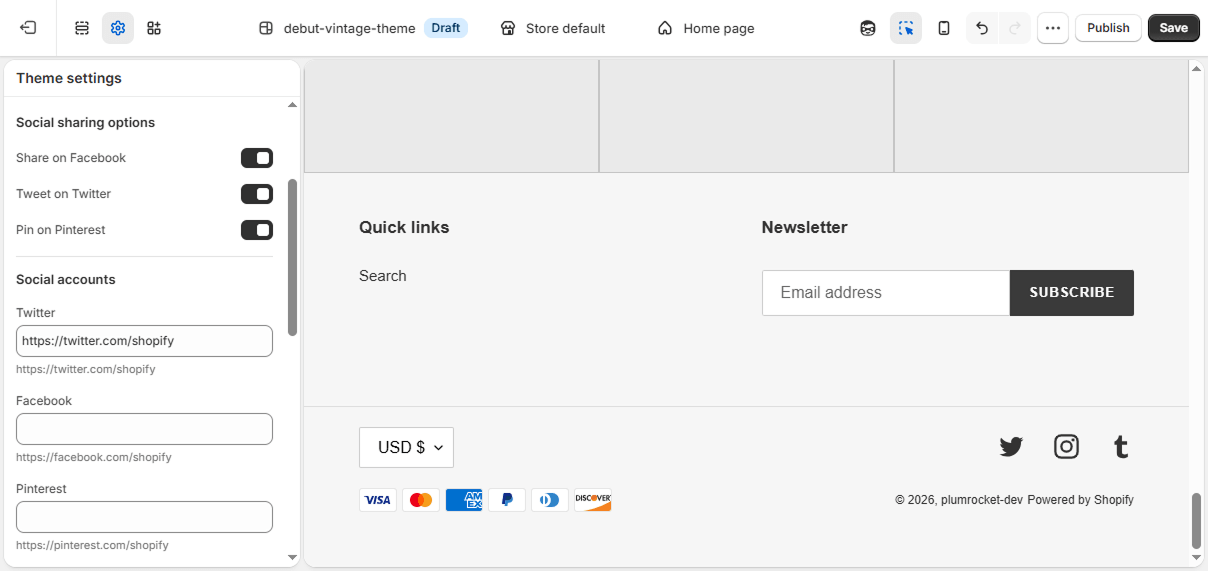
That’s the whole core process. The sections below explain each part in more detail, including where icons show up and how to fix them when they don’t.
In most Shopify themes, you don’t add social icons separately. Once you paste your social profile URLs, the theme automatically displays them as clickable icons in supported areas, such as the footer.
Where to Add Social Media Links on Shopify and Where They Show Up
Adding the links is only half the question. The other half is where they belong — and where your theme actually displays them. Here’s the strategic view first, then the technical specifics for each location.
Add Social Media Links to the Shopify Footer
The footer is the default home for social icons and the spot shoppers look first. In most Shopify 2.0 themes, the icons appear in the footer automatically once you’ve added your links in Theme settings. Some themes display them through a Brand information block — if you don’t see icons after saving, open the Footer section in the theme editor and add or enable that block. A few themes also include a separate “Show social icons” toggle in the footer settings worth checking.
Add Social Media Icons to the Shopify Header
Header placement is theme-dependent. Some themes offer a header toggle for social icons; many don’t, because the header is usually reserved for navigation, search, and the cart. If your theme doesn’t support social icons in the header natively, you’ll need custom code or an app.
Since the header is also where shoppers navigate, it’s worth getting the whole layout right — our guide on how to edit the Shopify header walks through menus, logo sizing, and adding icons there.
Add Social Media Icons to the Announcement Bar
The thin announcement bar above your header is built for short promos, but some themes let you show social icons there too. Look for a Show social media icons (or similarly named) checkbox in the announcement bar block settings.
It’s a good spot for a temporary community push — just don’t rely on it as your only placement, since not all themes support it and shoppers don’t always look there.
How to Add a Social Media Feed to Shopify (Optional)
If you want your latest Instagram or TikTok posts displayed directly on your store — say, a scrolling gallery on your homepage — that’s a social feed, and Shopify doesn’t support it natively. You’ll need an app from the Shopify App Store that connects to your account and embeds the posts as a widget.
A feed can make a homepage feel alive and current, but choose carefully: some feed apps load heavy scripts that slow your store. If page speed matters to you (and it should), test performance before and after, or have it built lightweight from the start.
Best Practices for Shopify Social Media Links
A few habits keep your social links working for you, not against you:
- Link only active profiles. A dead Instagram link does more harm than no link — it signals neglect. Skip networks you don’t actually maintain.
- Don’t overload the header. Keep prime real estate focused on shopping. The footer is the natural home for social icons.
- Always use full URLs. Partial links and bare handles break. Paste the complete https:// address every time.
- Test on mobile. Most shoppers are on phones — confirm icons are tappable and correctly sized on a small screen.
- Keep branding consistent. Use the same handle and visual style across networks so shoppers recognize you instantly.
- Watch performance. Avoid heavy social feed apps if they slow your store; speed protects conversions.
Conclusion
For most Shopify stores, adding social media links is a two-minute job: paste your profile URLs into Theme settings → Social media, save, and the icons appear in your footer. From there, you can extend to header placement, share buttons, or a social feed depending on your goals.
When you want more than the defaults — custom-designed icons, a branded footer or header layout, social links in a non-standard location, or a fast, clean theme that doesn’t sacrifice performance — that’s custom theme work. Our Shopify development team at Plumrocket can customize your store the right way, so your social presence looks sharp and your shopping experience stays smooth. Get in touch for a consultation.
Frequently Asked Questions (FAQ)
How do I add social media links to Shopify? Go to Online Store → Themes → Customize, open Theme settings, and select Social media. Paste the full URL of each profile into its field, then click Save. In most themes the icons appear in your footer automatically.
How do I add social media links to the Shopify footer? Add your links in Theme settings → Social media and save. In most Shopify 2.0 themes the footer icons appear automatically. If they don’t, open the Footer section in the theme editor and enable the Brand information block or the social icons toggle.
How do I add an Instagram link to Shopify? In Theme settings → Social media, paste your full Instagram URL — https://instagram.com/yourstore — into the Instagram field and save. Use the full link, not just your handle.
Do I need an app to add social media links to Shopify? No. Profile links and icons are built into Shopify theme settings — no app needed. You only need an app or custom code for extras like share buttons, embedded social feeds, or icons in unsupported locations.
What’s the difference between social media links and share buttons? Social media links point shoppers to your profiles so they can follow you. Share buttons let shoppers post your product or blog page to their own feeds. Links are built into theme settings; share buttons usually need an app or code.
Do social media links help Shopify SEO? Indirectly. Social links don’t directly boost rankings, but they drive referral traffic, build brand signals, and encourage sharing — all of which support a healthier overall presence that can benefit SEO over time.
