
Learning how to add product categories in Shopify is one of the first things that separates a store that converts from one that just exists. When shoppers can’t find what they’re looking for in a couple of clicks, they leave — and Shopify’s own data on browsing behavior backs that up.
But here’s where most store owners get tripped up: Shopify doesn’t handle “categories” the way other platforms do. If you’ve come from another platform or a marketplace like Amazon, the word “category” means something slightly different here. Get that distinction right, and the rest is genuinely easy — no developer required for the basics.
In this guide, we’ll walk through exactly how to add product categories and subcategories in Shopify, clear up the category-vs-collection confusion that costs merchants hours, and show you how to use Shopify’s built-in product taxonomy to get found on Google and AI-powered search. Everything below is done from your admin panel. No code, no theme editing.
If you’re planning a Shopify launch, migration, or catalog restructuring, explore our Shopify development services to ensure your store is built for growth from day one.
Shopify Categories Explained: Product Categories vs Collections
Before you click a single button, you need to understand that Shopify has two separate features that people loosely call “categories.” Mixing them up is the #1 reason merchants waste time.
1. Product Category (the standardized one)
This is a single field on each product, drawn from Shopify’s Standard Product Taxonomy — a global classification system Shopify maintains. Think of it as a universal language: when you tag a product as Apparel & Accessories > Clothing > Shirts, you’re placing it in a machine-readable hierarchy that Shopify, Google, Facebook, and Amazon all recognize.
The taxonomy is huge and constantly growing. As of the most recent releases, it spans more than 26 business verticals and over 10,000 product categories with thousands of associated attributes. This is not what builds the navigation menu on your storefront — it works behind the scenes to make products discoverable on search engines, marketplaces, and increasingly in AI-driven product discovery.
2. Collections (the storefront-facing one)
Collections are what actually create the browsable “category pages” your customers see — like Summer Sale, Men’s Footwear, or Under $50. These are the groupings you link to from your menu. Collections come in two flavors:
- Manual collections — you hand-pick which products go in. Best for curated, rarely-changing groups (e.g. Staff Picks).
- Automated collections — products join automatically based on conditions you set (e.g. “tag = sale” or “price < $50”). Best for large or fast-changing catalogs.
3. Product Type (the internal one)
There’s also a third field, Product Type, which is a free-text label entirely unique to your store. Unlike the standardized Product Category, you define it however you like for your own internal organization. It’s optional and won’t affect SEO the way the taxonomy does.
When to Use Product Categories vs Collections
| Use Case | Product Category | Collection |
| Google Shopping | ✓ | ✗ |
| Category Page | ✗ | ✓ |
| Navigation | ✗ | ✓ |
| Product Classification | ✓ | ✗ |
The rest of this guide covers all three, plus how to build subcategories in Shopify — starting with the one most people actually mean.
How to Add a Product Category in Shopify
To add a product category in Shopify, assign your product to Shopify’s Standard Product Taxonomy. This helps Shopify better understand what you’re selling and can improve product data across search, filtering, marketplaces, and other sales channels.
Step-by-step guide:
- From your Shopify admin, go to Products.
- Open the product you want to edit.
- Scroll to the Category section and select the category that fits best.
- Search for the most relevant category or select one from Shopify’s suggested categories.
- Click Save.
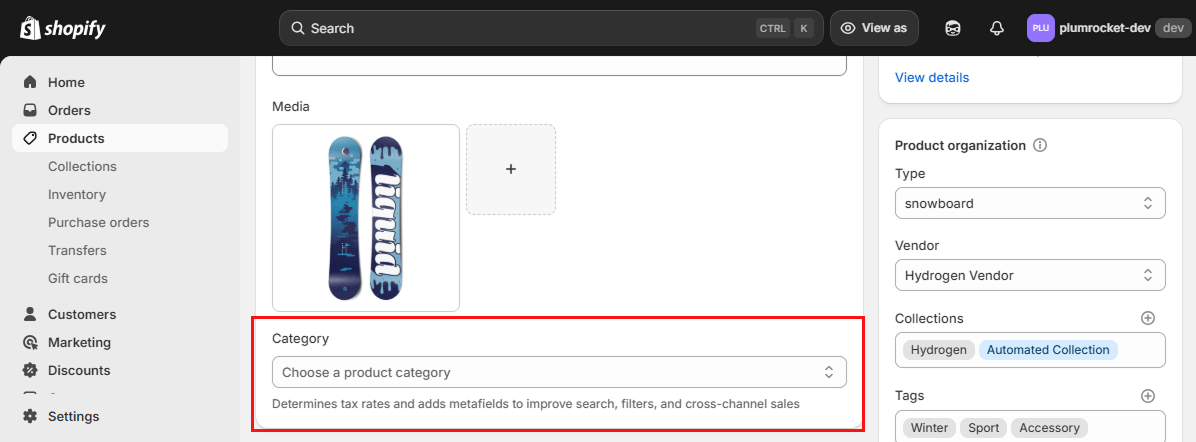
Product Categories do not create category pages or navigation menus on your storefront. They are primarily used for product classification within Shopify’s taxonomy. To create browsable category pages for customers, you’ll need to use Collections, which we’ll cover next.
How to Add a Category in Shopify as a Collection
If you want to create a category page that customers can browse, you’ll need to create a Shopify collection.
To Enable Canonical Tags in Magento 2:
- Go to Stores > Configuration > Catalog > Catalog > Search Engine Optimization.
- Find the following options:Use Canonical Link Meta Tag for Categories – set to Yes.
- Use Canonical Link Meta Tag for Products – set to Yes.
- Click Save Config and clear cache.
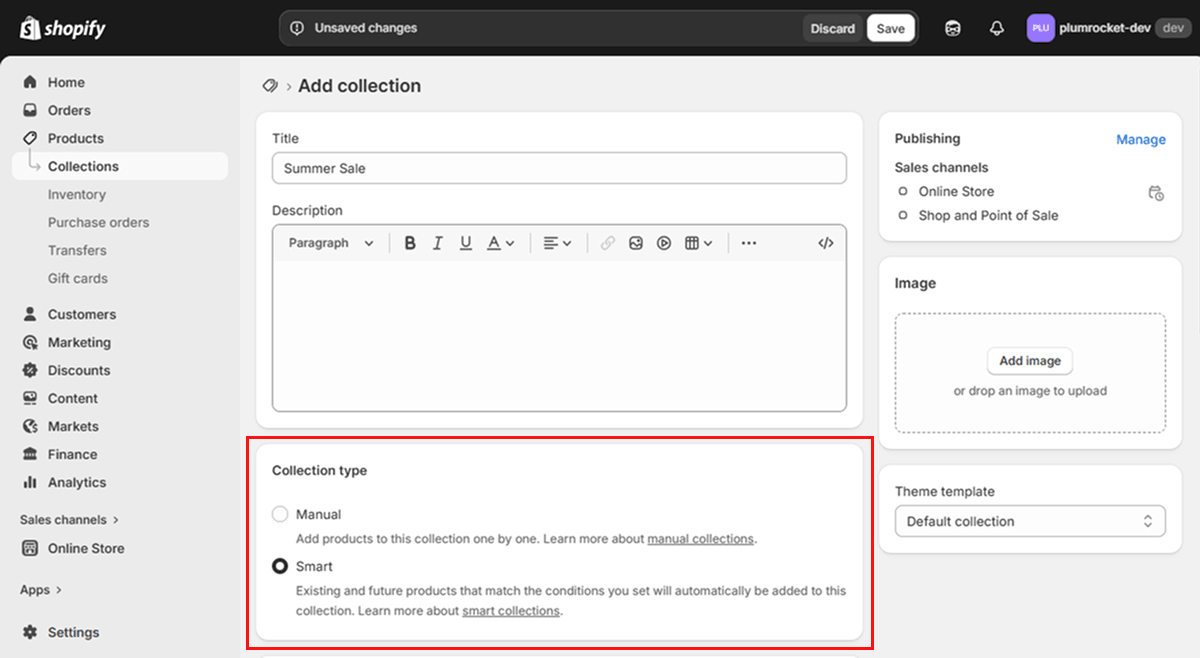
If you selected an Automated Collection, configure the conditions that determine which products are included (for example, product tag, vendor, price, or product type). If you selected a Manual Collection, add the products you want to include after saving the collection.
Tip: Automated collections are usually the better choice for growing catalogs because they update themselves automatically. Manual collections work best for curated product groups, seasonal campaigns, or featured product selections.
For a complete walkthrough, see our guide on how to add products to a Shopify collection, including manual and automated collection management.
How to Add Subcategories in Shopify
Here’s another spot where Shopify works differently than you might expect. There’s no single “create a subcategory” button — and collections don’t nest inside each other natively. Instead, you build a category → subcategory hierarchy in one of two practical ways. Most stores use a combination of both.
Method 1: Create Shopify Subcategories Through Your Store Menu
Shopify doesn’t have native subcategories or nested collections. To create a category-like hierarchy, create separate collections and organize them as nested menu items.
Step-by-step guide:
- Create a separate collection for each category or subcategory.
- In Shopify admin, go to Content → Menus.
- Open your Main menu.
- Add a parent menu item, such as “Shoes.”
- Add another menu item, such as “Men’s Shoes,” and link it to the relevant collection.
- Drag the subcategory item under the parent item using the handle icon.
- Repeat the process for additional subcategories and save your changes.
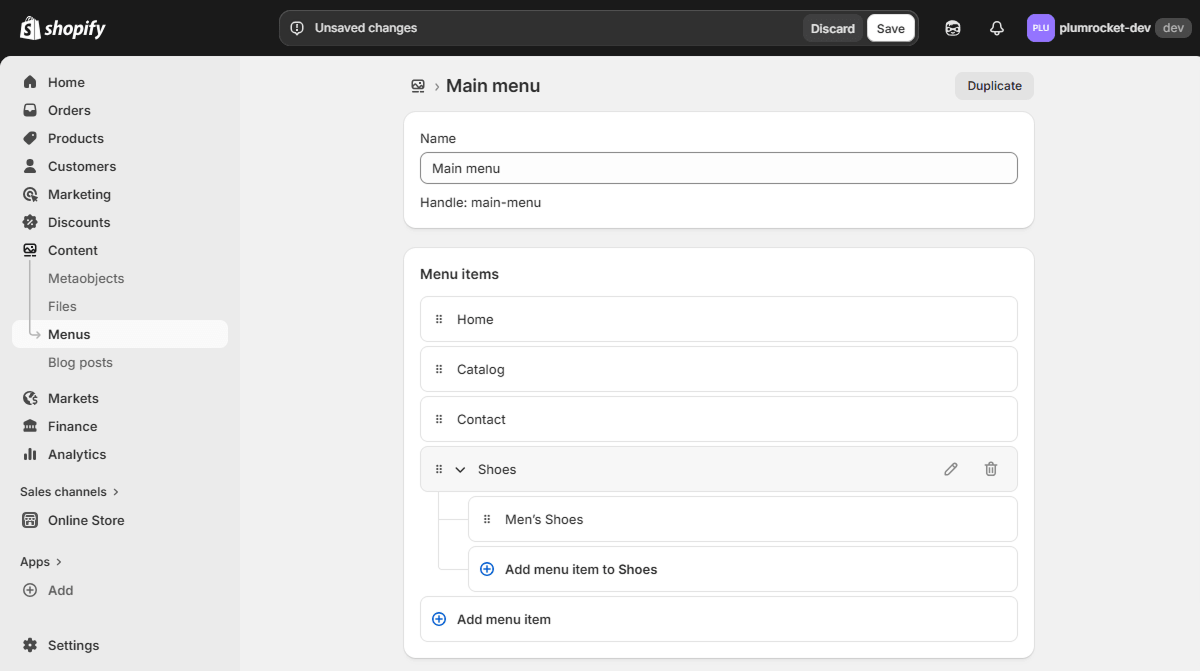
The result is a dropdown menu structure that behaves like a traditional category hierarchy, even though Shopify collections themselves are not nested.
Method 2: Add Subcategories Through Tags and Automated Collections
This is the engine that keeps the hierarchy populated automatically as you add products.
Step-by-step guide:
- Tag your products with both the broad and the narrow label — e.g. a running shoe gets the tags shoes, mens, and running.
- Create an automated collection for the parent (e.g. Shoes, condition: tag = shoes).
- Create automated collections for each subcategory with tighter conditions (e.g. Men’s Running Shoes, conditions: tag = mens and tag = running).
- New products that carry the right tags drop into the correct subcategory automatically.
Tip: Plan your tag system before you start tagging. A consistent tag vocabulary (mens vs men vs male — pick one) is what makes automated subcategories reliable instead of a mess.
If you have a deep catalog with many levels, brand filters, or attribute-based filtering, this is the point where the native tools start to strain — and where many merchants bring in a development partner to build proper filtered navigation. More on that below.
How to Add Product Categories in Shopify in Bulk
If you need to categorize dozens or hundreds of products, Shopify’s Bulk Editor is usually faster than editing products one by one.
Step-by-step guide:
- Go to Products in your Shopify admin.
- Select the products you want to update.
- Click Bulk edit.
- In the bulk editor, click Columns and add the Category field if it isn’t already visible.
- Assign the appropriate product category to each product.
- Save your changes.
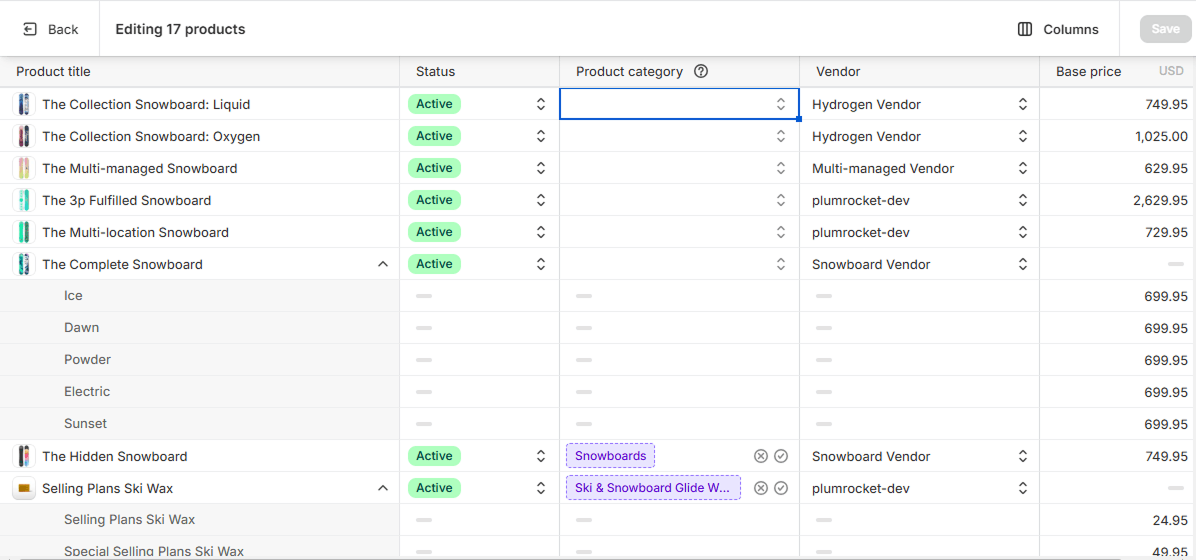
This approach lets you update multiple products from a single screen without exporting or importing files.
Best Practices for Shopify Categories and Collections
Since you’re organizing your catalog anyway, a little extra effort here pays off in both search traffic and user experience:
- Start with broad categories rather than dozens of highly specific ones. Collections, filters, and subcategories can help customers narrow their choices without creating an overly complex navigation structure.
- Think a year ahead. Before creating dozens of categories, picture how your catalog might look as it grows. A simple structure is far easier to scale than a highly detailed one that needs constant maintenance.
- Use automated collections whenever possible. Collections based on product tags, product types, vendors, or other attributes are much easier to maintain as your catalog grows than manually curated ones.
- Keep your menu shallow. Shoppers and crawlers both prefer reaching any important category within two or three clicks.
- Always set the Product Category from Shopify’s taxonomy. It’s free, fast, and increasingly important as Google, marketplaces, and AI shopping tools rely on structured product data.
- Write a real description for each collection page — not just a list of products. This is prime real estate for ranking on terms like “men’s running shoes” or “winter jackets.”
- Edit each collection’s SEO title and meta description (in the Search engine listing section) instead of leaving Shopify’s defaults.

Need Help Scaling Your Shopify Store?
As your catalog grows, advanced navigation and filtering become essential. Our Shopify experts can help you scale your store efficiently.
Frequently Asked Questions (FAQ)
What’s the difference between a Product Category and a Collection in Shopify? A Product Category is part of Shopify’s Standard Product Taxonomy and helps classify products for search, marketplaces, and other sales channels. A Collection is a customer-facing page that groups products together and appears in your store’s navigation. Most Shopify stores use both.
How do I add product categories in Shopify? Go to Products, open the product you want to edit, and find the Category field. Search for the most relevant category from Shopify’s taxonomy, select it, and click Save.
How do I add a category in Shopify for customers to browse? To create a category page that customers can browse, create a Collection. Go to Products → Collections, create a new collection, choose whether it should be automated or manual, and save it. You can then add the collection to your store’s navigation menu.
Does Shopify support real subcategories? Not natively. Shopify doesn’t support nested categories or nested collections. Instead, merchants typically create separate collections and organize them using menu navigation to create a category-like hierarchy.
Will my product categories keep working as Shopify updates its taxonomy? Yes. Shopify periodically updates its Standard Product Taxonomy. When a category is modified or replaced, Shopify typically suggests the closest matching category. It’s still a good idea to review your categories after major taxonomy updates.
