
Your header is the first thing every visitor to your Shopify store sees — on every page, before anything else. A cluttered or broken header quietly costs you sales, which is why knowing how to edit the header in Shopify is one of the most valuable skills a store owner can have.
This guide walks you through every method to edit your Shopify header, from basic theme editor changes to adding a secondary menu, customizing the logo at the right size, adding social media icons, troubleshooting common issues, and knowing when to call in a developer.
If you’re running a larger store or need custom header logic your theme doesn’t support, our team at Plumrocket’s Shopify development services can help — but let’s start with what you can do yourself.
What Is the Shopify Header You’re About to Edit?
The Shopify header is the top strip of your storefront that appears on every page. It’s the navigational backbone of your site — if it’s confusing, shoppers leave.
A typical Shopify header contains these elements:
- Logo — usually linked to the homepage
- Primary navigation menu — your main categories and pages
- Secondary navigation menu — optional utility links like account, support, or policies
- Search bar — for product discovery
- Cart icon — with a live item counter
- Account icon — for login and order history
- Announcement bar — a thin strip above the header for promotions or shipping messages
Modern Shopify 2.0 themes like Dawn, Sense, Craft, and Refresh use block-based header editing, which is what this guide is built around. If you’re on an older vintage theme, the exact menu labels may differ slightly, but the logic is the same.
How to Edit the Header in Shopify Using the Theme Editor
The Theme Editor is the no-code path and covers 90% of what store owners need. Here’s how to access it and make the most common edits.
How to Edit the Header in Shopify
- Log in to your Shopify admin and go to Online Store → Themes.
- Find your live theme at the top of the list and click Edit Theme. This opens the Theme Editor.
- In the left sidebar, scroll to the Header section and click it. The header settings will expand on the right.
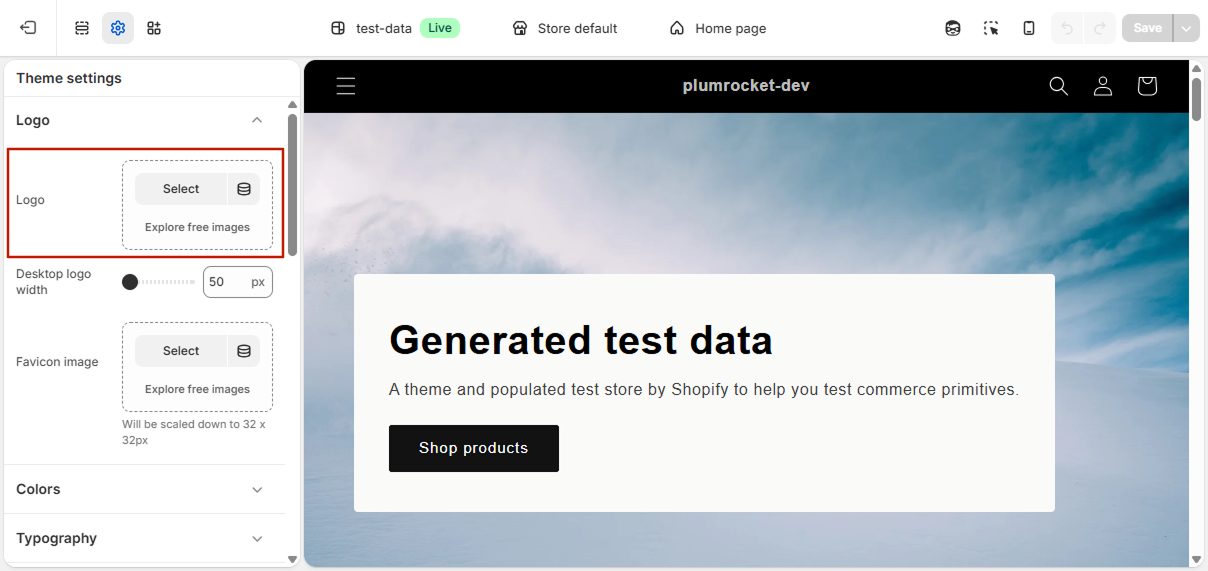
- To change the logo, click Select image under the Logo field and upload your file. Adjust the Logo width slider for the correct size, and use the Logo position dropdown to set it left, center, or inline with the menu.
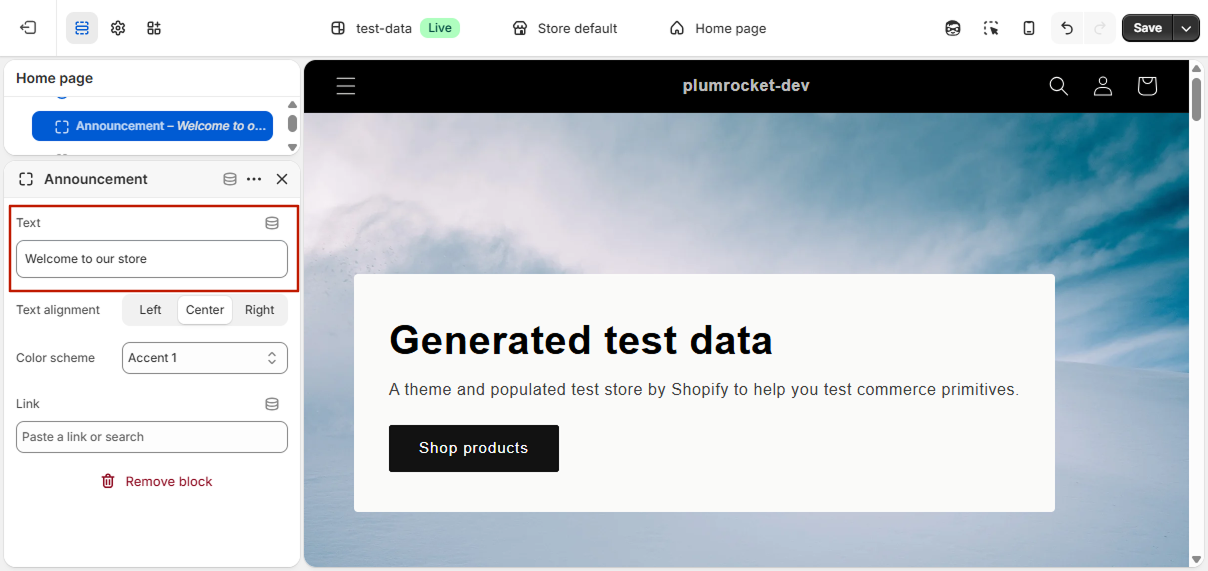
- To edit the announcement bar, scroll to the Announcement bar block (or click Add block → Announcement if your theme doesn’t have one yet). Enter your message in the Text field and add a destination in the Link field.
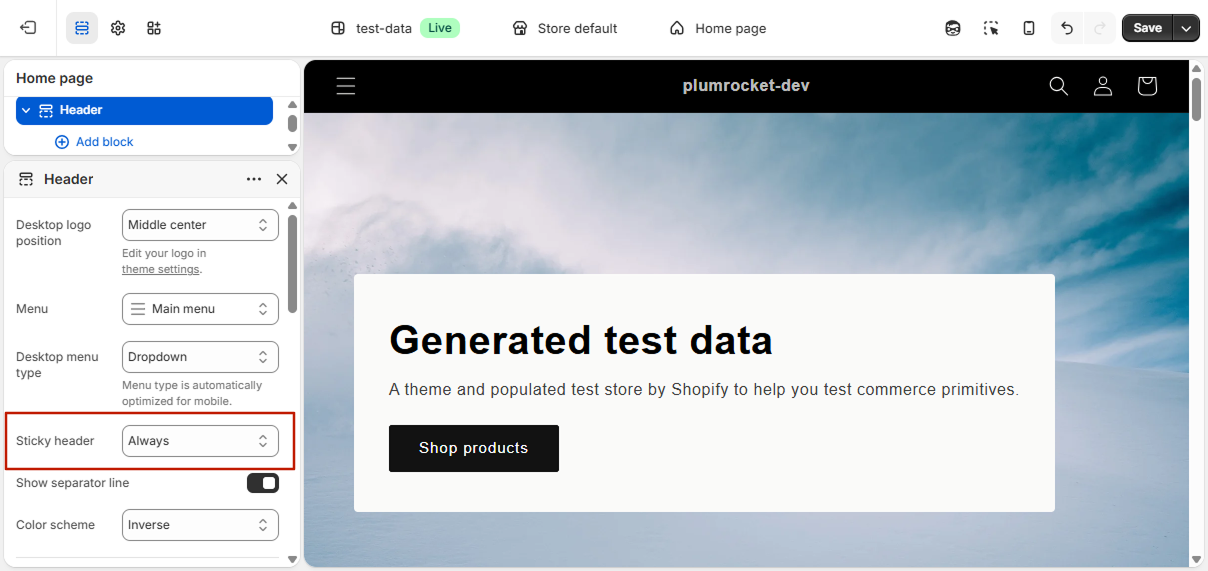
- To make the header sticky, look for a Sticky header checkbox or dropdown in the Header section settings.
- Click Save in the top-right corner. Your changes go live immediately on your store.
If a setting you expect to see is missing, your theme may not support it natively — that’s when code edits or a different theme come into play.
What Is the Best Logo Size for the Shopify Header?
Getting the logo right is one of the most common Shopify header questions, and the wrong size is one of the most common mistakes — logos that look blurry on mobile, stretched on desktop, or so large they push the menu off the page.
Recommended Shopify header logo dimensions:
- Maximum display size: 450 × 250 px for most themes
- Upload resolution: 2x the display size (around 900 × 500 px) to stay sharp on Retina and high-DPI screens
- File format: PNG with transparent background for logos with text or detailed shapes; SVG if your theme supports it (best for sharpness at any size); JPG only for photographic logos
- File size: Keep under 500 KB — Shopify allows up to 20 MB, but smaller files load faster
- Aspect ratio: Horizontal logos (wider than tall) work best in most header layouts; square logos work well when the logo is centered
Other Shopify header image sizes to know:
- Favicon: 32 × 32 px
- Announcement bar icons: 48 × 48 px
- Full-width header banner (if your theme supports one): 1920 × 400 px.
How to Change the Header Menu in Shopify Step-by-Step
When you edit the header menu in Shopify, you’re usually working in one of two places: the Theme Editor or Online Store → Content → Menus. Use the Theme Editor to swap which menu is shown in the header; use Navigation to edit the menu’s contents.
To edit the Menu from the Theme Editor
- Open Online Store → Themes → Edit and select the Header section.
- Find the Menu dropdown. It will show the menu currently assigned to the header (usually called “Main menu”).
- To swap in a different menu, click the dropdown and select another one.
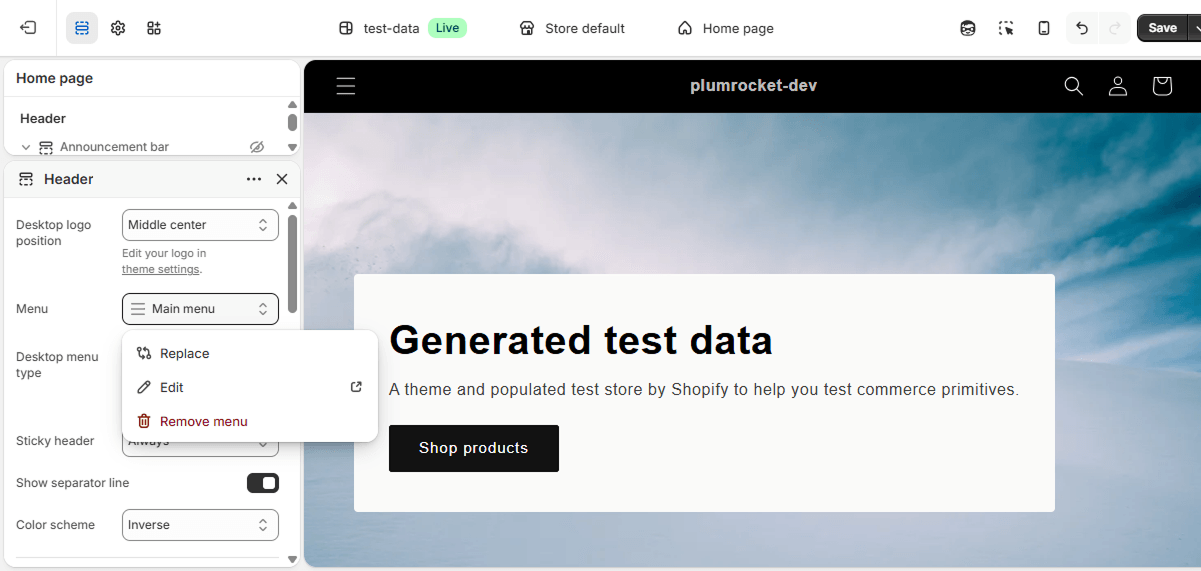
- To edit the items inside the currently selected menu without leaving the editor, click Edit menu. A new tab opens in Online Store → Content → Menus.
- Click Save when you’re done.
How to Add a New Header Menu in Shopify
If you want a completely fresh menu rather than editing an existing header in Shopify, create it from scratch and then assign it to the header.
To Add a New Header Menu in Shopify:
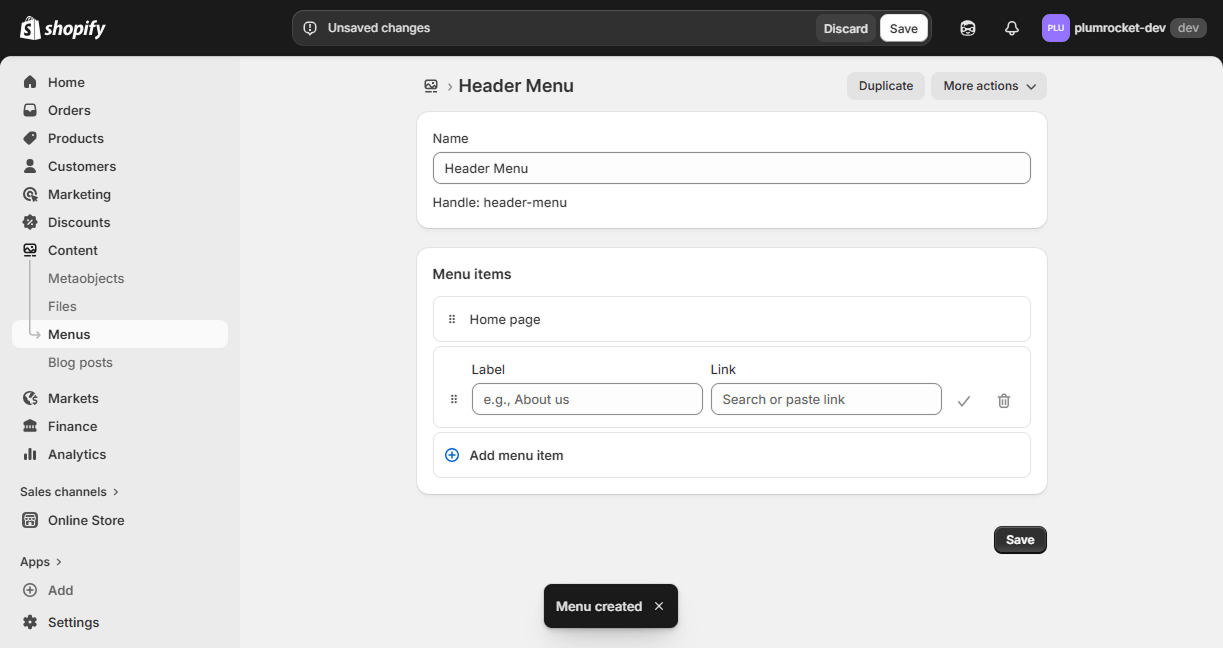
- Go to Online Store → Content → Menus and click Create menu in the top-right.
- Enter a descriptive Title like “Header Nav”. The title is internal-only and not visible to shoppers.
- Click Add menu item to build out your links one by one, following the same steps as above.
- Click Save menu.
- Now go to Online Store → Themes → Edit and open the Header section.
- In the Menu dropdown, select your new menu. Click Save.
Your new menu is now live in the header, replacing the previous one. The old menu still exists — it just isn’t being displayed.
When to Hire a Shopify Developer for Header Customization
The Theme Editor gets you far, but it has limits. You should consider custom development if you need:
- Menus that change based on customer group, login status, language, or market
- A true mega menu with images, promotions, or multi-column layouts not supported by your theme
- B2B header logic (price visibility, account-gated navigation)
- Header behavior that matches what you had in Magento 2 — especially useful if you’re migrating and want to preserve a familiar shopper experience
- Integration of custom features like wishlists, recently viewed items, or store locators in the header
If any of these sound like your situation, our Shopify development team at Plumrocket builds custom headers, navigation systems, and full theme customizations — including for merchants running both Magento and Shopify. Get in touch for a free consultation and we’ll scope the work for you.
Frequently Asked Questions (FAQ)
Can I have two menus in my Shopify header?
Yes — some themes support it natively. Others require a small code edit to add a second menu.
How do I make the header sticky?
Most themes have a built-in “Sticky header” option. If not, you’ll need to add simple CSS.
Can I show a different header on different pages?
Not by default. This requires custom templates or conditional code.
Does the header affect SEO?
Yes. Clear navigation helps SEO, while poor structure or missing alt text can hurt it.
