
Manually Installing IP Geolocation Databases
Plumrocket IP Geolocation Lookup Magento 2 extension supports two methods of IP Geolocation database installation: automatic and manual. In this guide, we will describe how to manually download and install IP Geolocation databases.
Maxmind IP Geolocation Database
Step 1. Download Maxmind IP Geolocation Database
1. Create a directory on the server:
[MAGENTO_PATH]/pub/media/prgeoiplookup/data/
2. For Maxmind, you need the following files:
GeoLite2-City-Blocks-IPv4.csv
GeoLite2-City-Locations-en.csv
To download the files, create a free account on maxmind.com, and follow the steps below:
Step-by-step guide:
- Log in to the Maxmind account, then click on the account icon on the upper left side of the page, and press the My Account button.
In the sidebar menu, go to the GeoIP2 / GeoLite2 > Download Files. - In the same grid, find the GeoLite2 City: CSV Format row, and click on the Download ZIP link there. You will download the ZIP file and get the files needed for Maxmind database installation:
GeoLite2-City-Blocks-IPv4.csv
GeoLite2-City-Locations-en.csv
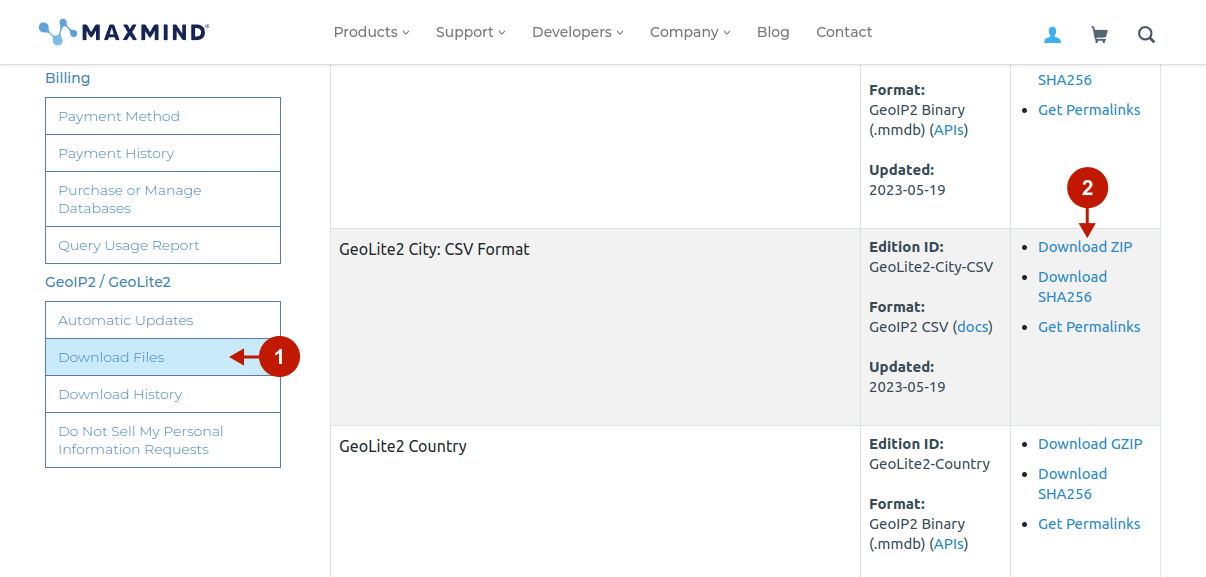
Step-by-step guide:
3. Paste the files into the following paths:
[MAGENTO_PATH]/pub/media/prgeoiplookup/data/GeoLite2-City-Blocks-IPv4.csv
[MAGENTO_PATH]/pub/media/prgeoiplookup/data/GeoLite2-City-Locations-en.csv
Step 2. Install Maxmind IP Geolocation Database
To install Maxmind manually, go to the extension’s Configuration > Services > Maxmind IP Geolocation Database > Installation Method, and select Manual Installation.
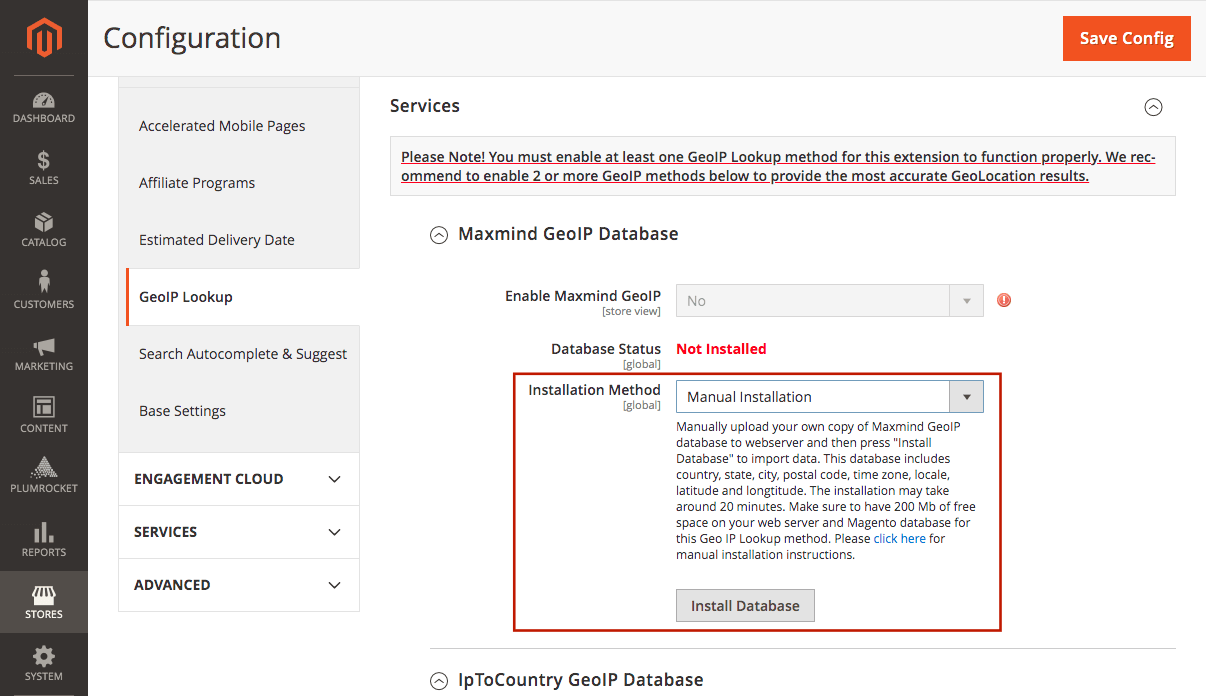
After selecting the Installation Method, click Install Database. In a few minutes, depending on the server capacity, the database will be installed.
IpToCountry IP Geolocation Database
Step 1. Download IpToCountry IP Geolocation Database
1. Create a directory on the server:
[MAGENTO_PATH]/pub/media/prgeoiplookup/data/
2. For IpToCountry, you need the IpToCountry.csv file, which you can get there:
- Website:
- Wget command: wget software77.net/geo-ip/?DL=2 -O /path/IpToCountry.csv.zip
3. Paste the file into the following path:
[MAGENTO_PATH]/pub/media/prgeoiplookup/data/IpToCountry.csv
Step 2. Install IpToCountry IP Geolocation Database
To install IpToCountry manually, go to the extension’s Configuration in the Magento backend (Plumrocket tab > IP Geolocation Lookup extension > Services > IpToCountry IP Geolocation Database > Installation Method), and select Manual Installation.
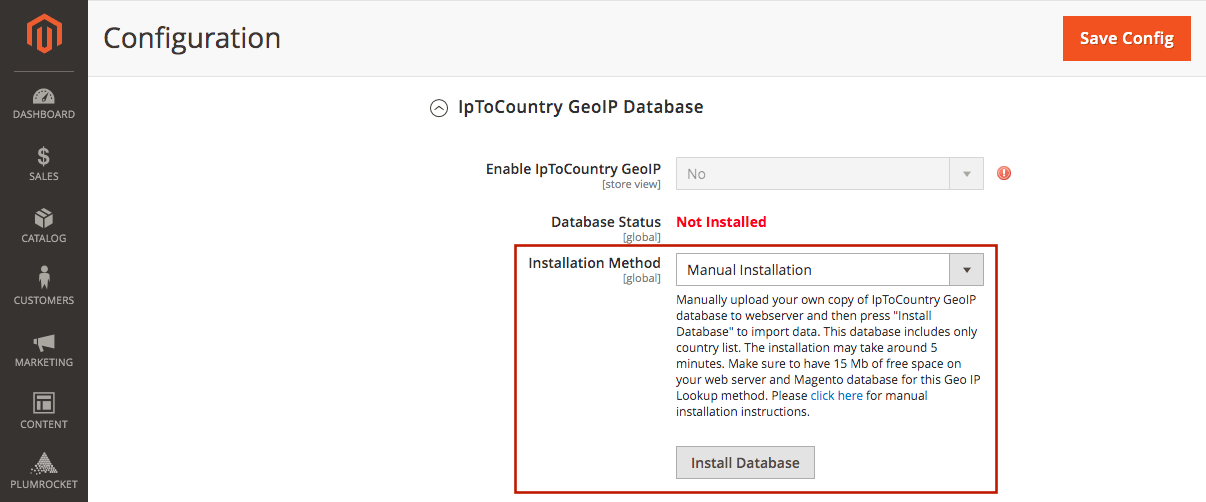
After selecting the Installation Method, click Install Database. In a few minutes, depending on the server capacity, the database will be installed.