
Skip to content
Plumrocket
  1. Magento 2 Extensions
  2. Magento 1 Extensions
  3. Services
    • Magento (Adobe Commerce)
      • Magento Speed Optimization
      • Hyvä Theme Development
        Top
      • Magento 1 to Magento 2 Migration
        Top
      • Magento Upgrade
        Top
      • Magento AMP Development
      • Magento Extension Installation
      • Hire Magento Developers
      • Magento Development
      • View All Magento Services
    • Shopify
      • Shopify Development
        Top
      • Magento to Shopify Migration
    • Salesforce
      • Salesforce Development
      • Magento Salesforce Integration
    • CMS
      • Wix Development
        New
      • Squarespace Development
        New
    • Ecommerce
      • Catalog Management
    • banner icon
      Looking for custom solutions for your business? We've got you covered.
      Start a project arrow right
  4. Resources
    • Blog Insights, trends, and best practices in eCommerce and web development.
    • FAQ Answers to common questions about our services and solutions.
    • Tutorials Step-by-step instructions to streamline your development process.
    • Documentation Detailed guides on our Magento extensions and integrations.
    • Customer Stories Real-world case studies showcasing our clients’ achievements.
  5. Special offers
  6. Contact Us
  • Contact Us

Home Magento 2 Extensions Magento 2 Popup Login Documentation v2 Developer Guide

    • Installation
    • Updating
    • Configuration
    • Developer Guide & API Reference
    • Translation
    • Uninstalling
    Magento 2 Popup Login - Documentation

Magento 2 Popup Login v2.x Developer Guide & API Reference

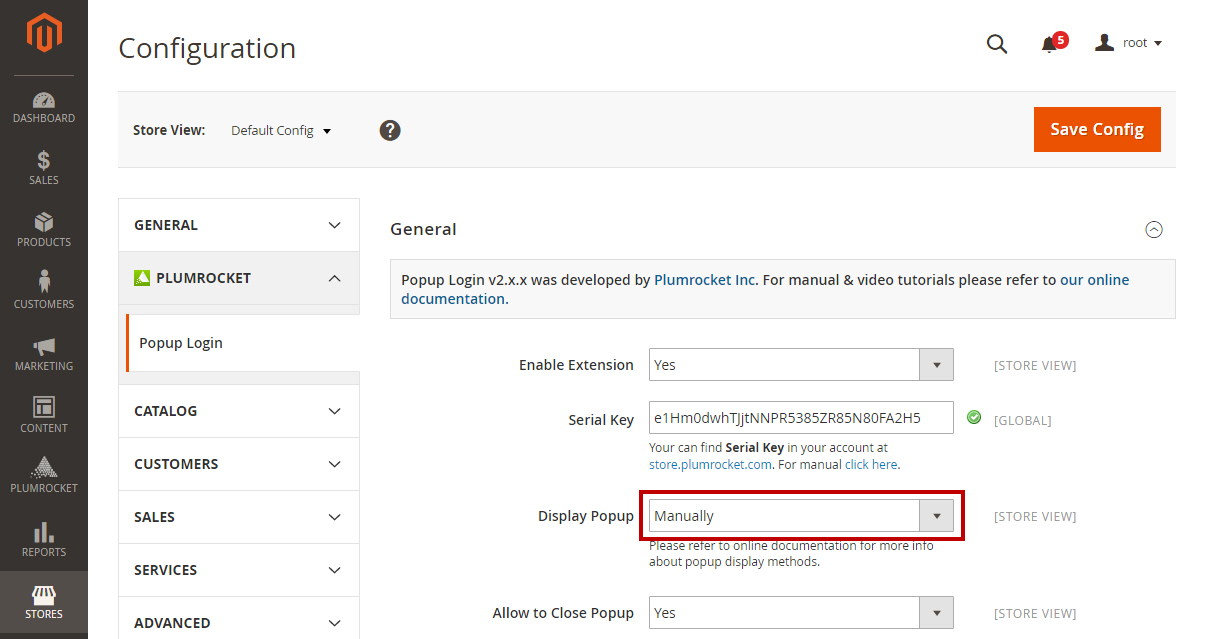
Display Popup Manually

In order to configure the Popup Login Extension for a particular page element, you will have to select “Manually” for the option “Display Popup” in the extension settings as shown below.
1 magento 2 popup login developer guide.jpg

You will also have to add a class “show_popup_login” to the object to trigger the popup login.

Code Example

<a href="/seespecialevent" class="show_popup_login">See Special Event</a>

In order to display selected popup form after click on link, you need to add the parameter data-form=”registration” .

Code Example

<a class="show_popup_login"  data-form="registration"  
        href="http://yourstore.com/magento2/index.php/customer/account/create/">
        Create an Account
    </a>

Disable Popup Manually

If you want to disable Popup only for a particular element on the page, you will have to add the parameter data-popup=”off” to the selected element. For instance, if you want to disable Pop up for the “About Us” link, you will have to edit the code.

<a href="/about/">About Us</a>

making the following changes:

<a href="/about/" data-popup="off" >About Us</a>
Was this article helpful?
02/28/202009/24/2021
Generic selectors
Exact matches only
Search in title
Search in content
Post Type Selectors
Contents
Trustpilot
Clutch
Adobe Certified Professional
Adobe Marketplace
Company
  • Home
  • About Plumrocket Inc.
  • Customer Stories
  • Programs & Promotions
  • Careers
  • Contact Us
Legal
  • Terms of Service
  • Privacy Policy
  • Refund Policy
  • Cookie Policy
  • Support Policy
  • Privacy Center
Resources
  • Blog
  • FAQ
  • Documentation
  • Tutorials
Partners
  • Partner Program
  • Affiliate Program
  • Official Partners
Plumrocket Inc. © 2008 - 2026