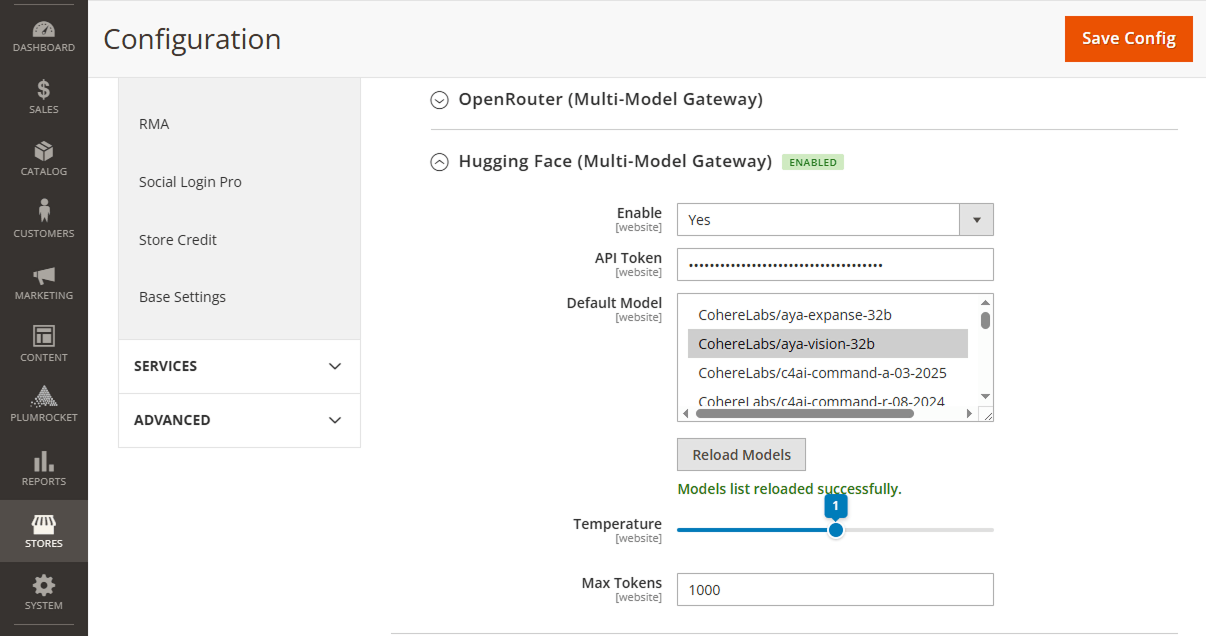
In this article, you will find step-by-step instructions on how to obtain API keys for each supported AI provider. You will need these keys to connect your preferred AI services in the Magento 2 AI Connector extension configuration.
Anthropic (Claude) API Key
Step 1: Log in to your Anthropic account
- Go to https://platform.claude.com/dashboard and log in to your account.
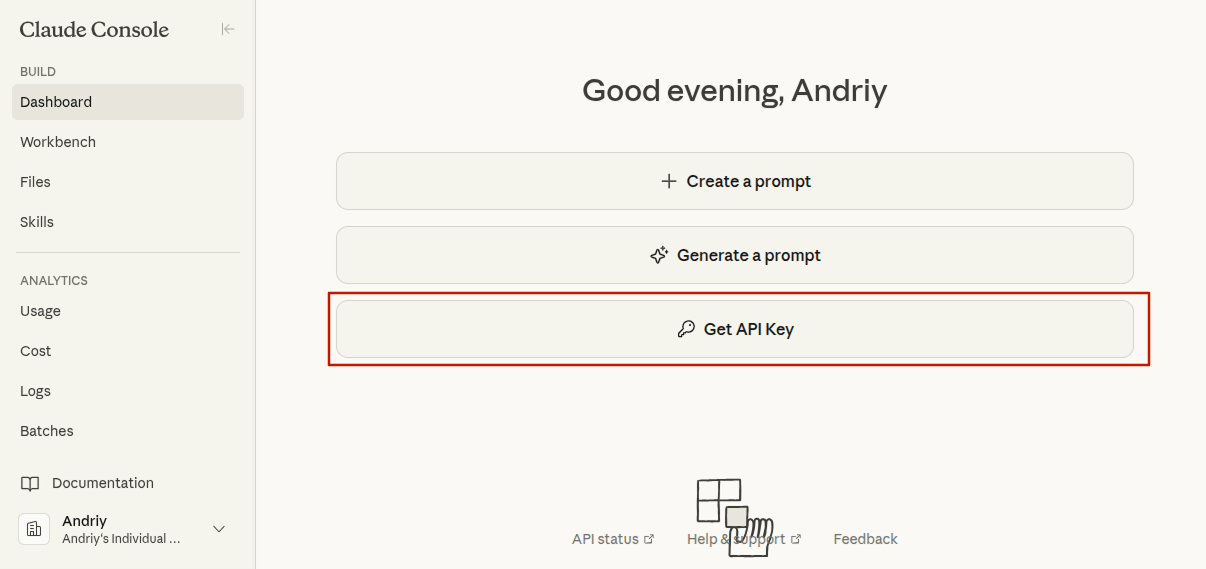
- Click the Get API Key button on the dashboard.
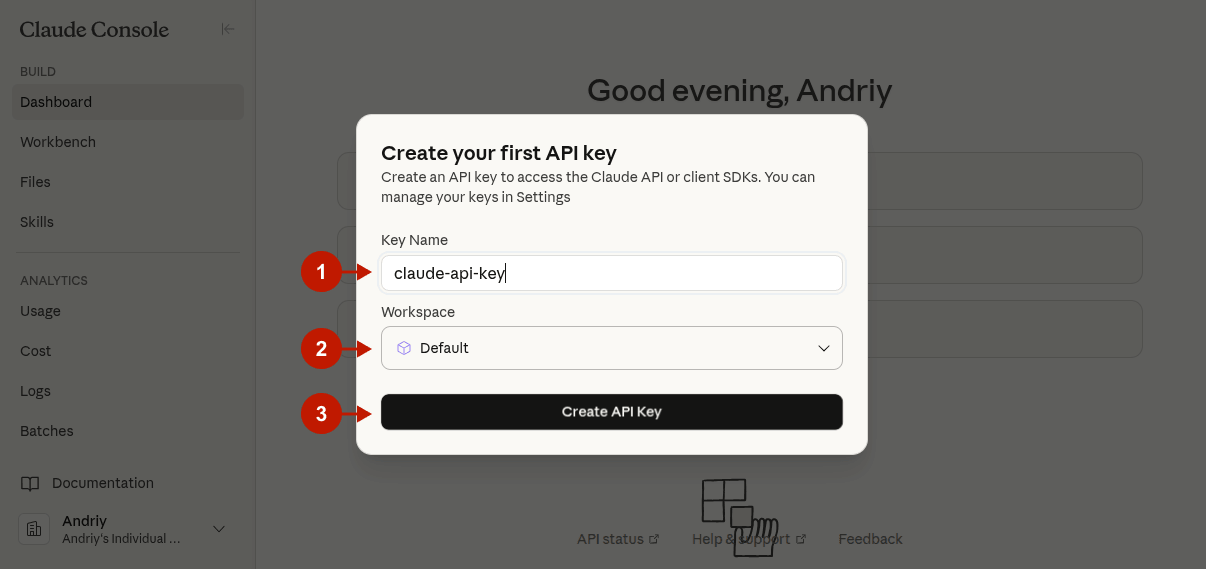
Step 2. Create a new API key
- In the Key Name field, enter a name to identify your key.
- Select the Workspace this key will belong to.
- Click Create API Key to confirm.
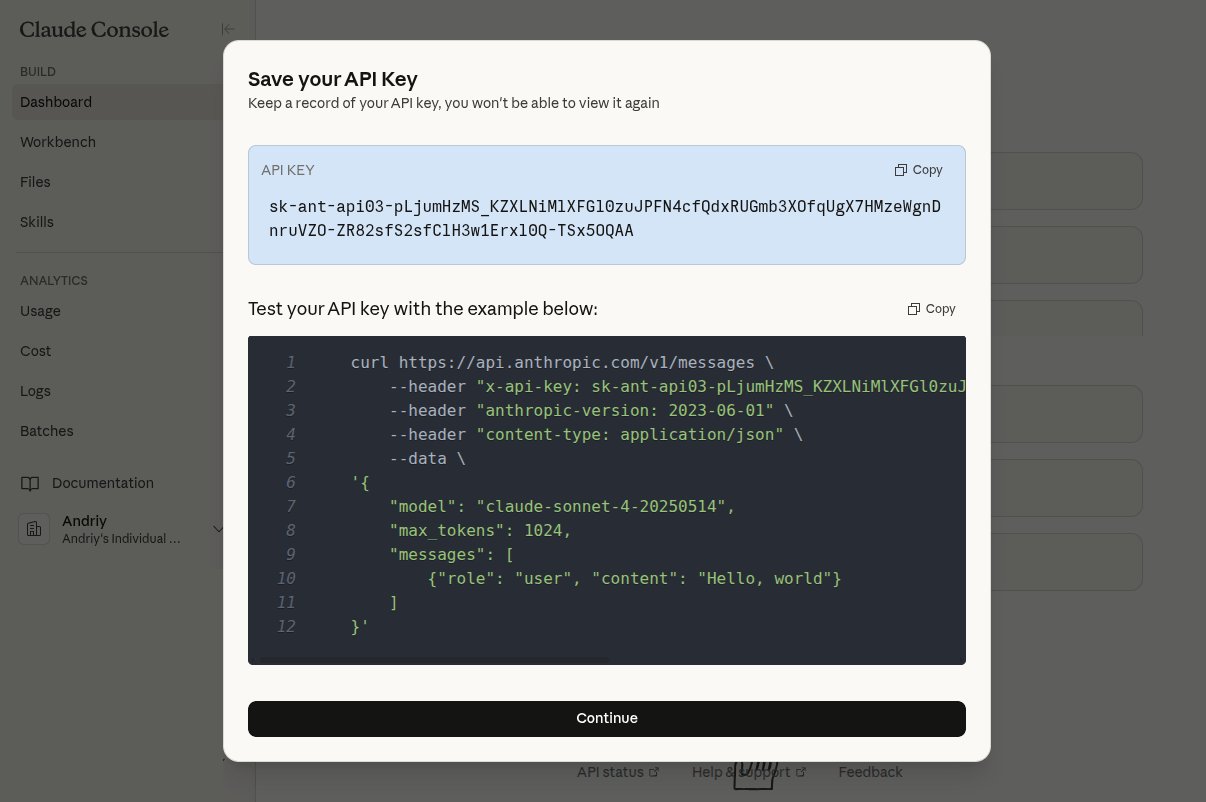
Step 3. Copy your API key
- Once the key is generated, copy it and store it in a safe place.
- Click Continue to proceed — you will be taken back to the dashboard, where all your created keys are listed.
- Paste this key into the API Key field under Anthropic (Claude) in the AI Connector Configuration.
Check out the official documentation here.
Google (Gemini) API Key
Step 1. Log in to Google AI Studio
- Go to https://aistudio.google.com/ and log in with your Google account.
- Click the Get API Key button.
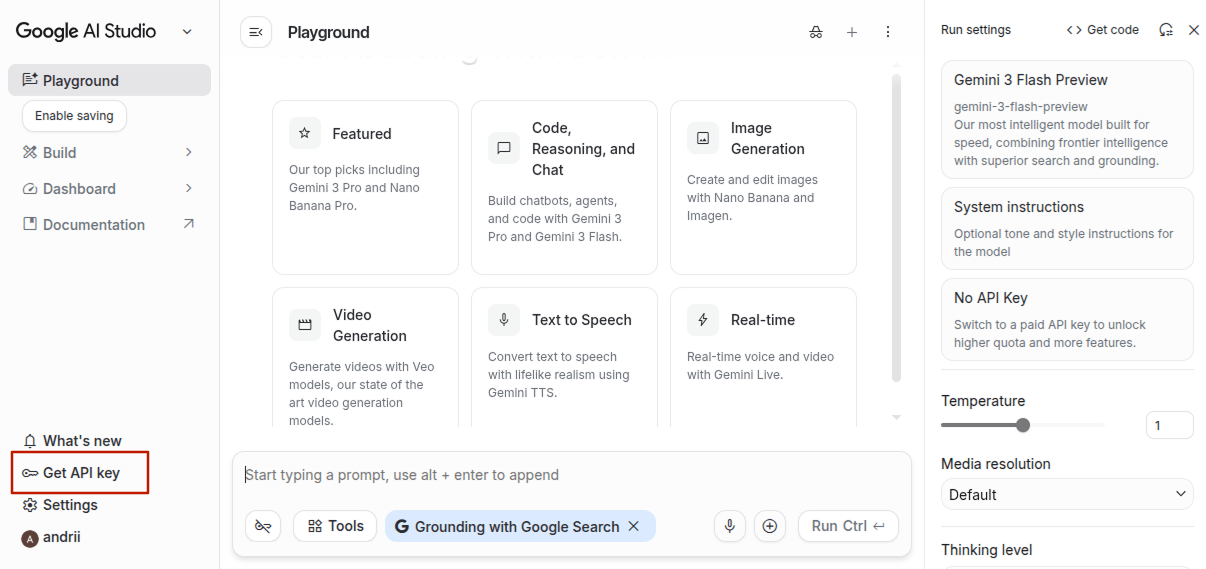
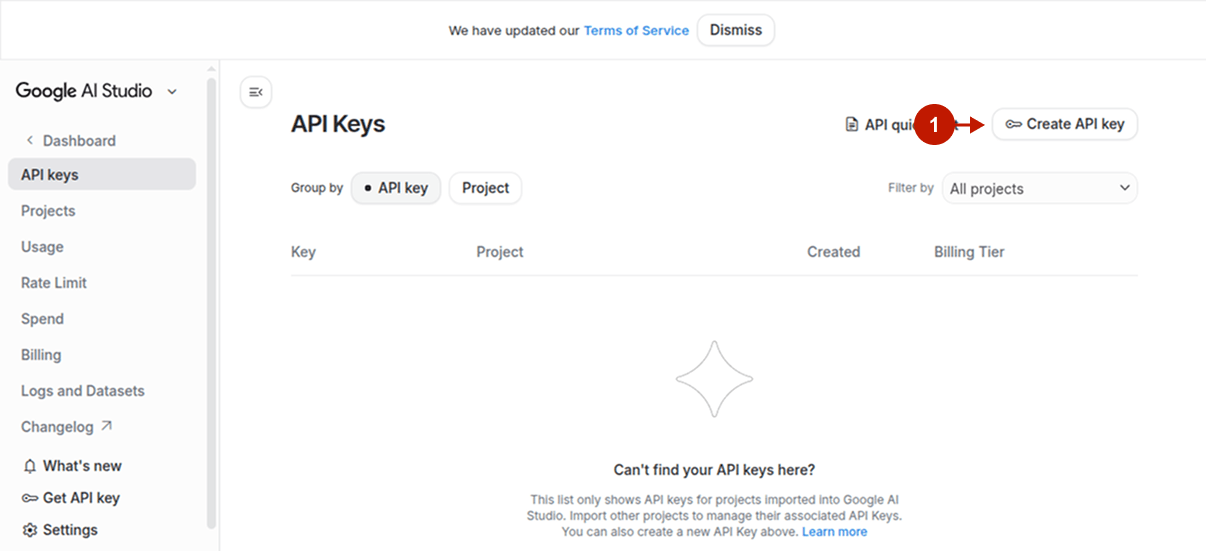
Step 2. Create a new API key
- Click the Create API Key button.
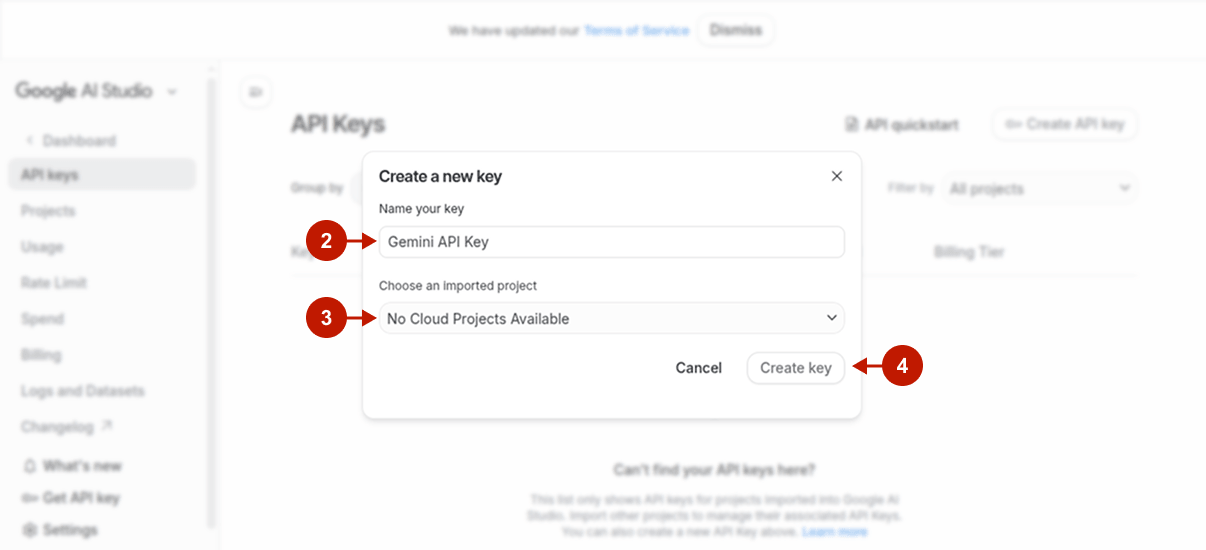
- Enter a name for your key in the name field.
- Select the Project this key will belong to.
- Click Create key to confirm.
Step 3. Copy your API key
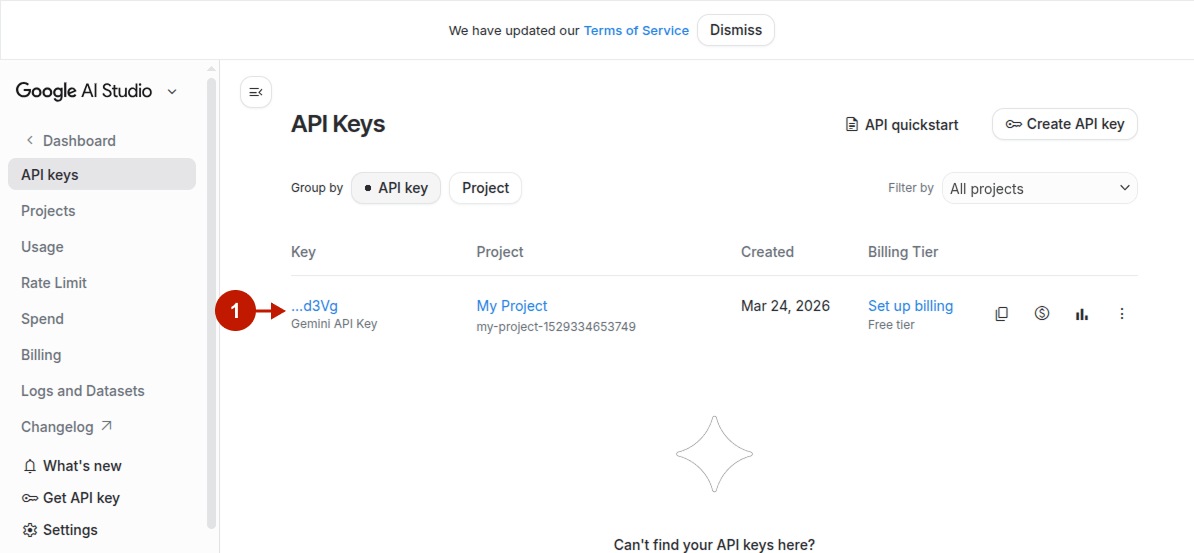
- The key will appear on your dashboard. Click on the key entry to reveal the full key value and copy it.
- Paste this key into the API Key field under Google (Gemini) in the AI Connector Configuration.
Check out the official documentation here.
OpenAI (GPT) API Key
Step 1. Log in to your OpenAI account
- Go to https://platform.openai.com/home and log in to your account.
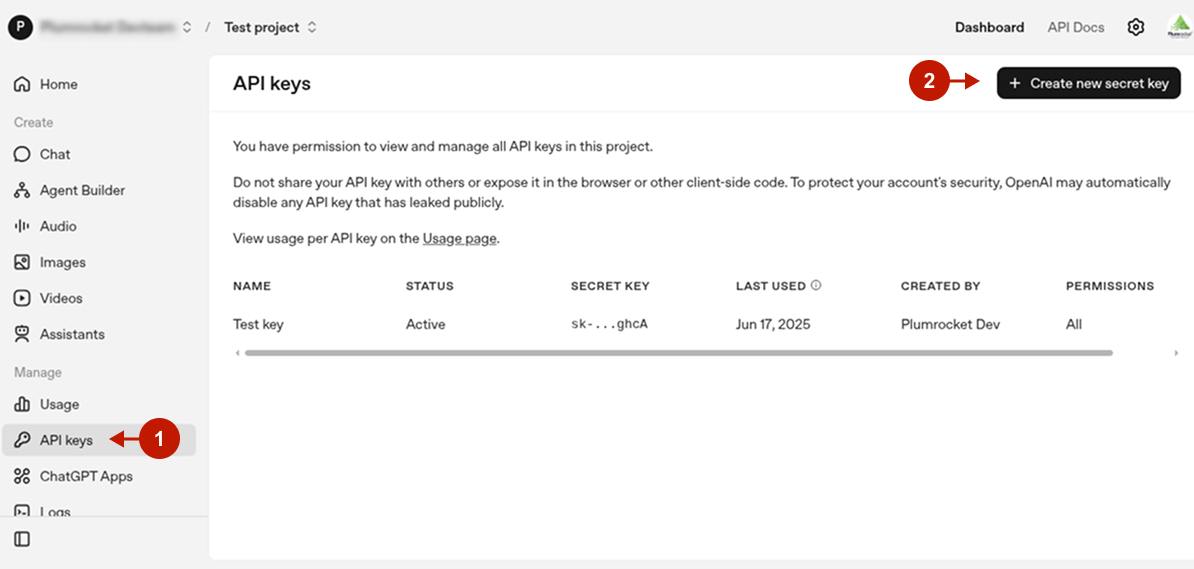
- In the left sidebar, navigate to API Keys.
- Click the Create new secret key button.
Step 2. Create a new API key
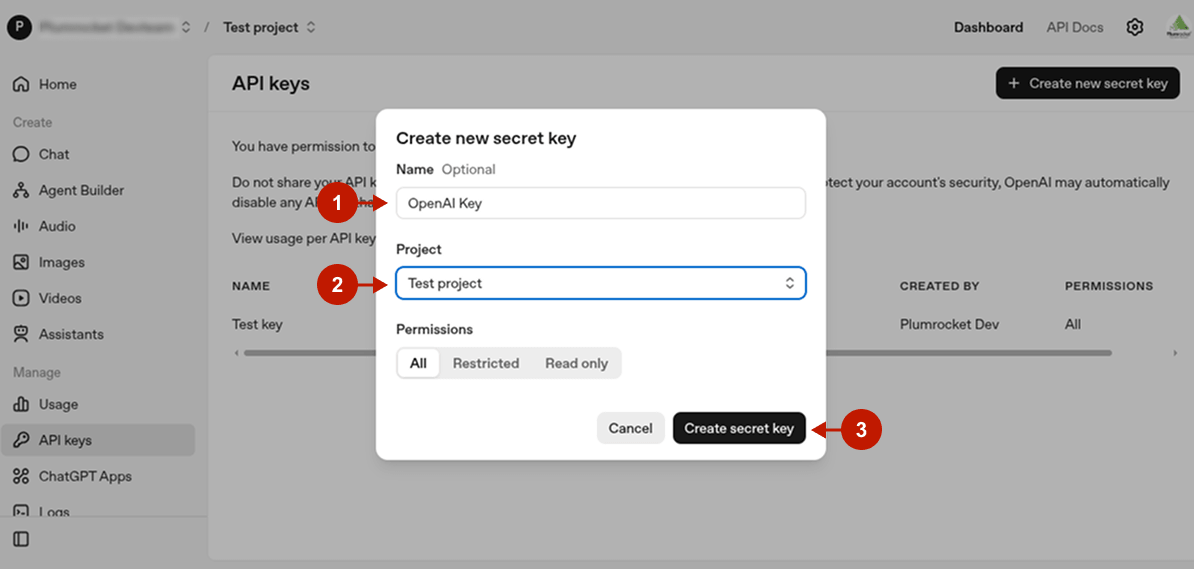
- In the Name field, enter a name for your key to identify it later.
- Select the Project this key will belong to.
- Click Create secret key to confirm.
Step 3. Copy your API key
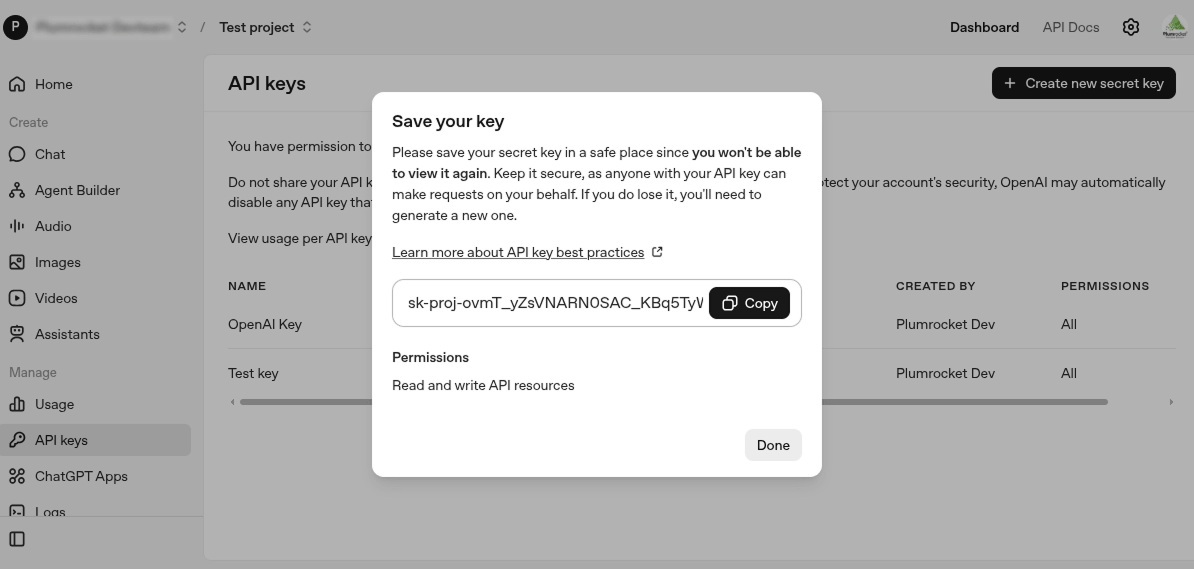
- Once the key is generated, copy it immediately and store it in a safe place — OpenAI will not show it again after you close the dialog.
- Paste this key into the API Key field under OpenAI (GPT) in the AI Connector Configuration.
Check out the official documentation here.
OpenRouter API Key
This section explains how to obtain an API key for OpenRouter, which gives you unified access to a wide range of AI models from different providers through a single endpoint. You will need this key to connect OpenRouter in the Magento 2 AI Connector extension configuration.
Step 1. Log in to your OpenRouter account
- Go to https://openrouter.ai/settings/keys and log in to your account.
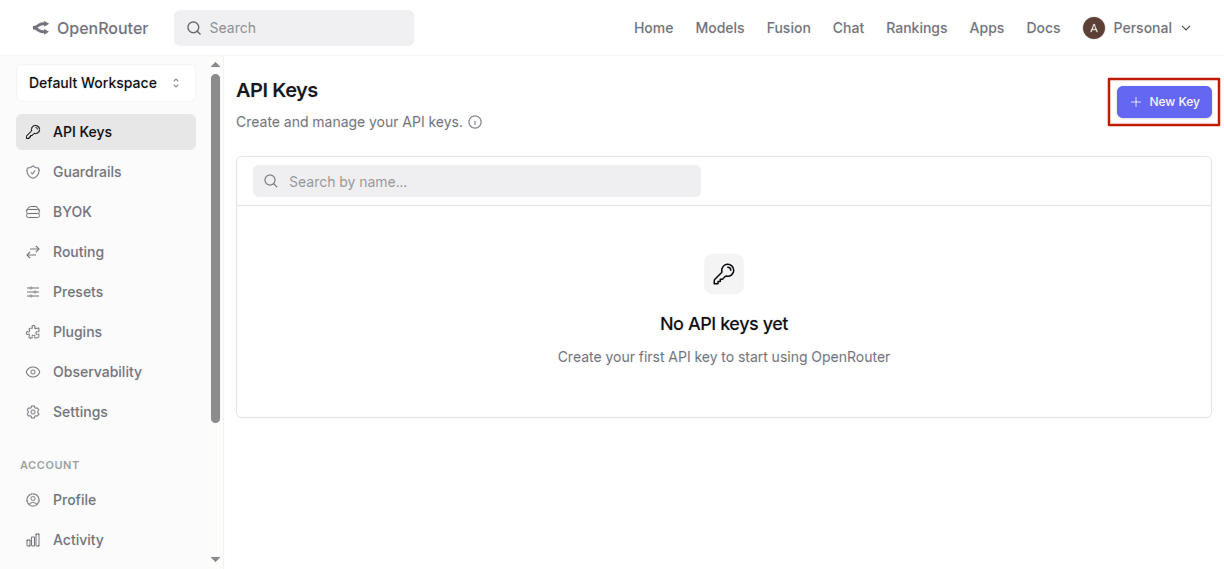
- In the left sidebar, navigate to API Keys.
- Click the New Key button.
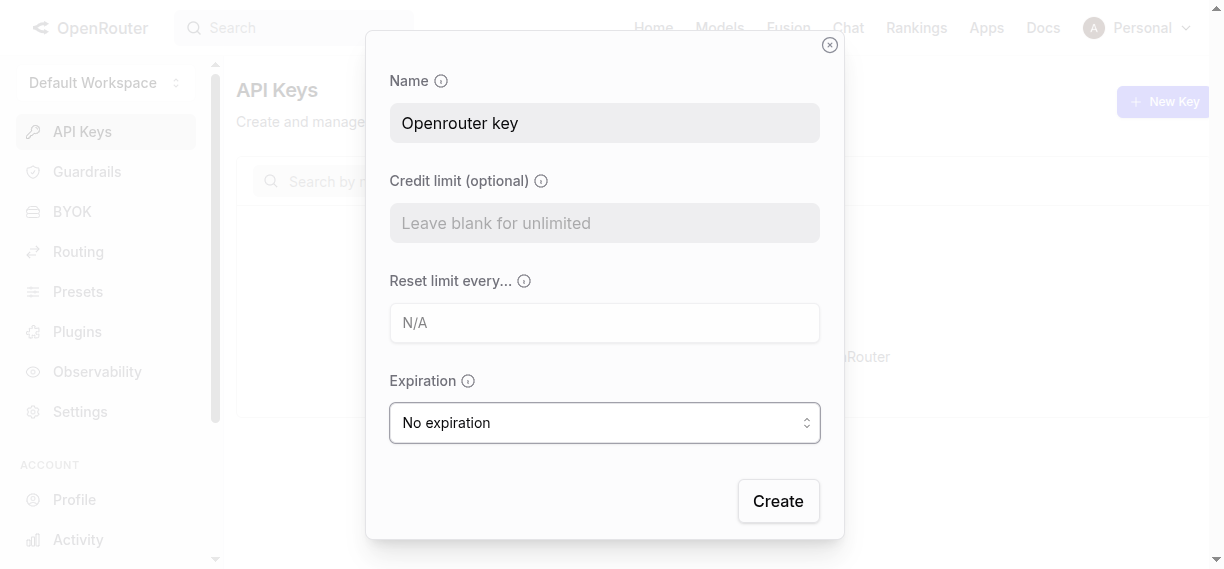
Step 2. Create a new API key
- In the Name field, enter a name to identify your key later.
- Optionally, set a Credit limit — leave it blank for unlimited usage.
- Optionally, configure Reset limit and Expiration if you want the key to renew or expire automatically.
- Click Create to confirm.
Step 3. Copy your API key
- Once the key is generated, copy it immediately and store it in a safe place — OpenRouter will not show it again after you close the dialog.
- Paste this key into the API Key field under OpenRouter in the AI Connector Configuration.
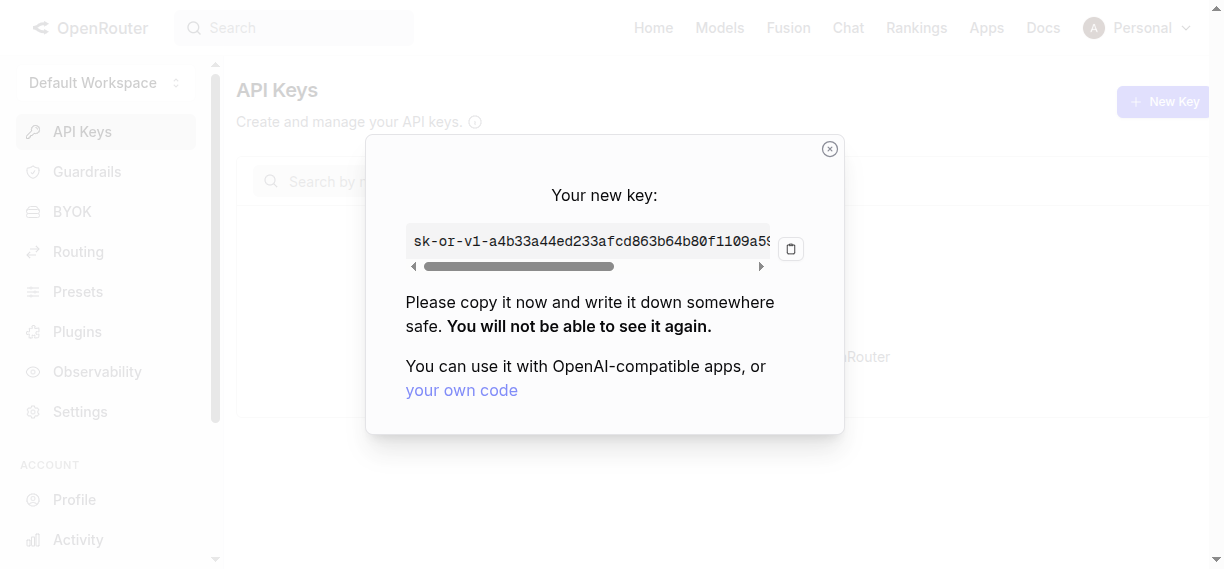
Your created keys are listed on the API Keys page, where you can review their usage, limits, and status at any time.
Check out the official documentation here.
Hugging Face API Key
Hugging Face opens the door to the open-source side of AI: hundreds of community and enterprise models served through a single Inference Providers endpoint. This section explains how to generate the access token you’ll need to connect Hugging Face in the Magento 2 AI Connector configuration.
Step 1. Log in and open the Access Tokens page
- Go to https://huggingface.co/login and log in to your account.
- Confirm your email address if you haven’t already.
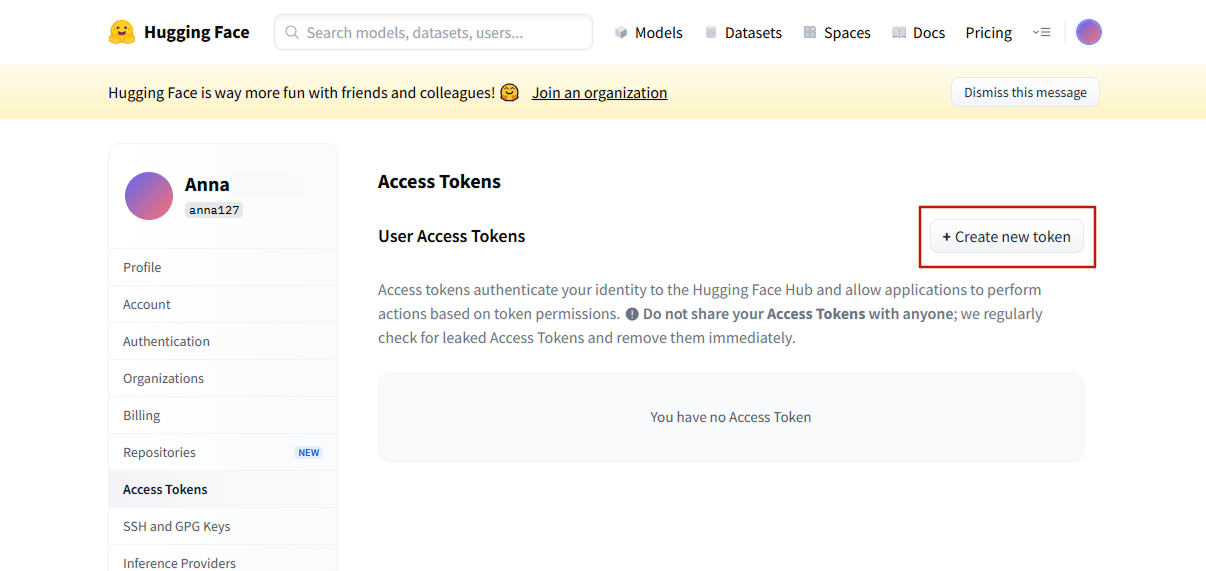
- Open https://huggingface.co/settings/tokens.
- Click the Create new token button.
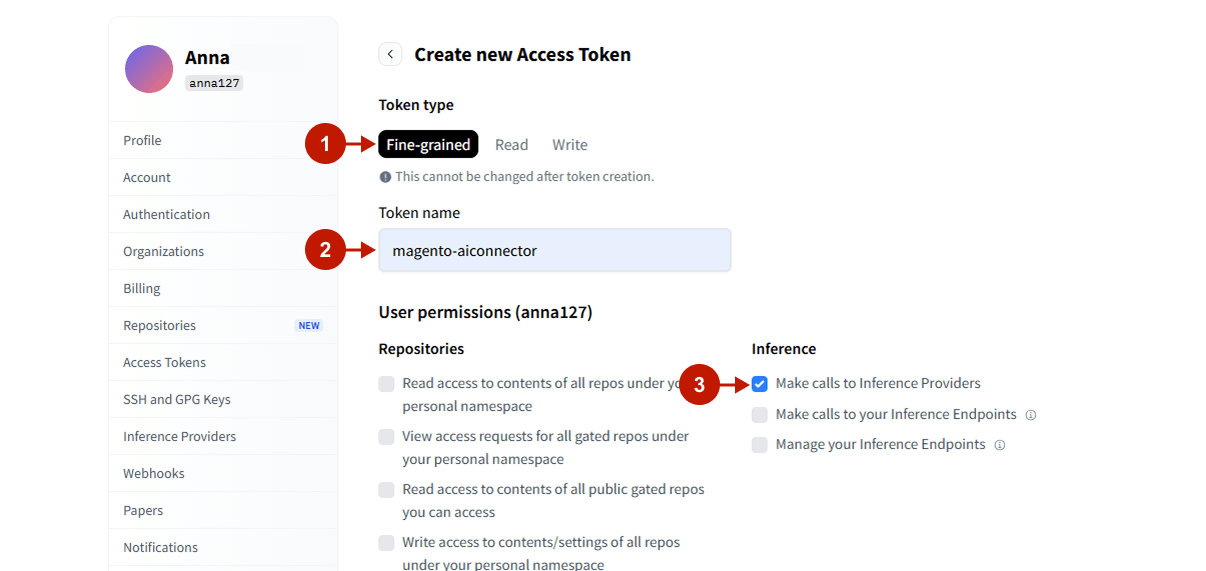
Step 2. Create a Fine-grained token
- Select the Fine-grained tab at the top.
- In the Token name field, enter a name to identify your token later, for example
magento-aiconnector. - Under the Inference section, enable Make calls to Inference Providers — this is the only permission the module requires.
- Leave all other permissions unchecked.
- Click the Create token button at the bottom of the page.
Step 3. Create and copy your token
- Once the token is generated, copy it immediately and store it in a safe place — Hugging Face will show it only once. If you lose it, you’ll need to create a new one.
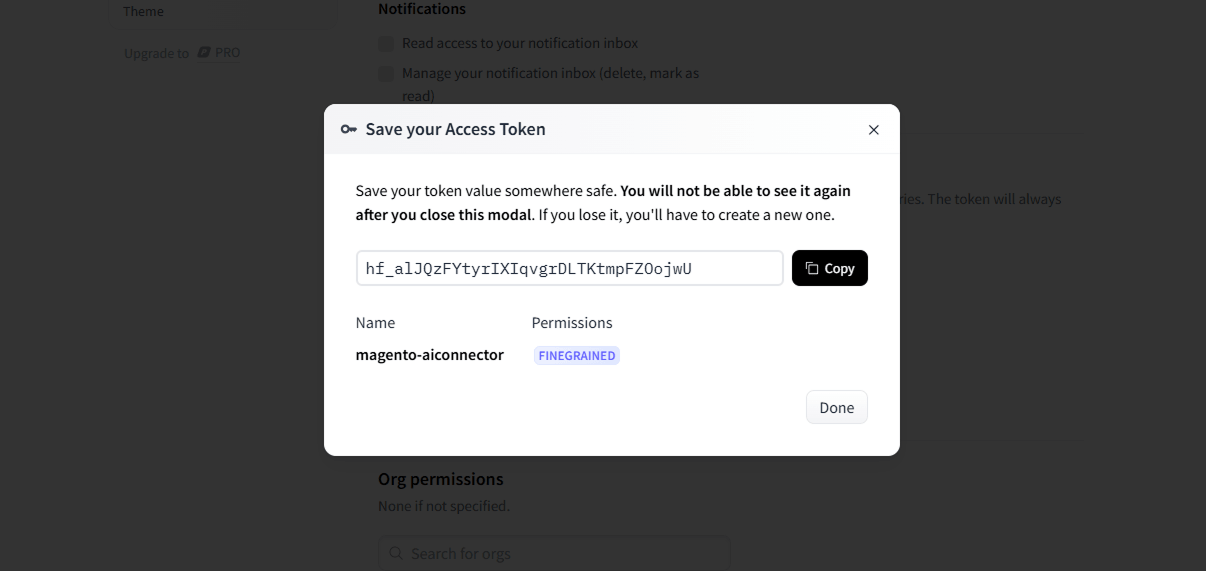
- Paste this token into the API Token field under Hugging Face tab in the AI Connector Configuration, then click Save Config.
- Click Reload Models to pull the available model list from the router, then use Test Connection to verify the token works.