
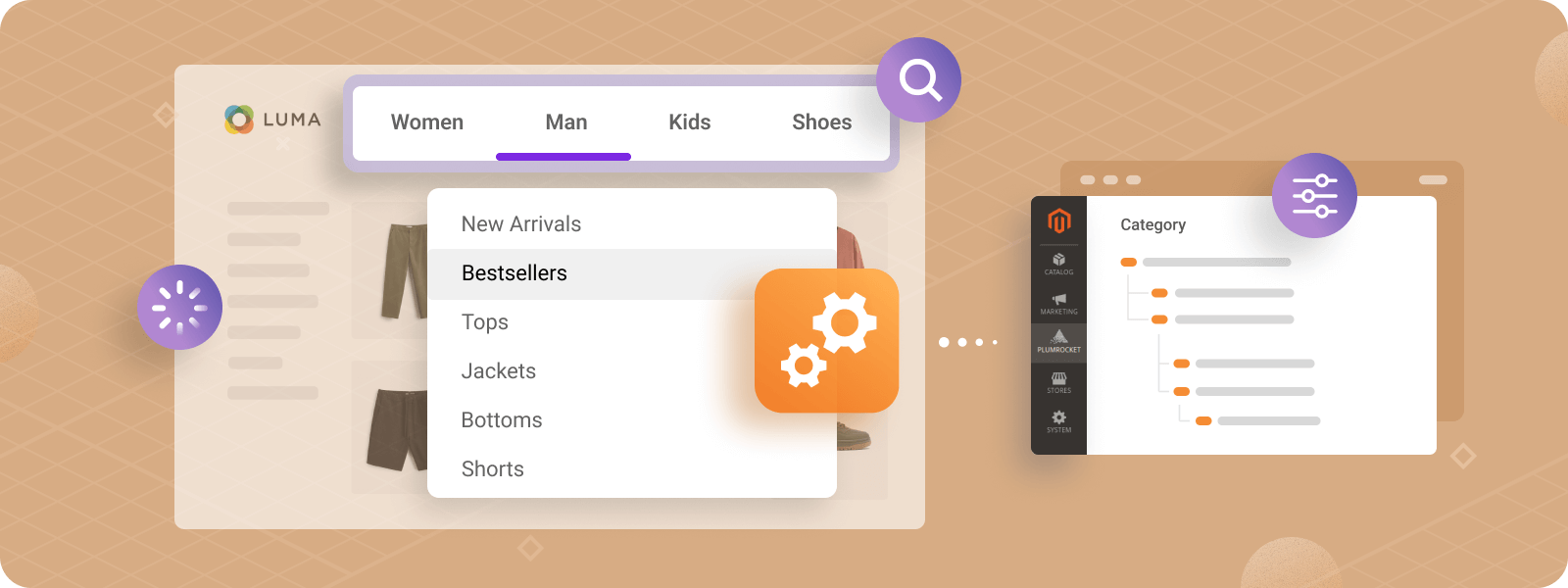
The Magento 2 top navigation menu is a crucial feature for any eCommerce store. It allows customers to quickly access key sections of the store, such as product categories, collections, and important pages. Setting it up correctly not only enhances user experience but also contributes to your SEO by helping search engines crawl your site more effectively.
In this tutorial, we’ll walk you through the steps of setting up and customizing the top menu in Magento 2 and how you can improve the site navigation with the Layered Navigation extension.
Understanding Category Tiers in Magento 2 Navigation
In Magento 2, category tiers refer to the hierarchical structure of categories and subcategories that determine how products are organized and displayed in the store. Understanding how these categories work is essential for setting up a user-friendly and SEO-optimized navigation system.
What Are Category Tiers in Magento 2
Magento 2 organizes your products into a category hierarchy, typically consisting of three levels:
- Root Category: The highest level in your category structure. In Magento 2, all storefront categories are organized under a root category assigned to the store
- Main Categories: These are the primary categories within the root category, such as “Women”, “Men”, or “Gear”.
- Subcategories: These are secondary levels of categorization, like “Tops” or “Bottoms” under their respective main categories.
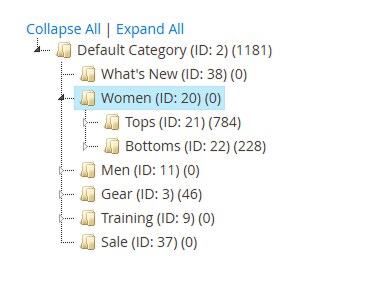
This tiered structure helps both users and search engines easily navigate and understand the organization of your store.
How Magento Builds the Top Menu from Category Hierarchy
Magento 2 automatically generates the top navigation menu by pulling categories from the backend and displaying them in a structured way based on the hierarchy. Here’s how it works: root Category forms the foundation, while Main Categories and Subcategories are automatically displayed as menu items and dropdowns.
Magento ensures that the top menu reflects this hierarchical structure, making it intuitive for users to find products based on categories.
How Many Levels of Categories Are Optimal
Although Magento allows the creation of multiple category levels, achieving the right balance between usability and performance is crucial. From a usability perspective, two to three category levels are generally ideal. This structure enables users to navigate the site efficiently without feeling overwhelmed. When category hierarchies become too deep, users may struggle to locate specific products, which can lead to frustration and higher bounce rates.
Performance is another important consideration. As category structures grow more complex, they require additional processing, which can negatively impact page load times. Deep category trees can place unnecessary strain on your site’s resources and affect key metrics such as Core Web Vitals.
By limiting category depth to only what is necessary, you help ensure faster page loads, a smoother user experience, and improved SEO performance.
How to Configure Magento 2 Top Navigation Menu
The first step in setting up your Magento 2 top navigation is to create product categories. These categories will serve as the items in your navigation menu.
How to Create Categories for Top Navigation in Magento 2:
- Go to Catalog > Categories in the Magento Admin Panel.
- Click on Add Root Category or Add Subcategory, depending on your structure.
- Fill in the necessary information such as name, URL key, and description.
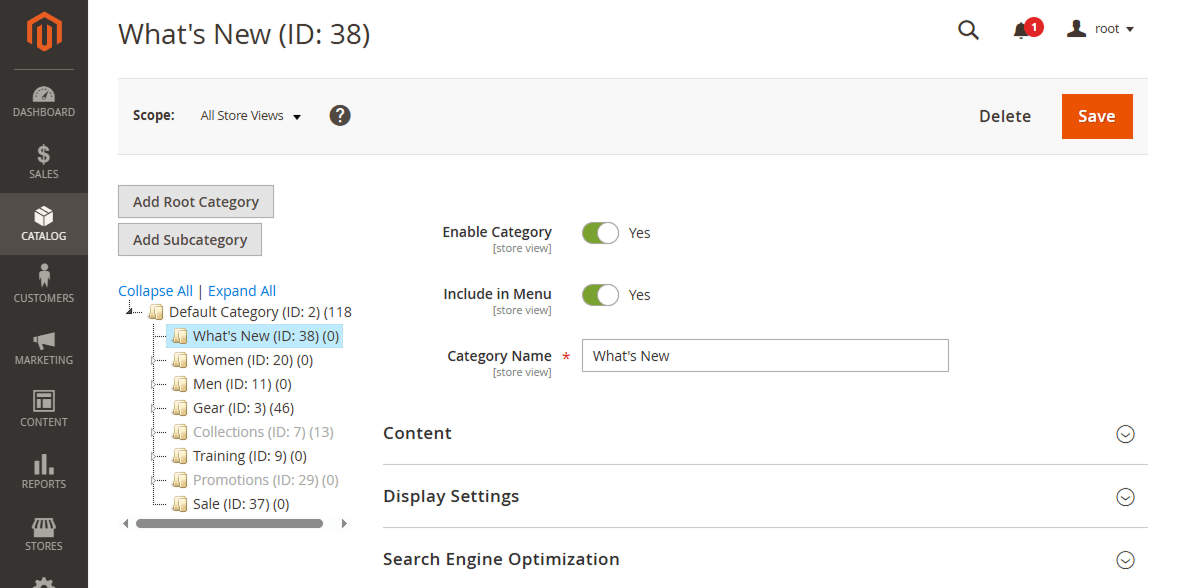
- Under the Display Settings, make sure Include in Menu is set to Yes so the category will show up in the navigation.
- Drag and drop to reorder categories or subcategories directly in the Categories list.
How to Configure Maximal Depth of Top Menu in Magento 2:
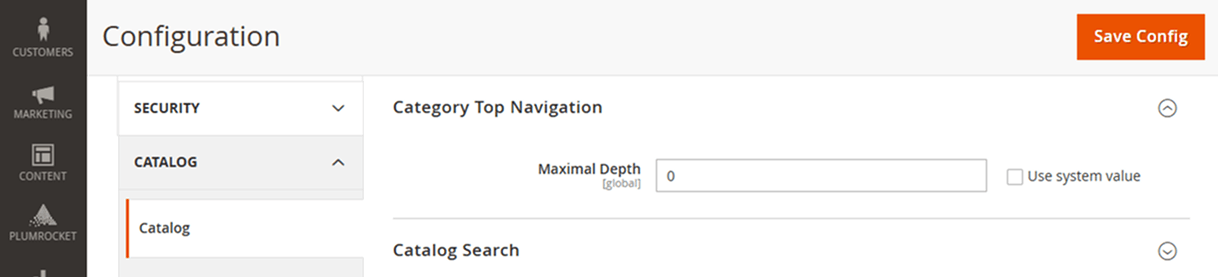
- Go to Stores > Settings > Configuration from the Admin sidebar.
- Under the Catalog section on the left, click on Catalog.
- Expand the Category Top Navigation section.
- You’ll see a field labeled Maximal Depth. This setting determines the number of levels of subcategories that will be displayed in the top menu.
- Once you’ve entered the desired depth, click Save Config to apply the changes.
How to Improve Store Navigation in Magento 2
For stores with larger catalogs, adding more subcategories to the top menu is not always effective. Deep category trees increase complexity and can slow down navigation.
Instead of expanding category depth, layered navigation provides a cleaner and more intuitive way for customers to find products. Magento 2 includes basic layered navigation functionality, allowing filtering by attributes such as size, color, brand, or price.
How to Enable Layered Navigation in Magento 2:
- Navigate to Stores > Settings > Configuration in your Magento Admin Panel.
- In the left-side panel, expand Catalog and click on Catalog.
- Expand the Layered Navigation section.
- Ensure “Display Product Count” is set to Yes if you want customers to see how many products match each filter option.
- Set “Price Navigation Step Calculation” to your preferred method (Automatic, Manual, or Automatic (equalize price ranges)).
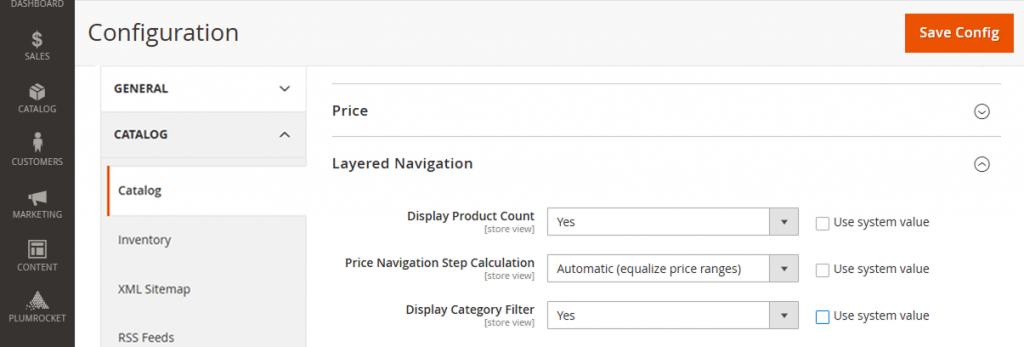
To make attributes available for layered navigation, configure each attribute individually. For more guidance, see our Layered Navigation Management guide.
For stores with complex catalogs, the native layered navigation may have limitations. To streamline setup and provide a more refined experience, many merchants use Plumrocket Layered Navigation. This extension enhances default functionality by offering:
- Ajax-based filtering – Customers can apply multiple filters without page reloads, creating a faster, more fluid shopping experience
- Multi-select filtering – Allow selection of multiple options within a single attribute (e.g., selecting both “Red” and “Blue” simultaneously)
- Enhanced filter types – Price sliders, rating filters, and visual swatches improve how customers interact with product attributes
- Mobile-optimized interfaces – Responsive filter panels designed specifically for touch Magento navigation menu
By combining a clean top menu with enhanced layered navigation, stores can deliver an efficient, scalable, and user-friendly browsing experience. Customers find products faster, and the store maintains high performance and strong SEO metrics.
Frequently Asked Questions (FAQ)
Why is my category not showing in the Magento 2 top menu?
Common reasons include the category being disabled, “Include in Menu” set to No, incorrect store view assignment, or cached data not being refreshed.
What is the Maximal Depth setting in Magento 2 navigation?
The Maximal Depth setting controls how many levels of subcategories are displayed in the Magento 2 top navigation menu. A value of 0 means no restriction.
How many category levels should be shown in the top menu?
For usability and performance, most Magento 2 stores perform best with two to three visible category levels in the top navigation.
Does the Magento 2 top navigation affect SEO?
Yes. The top navigation menu influences internal linking, crawlability, and user experience, all of which can impact SEO performance.
