

Getting your Magento 2 store emails into customers’ inboxes — rather than their spam folders — depends on more than just having email enabled. It requires proper Magento 2 SMTP email configuration and, depending on your store’s needs, potentially a dedicated extension to give you the visibility and control that reliable email delivery demands.
This guide walks you through both approaches: using Magento’s built-in SMTP settings and setting up a SMTP extension for Magento 2 store.
Default Magento 2 SMTP vs Third-Party SMTP Extension
Magento 2’s email capabilities have improved significantly over the years. Since version 2.4.6, Magento includes native SMTP support directly in the admin panel, meaning you can connect your store to an external mail server like Gmail, SendGrid, or Amazon SES without installing any additional extensions. For many stores, this is a perfectly capable solution.
So if native SMTP is now built in, why would you need an extension at all? The honest answer is that Magento’s native SMTP is essentially just a connection layer. It routes your emails through an external server, but it gives you very little visibility or control beyond that. A dedicated SMTP extension for Magento 2 stores fills that gap with features that matter as your store grows:
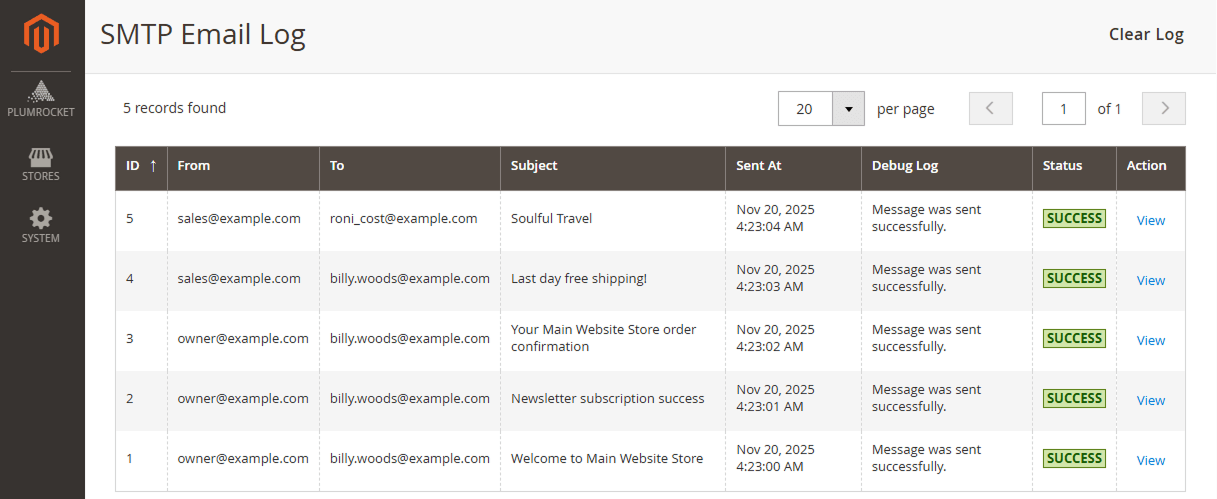
- Email logging — A full record of every email sent, so you can verify delivery, inspect content, and resend failed emails directly from the admin panel. Without this, there’s no way to confirm whether a customer’s order confirmation was actually sent.
- Multi-store support — Assign different SMTP credentials per store view, which is essential if you run multiple brands or regional stores under one Magento installation.
- 40+ provider presets — Pre-configured settings for major providers mean less chance of misconfiguration and faster setup.
- Developer mode — Test new SMTP settings before deploying to the production environment.
The right choice depends on your situation. If you run a single store and just need transactional emails to send reliably, native Magento SMTP configured correctly with a reputable provider will serve you well. If you need an audit trail, manage multiple stores, or want operational visibility without digging through server logs, an extension is worth it.
The sections below cover both setups in full.
How to Configure Default SMTP Email Settings in Magento 2
Before diving into third-party extensions, it’s worth setting up Magento’s native SMTP correctly. Since Magento 2.4.6, you can configure SMTP directly from the admin panel without any additional plugins. Follow the steps below to get your store emails sending reliably.
Step 1: Create a Dedicated Email Address for Your Domain
Using a domain-based email address instead of a generic Gmail address improves deliverability and builds customer trust.
- Access your Hosting Control Panel — Log in to your hosting account (cPanel, Plesk, or your host’s custom dashboard).
- Navigate to the Email Accounts section — Look for “Email Accounts” or “Email Manager” in the main menu.
- Create a new email address — Click “Create” or “Add Email Account”, then enter your desired address, set a strong password, and save.
- Note your SMTP credentials — Once the account is created, locate the outgoing mail server details provided by your host. You’ll typically need the SMTP host, port, username, and password in the next steps.
Step 2: Configure Your Store’s Sender Email Addresses
Next, tell Magento which email address and name to use when sending store emails to customers.
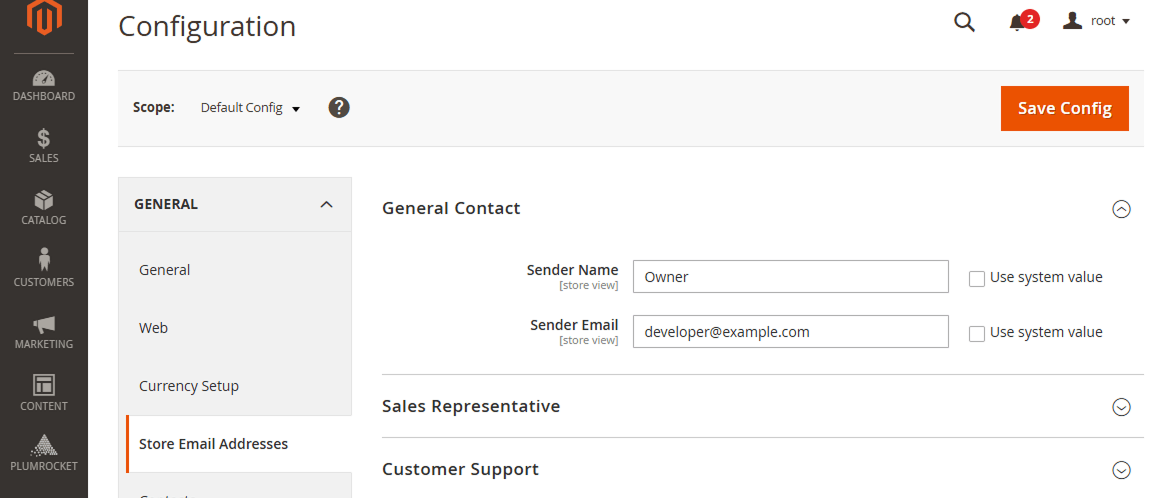
How to Configure Store’s Sender Email Addresses:
- In your Magento Admin Panel, go to Stores → Settings → Configuration.
- In the left sidebar, under the General section, click Store Email Addresses.
- Under the General Contact tab, fill in:
- Sender Name — The name customers will see in their inbox.
- Sender Email — The domain email you created in Step 1
- Repeat the same for the Sales Representative and Customer Support sections, using appropriate names and email addresses for each contact type.
- Click Save Config when done.
Step 3: Review Your Sales Email Configuration
Magento sends several automated emails related to orders, invoices, and shipments. It’s important to make sure each one is configured with the correct sender details.
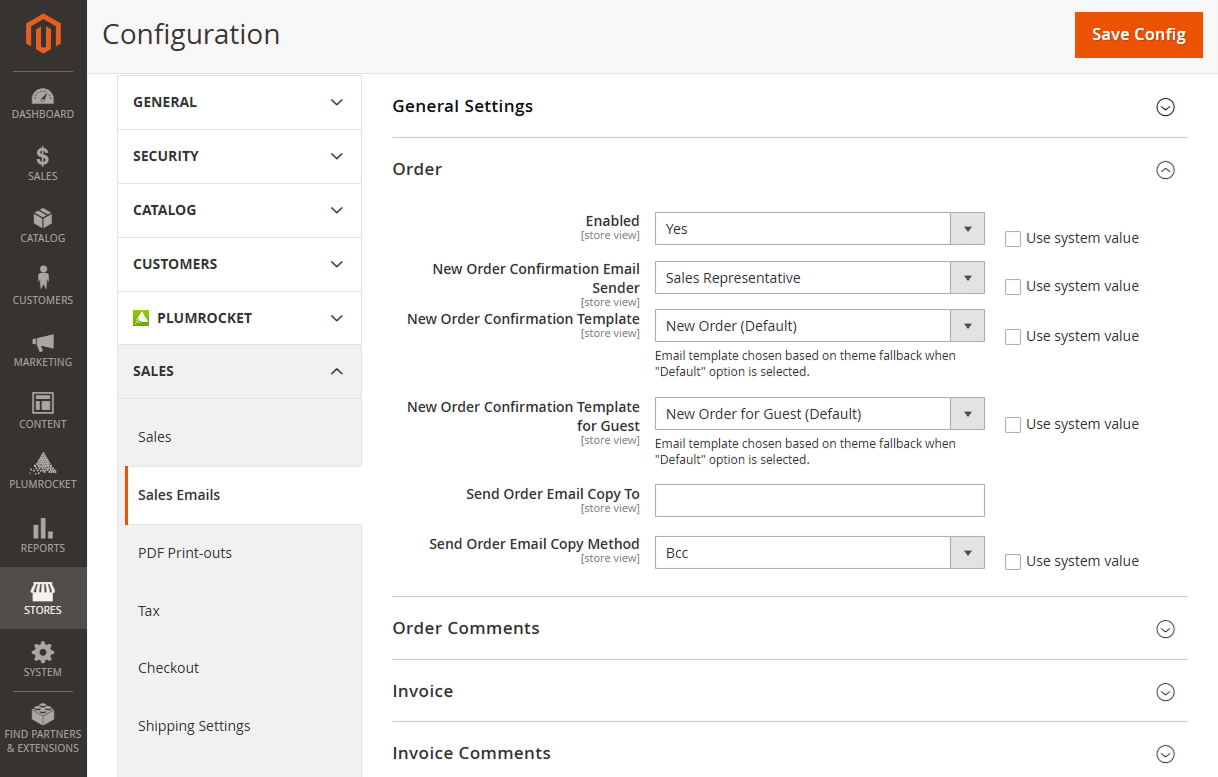
How to Review Sales Email Configuration in Magento 2:
- Go to Stores → Configuration → Sales → Sales Emails.
- Work through each section — Order, Order Comments, Invoice, Shipment, Credit Memo, and others.
- For each section, verify:
- Enabled is set to Yes
- Sender is set to the appropriate contact (e.g. General Contact or Sales Representative)
- Email template is set to the correct template for your store
- Click Save Config once you’ve reviewed all sections.
Step 4: Configure Magento SMTP Email Sending Settings
This is where you connect Magento to your outgoing mail server so emails are sent through SMTP rather than PHP’s default mail() function.
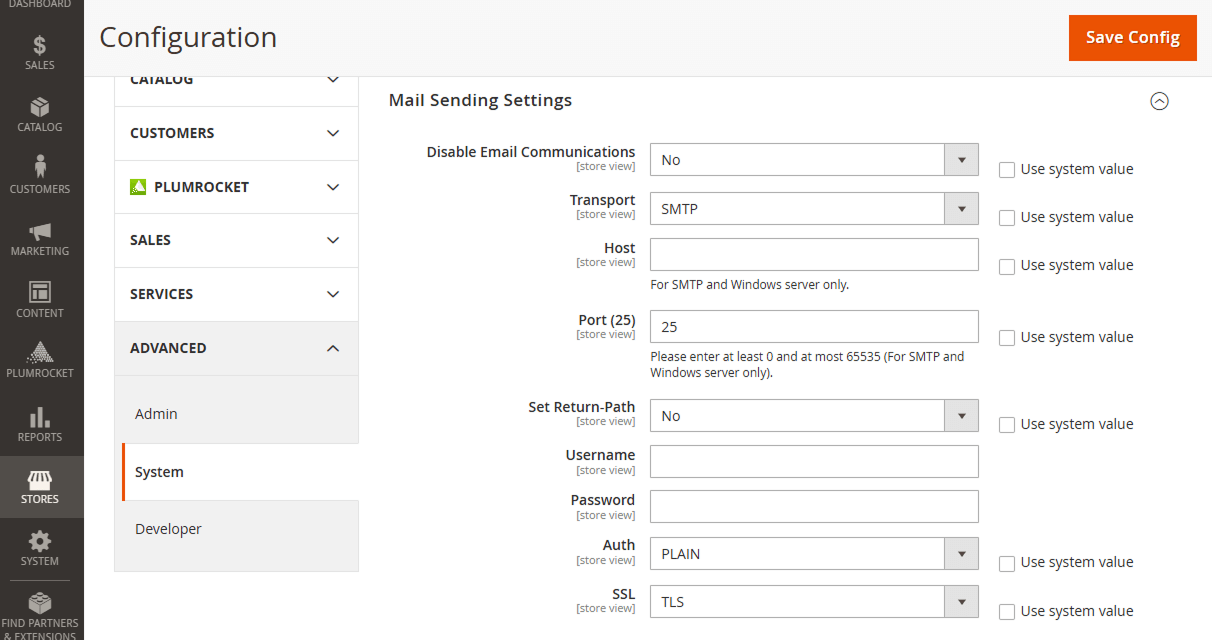
How to Configure Magento 2 SMTP Email Sending Settings:
- Go to Stores → Configuration → Advanced → System.
- Expand the Mail Sending Settings section.
- The field Transport set to SMTP.
- Fill in the following fields:
- Host — your SMTP server address (e.g. smtp.gmail.com)
- Port — typically 587 for TLS or 465 for SSL
- Authentication — set to LOGIN for most providers
- SSL/TLS — select TLS (recommended) or SSL
- Username — your full email address
- Password — your email account password
- Click Save Config.
Configuring SMTP is only half the battle. To ensure your emails don’t land in spam, you also need to set up SPF, DKIM, and DMARC DNS records for your domain. Your hosting provider or email service provider (e.g. SendGrid, Mailgun) will give you the specific values to add.
How to Configure Magento 2 Email SMTP Setup extension
While Magento’s native SMTP covers the basics, Plumrocket SMTP extension opens up more advanced features that make managing your store’s email easier and more transparent — particularly email logging, multi-provider support, and per store view configuration.
Important Information:
If your Magento version is older than 2.4.6, installing an SMTP extension is necessary since native SMTP support doesn’t exist in earlier versions. That said, we strongly recommend upgrading to the latest Magento release regardless, as older versions no longer receive security patches and put your store at risk.
Step 1: Install the Extension
You can find detailed installation instructions in the installation guide.
Step 2: Configure SMTP Settings
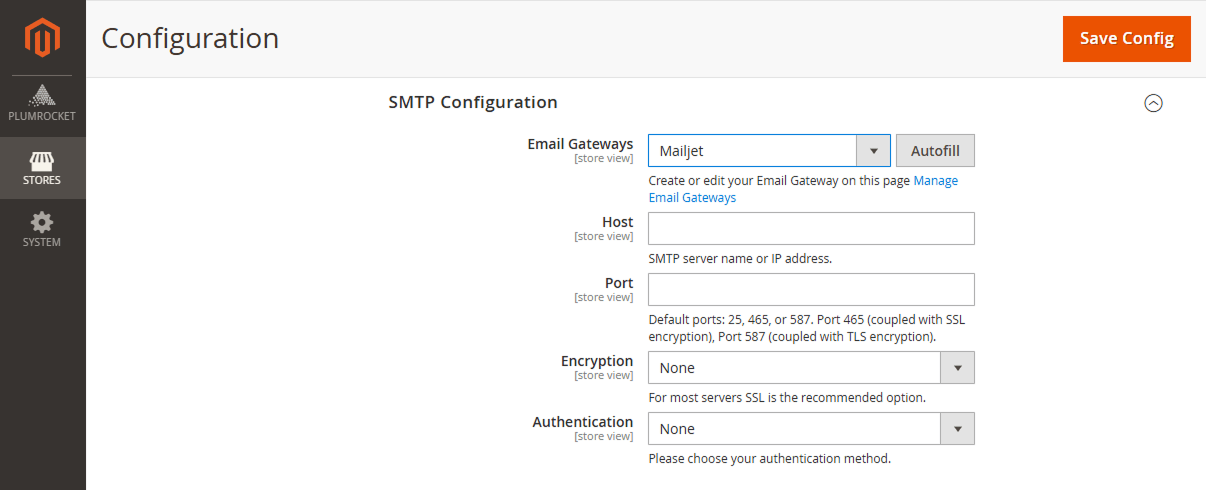
How to Configure SMTP Settings:
- In your Admin Panel, go to Plumrocket → SMTP → Configuration.
- Set Enable to Yes to activate the extension.
- Choose your email service provider from the dropdown.
The extension supports over 40 providers — including Gmail, Outlook, Amazon SES, SendGrid, Mailgun, and many others — so select whichever fits your setup best. Once selected, the host and port fields will pre-fill automatically based on the provider you choose. - Fill in any remaining fields: username and password.
- Click Save Config.
Step 3: Test Email Configuration
Before relying on the extension for live store emails, always send a test to confirm everything is working correctly.
- In the same configuration page, locate the Send Test Email section.
- Enter a recipient email address you have access to.
- Click Send Test Email and check the inbox of the address you entered.
If the email arrives, your SMTP configuration is working correctly.
Monitoring Emails with the SMTP Email Log
One of the most useful features of a dedicated extension is the email log.
Navigate to the SMTP Email Log section within the extension’s admin area to see a full record of every email sent from your store. For each entry you can view the recipient address, subject line, sending status, timestamp, and the full email content. This makes it straightforward to diagnose delivery issues, confirm that order confirmations and notifications are going out correctly, and resend any emails that failed to deliver.
Frequently Asked Questions (FAQ)
Do I need an SMTP extension if I’m using Magento 2.4.6 or newer?
No. Since Magento 2.4.6, native SMTP configuration is available directly in the admin panel under Mail Sending Settings.
Can I use Gmail as my SMTP provider?
Yes, Gmail can be used as an SMTP provider. However, it is generally better suited for low-volume stores. For higher sending volumes, dedicated transactional email services such as SendGrid, Amazon SES, or Mailgun.
Where do I configure SPF, DKIM, and DMARC records?
These records are not configured inside Magento. They must be added in your domain’s DNS settings through:
- Your hosting provider
- Your domain registrar
- Your DNS management service (such as Cloudflare)
Your SMTP provider will generate the exact DNS values required.
